Zebra
The ‘zebra’ setting toggles the appearance of zebra on the touchscreen, as well as setting the
zebra level for all video outputs.
Zebra displays diagonal lines over areas of your image that exceed a set exposure level.
Forexample, setting zebra to 100% shows which areas are completely overexposed. This is
useful for achieving optimum exposure in fixed lighting conditions.
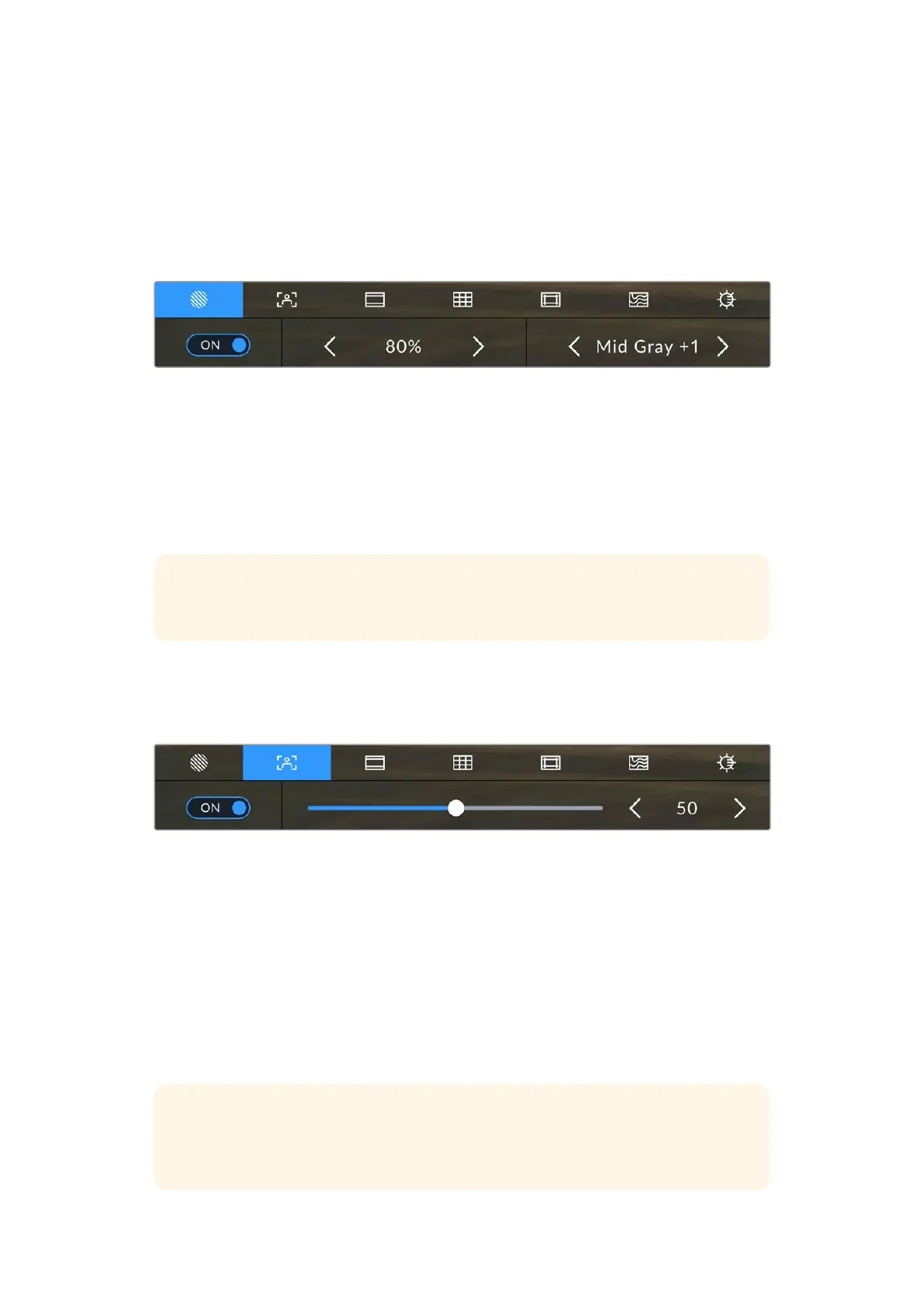
Tap the ‘zebra’ icon to access your URSACine’s zebra settings
To toggle zebra for the LCD touchscreen, tap the switch icon in the bottom left of the screen
while in the ‘zebra’ tab. Tap the left and right arrows to decrease or increase the zebra
percentage value. The second zebra setting lets you turn mid gray zebra zones on or off, or mid
gray plus 1 stop.
For information on enabling zebra on your camera’s video outputs, see the ‘monitor settings’
section in this manual.
TIP If you’re shooting in variable light such as outdoors on a partly overcast day,
setting your zebra level lower than 100 can warn you of potential overexposure.
Focus Assist
The ‘focus assist’ setting toggles the appearance of focus assist on the LCD touchscreen,
aswell as setting the level of focus assistance for all outputs on your URSA Cine.
Tap the ‘focus assist’ icon to access your URSA Cine’s focus assist settings
To toggle focus assistance for the LCD touchscreen, tap the switch icon in the bottom left of
thescreen while in the ‘focus assist’ tab. To set the level of focus assistance for all outputs on
your URSA Cine, drag the slider left to decrease the sensitivity and right to increase.
The optimum level of focus assistance varies shot by shot. When focusing on actors, for
example, a higher level of focus assistance can help resolve edge detail in faces. A shot of
foliage or brickwork, on the other hand, may show distracting amounts of focus information
athigher settings.
For information on enabling focus assist on your camera’s video outputs, see the ‘monitor
settings’ section in this manual.
TIP Your URSA Cine has two focus assist modes. You can switch between ‘peaking’
and ‘colored lines’ focus assistance in the ‘monitor’ settings menu. Formore
information, see the ‘monitor settings’ section in this manual.
80Touchscreen Controls



 To Next Page