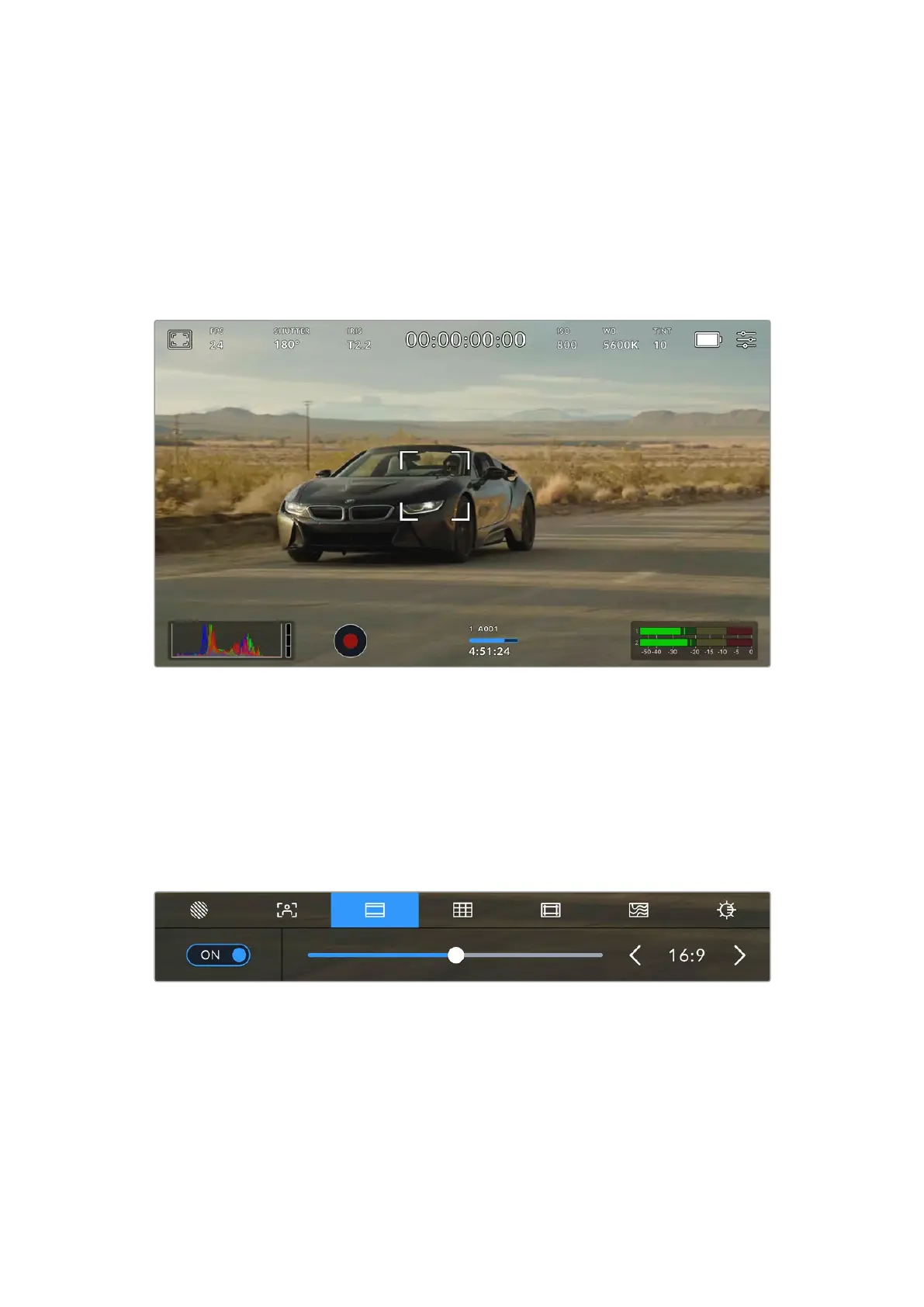
Touch to Focus
Focus compatible lenses in any region of the image by pressing the LCD screen for a moment
where you want to focus. The camera will focus your lens in the chosen location. If the head
up display is obscuring the area you wish to focus, simply swipe up or down to move it out
of the way.
After you have set the location for auto focus, pressing the focus button on the camera will
trigger auto focus in that specified region. Double pressing the ‘focus’ button will reset the
focus point to the center of the screen.
URSA Cine touchscreen with touch to focus
Frame Guides
The ‘frame guide’ setting toggles the appearance of frame guides on the LCD touchscreen.
Youcan also choose from a range of frame guide options for all outputs on your URSA Cine.
Frame guides include aspect ratios for various cinema, television and online standards. These
guides can also be used as safe area guides to assist with framing your shot where you know
the shot will be stabilized in post production, which can crop the edges of the image. They can
also be used to indicate a specific crop.
Tap the ‘frame guides’ icon to access your URSA Cine’s frame guide settings
To enable or disable frame guides on your URSA Cine’s LCD touchscreen, tap the switch icon at
the bottom left of the frame guides settings.
Choose the frame guide you want to use by dragging the slider left and right, or tapping the
arrow buttons on either side of the currently selected aspect ratio.
81Touchscreen Controls


 To Next Page