Smartphone Setup
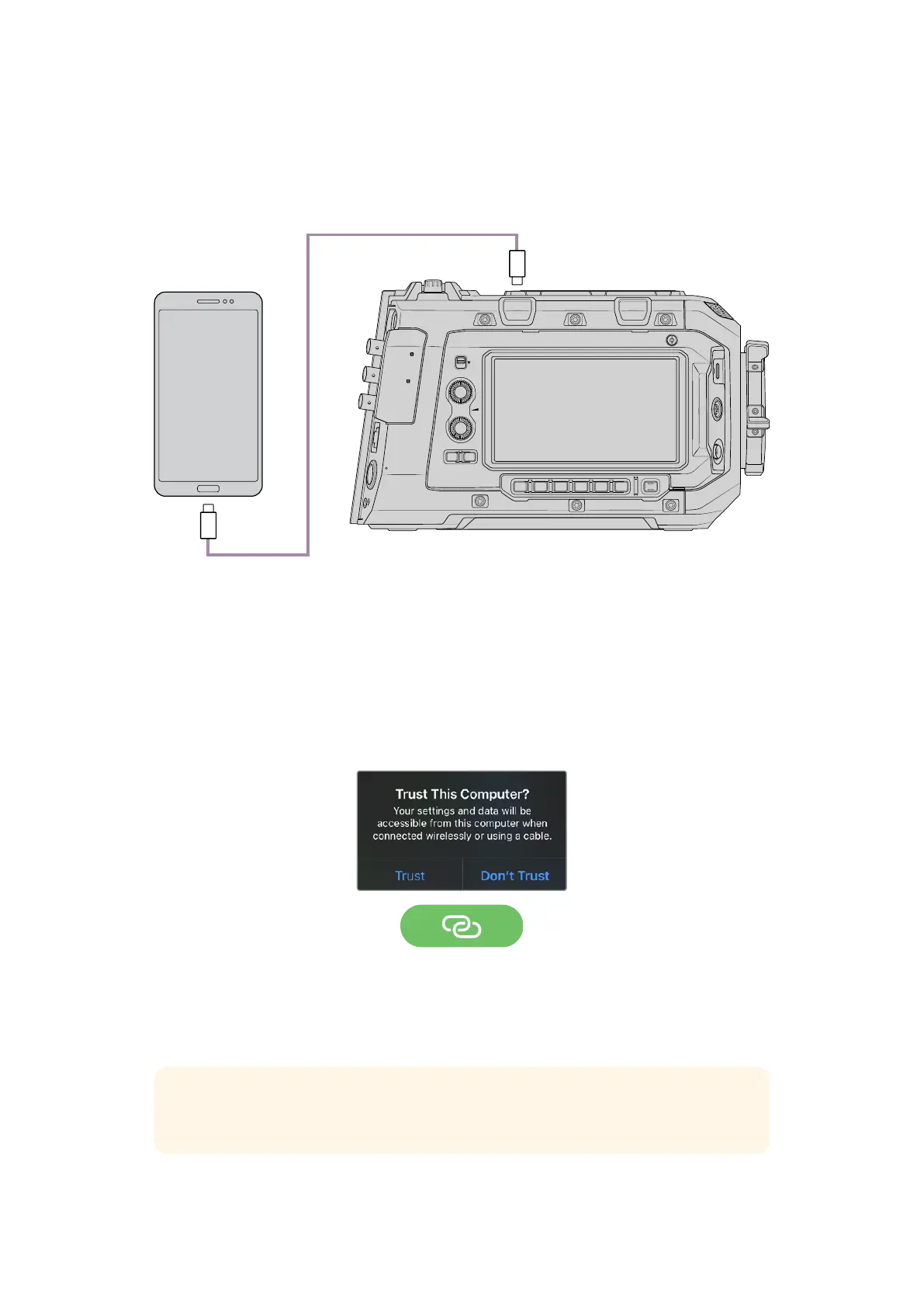
Connect a smartphone to your camera’s USB-C expansion port on the top rear using a USB-C
cable. This connection lets you set up fast and be streaming to the world in any location where
your smartphone has a 4G or 5G cellular connection.
12G SDI OUT
CH1/3
LOCK
EXT
RS
VIEWFINDER
CH1/2 CH3/4
DISP LENS SLATE AUD
STRM
…
REC
CH2/4
USB
12G SDI OUT
REF IN/ TC IN
10G
12V/24V
USB
Smartphone Settings
The first step to setting up your smartphone for internet streaming is to make sure it has hotspot
activated.
1 On your iOS device open settings>personal hotspot and make sure the ‘allow others to join’
option is on.
2 You will see a message appear asking whether to trust the connected computer. Select
‘trust’ and a green tethering icon will be visible on the screen. This is how you can verify
the connection is working.
Your smartphone’s clock will always appear within a green background icon while tethering
is enabled.
For Android devices, swipe the screen to display the quick menu. Press and hold the hotspot
icon and then turn on USB tethering.
TIP Once you have finished streaming, we recommend turning off tethering on your
phone to save your phone’s battery life.
142Settings



 To Next Page