When formatting recording media using the storage manager, your URSA cine will use the
Camera ID from the slate and reel number to name the card or media module. Your camera
automatically increments reel numbers each time you format. If you need to manually enter
a specific reel number, tap the ‘pencil icon’ and enter the number you want to format the
module as.
When you start a new project, reel numbering will reset to 1 when you tap on ‘reset data’ in the
‘project’ tab of the slate.
Blackmagic Media Dock
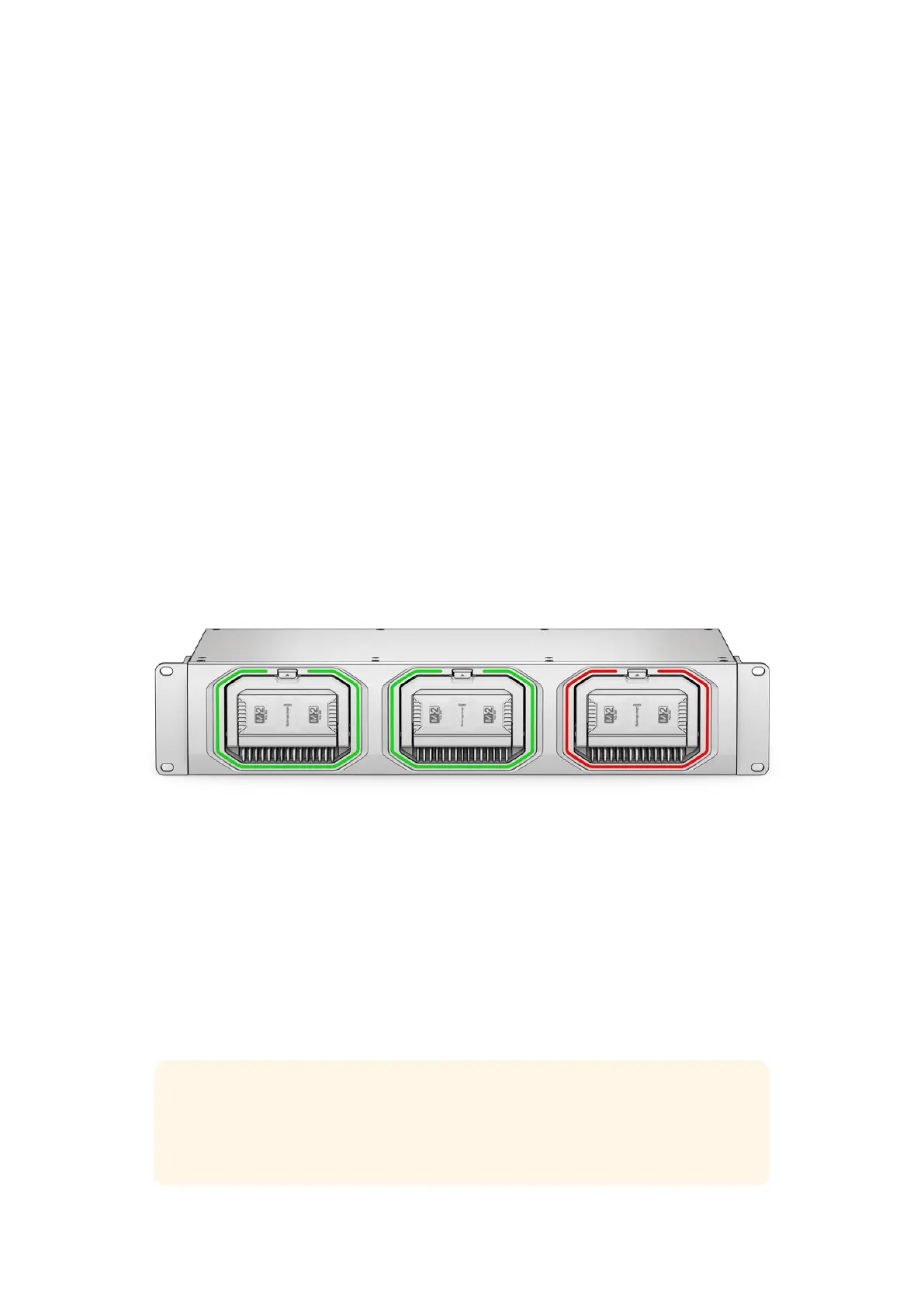
After shooting clips, your media module can be unloaded from your URSA Cine and loaded
into an optional Blackmagic Media Dock for editing, grading, file back up, and cloud sync. The
module is loaded into a module bay in exactly the same way as loading and unloading to and
from your camera.
Blackmagic Media Dock lets you share the data stored on Blackmagic Media Modules over your
local or global network so editors can start editing straight away. You can transfer files to cloud
storage or even use the modules themselves as removable edit storage.
Just like Blackmagic Cloud Store, the media dock handles many simultaneous users. With live
sync, files can be distributed between multiple users locally or globally for very fast file access,
even on lower cost Internet connections. Blackmagic Media Dock includes four 10G Ethernet
connections that can be used as an Ethernet switch, which means the media dock can serve as
your network backbone.
Connecting Power
Connect power to any of Blackmagic Media Dock’s power inputs using a standard IEC power
cable. A second power input is provided for redundancy.
Connecting to your Network
After plugging in power, connect to your network or computer via Ethernet. We recommend
using CAT 6A Class E or F network cables for longer cable runs. If you have a 1G Ethernet
switch, a standard network cable is sufficient. Blackmagic Media Dock is set to use DHCP by
default. This means the unit will be seen on your network and will be assigned an IP address
automatically.
TIP If your computer does not have a 10G Ethernet port but has a Thunderbolt 3 port,
you can connect your Blackmagic Media Dock using a Thunderbolt 3 to 10G Ethernet
adapter. This means you will get faster transfer speeds than you would via a 1G
Ethernet port.
45Blackmagic Media Dock



 To Next Page