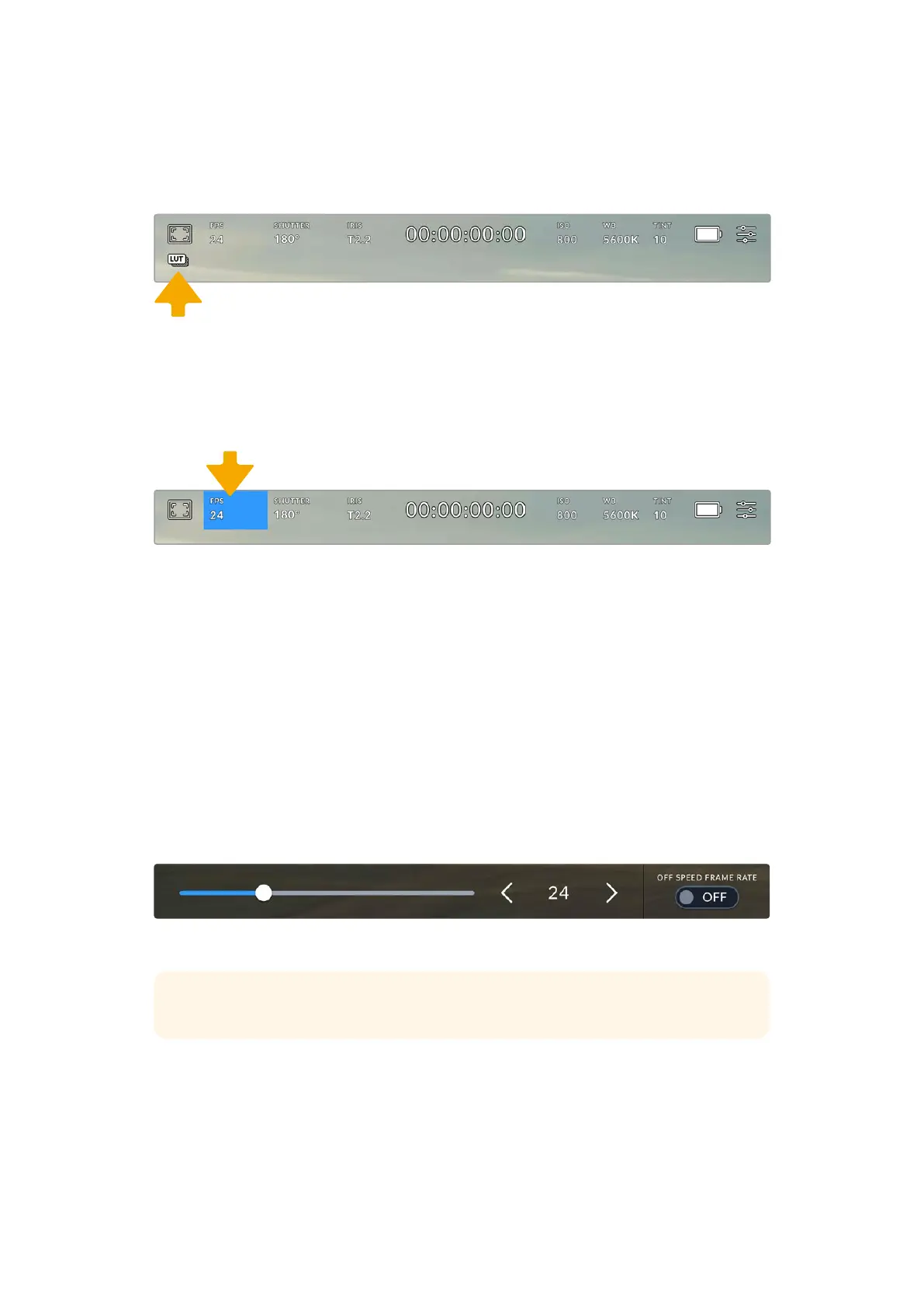
LUT Indicator
The LUT icon will be visible on the LCD, plus video outputs when ‘status text’ is switched on
and you have a LUT applied to that output.
The LUT icon lets you know that you have a LUT applied to the image
Frames Per Second
The ‘FPS’ indicator displays your currently selected frames per second.
Tap your URSA Cine’s frames per second indicator to access frame rate settings
Tapping the ‘FPS’ indicator lets you change your camera’s sensor and project frame rates via
amenu at the bottom of your LCD touchscreen.
Project Frame Rate
The project frame rate is URSA Cine’s recording format frame rate and provides a selection of
common frame rates used in the film and television industry. This frame rate is normally set to
match your playback speed used in your post production workflow.
Your Blackmagic URSA Cine has 8 project frame rate settings including 23.98, 24, 25, 29.97, 30,
50, 59.94 and 60 frames per second.
To adjust your camera’s project frame rate while in the ‘FPS’ menu, tap the left or right arrows
next to the current frame rate at the bottom left of your touchscreen. Alternatively, youcan drag
the slider left or right.
Tap the arrows on either side of the project frame rate or move the slider to makeadjustments
TIP The project frame rate also sets the frame rate of the video outputs.
88Touchscreen Controls



 To Next Page