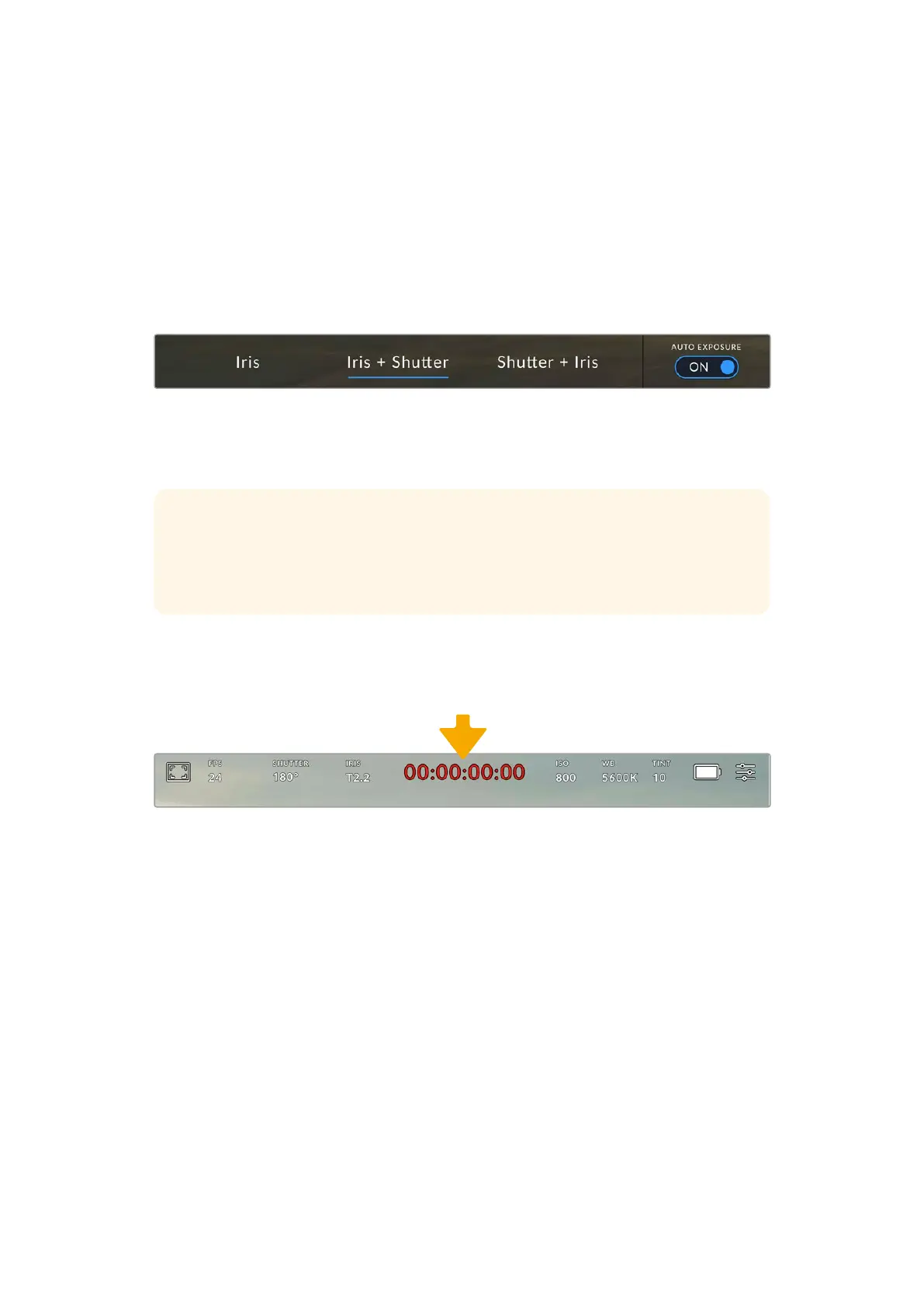
Iris + Shutter
Maintains the correct exposure levels by adjusting the aperture, then the shutter value. If the
maximum or minimum available aperture is reached and exposure still cannot be maintained,
URSA Cine will begin adjusting the shutter value to keep exposure constant.
Shutter + Iris
Maintains the correct exposure levels by adjusting the shutter, then the aperture. If the
maximum or minimum available shutter value is reached and exposure still cannot be
maintained, URSA Cine will begin adjusting the aperture to keep exposure constant.
While in the iris menu, tap ‘auto exposure’ to access iris based auto exposure modes
When an auto exposure mode that effects the iris is enabled, a small ‘A’ will appear next to the
iris indicator at the top of your URSA Cine touchscreen.
TIP Automatic exposure works smoothly with compatible PL lenses that are designed
for video or film production. EF lenses may produce noticeable ‘steps’ in exposure
when changing aperture. For this reason, werecommend using only ‘shutter’ auto
exposure mode if shooting with EF lenses.
Duration Display
At the top of your URSA Cine’s LCD touchscreen, you’ll see your camera’s duration display.
The duration display will turn red while recording
The duration display provides a timecode counter for checking the duration of your clips and
monitoring timecode during recording and playback. The counter displays a time sequence
showing Hours:Minutes:Seconds:Frames and will progress through the sequence as you record
or play back clips. The timecode will turn red during recording.
The displayed duration of each clip starts from 00:00:00:00 for each clip. The clip duration
of the current, or last recorded, clip is displayed on the touchscreen. Time of day timecode is
embedded into clips for easier post production.
To see the timecode, simply tap the duration display. Tap the duration display again to return
toclip duration.
93Touchscreen Controls



 To Next Page