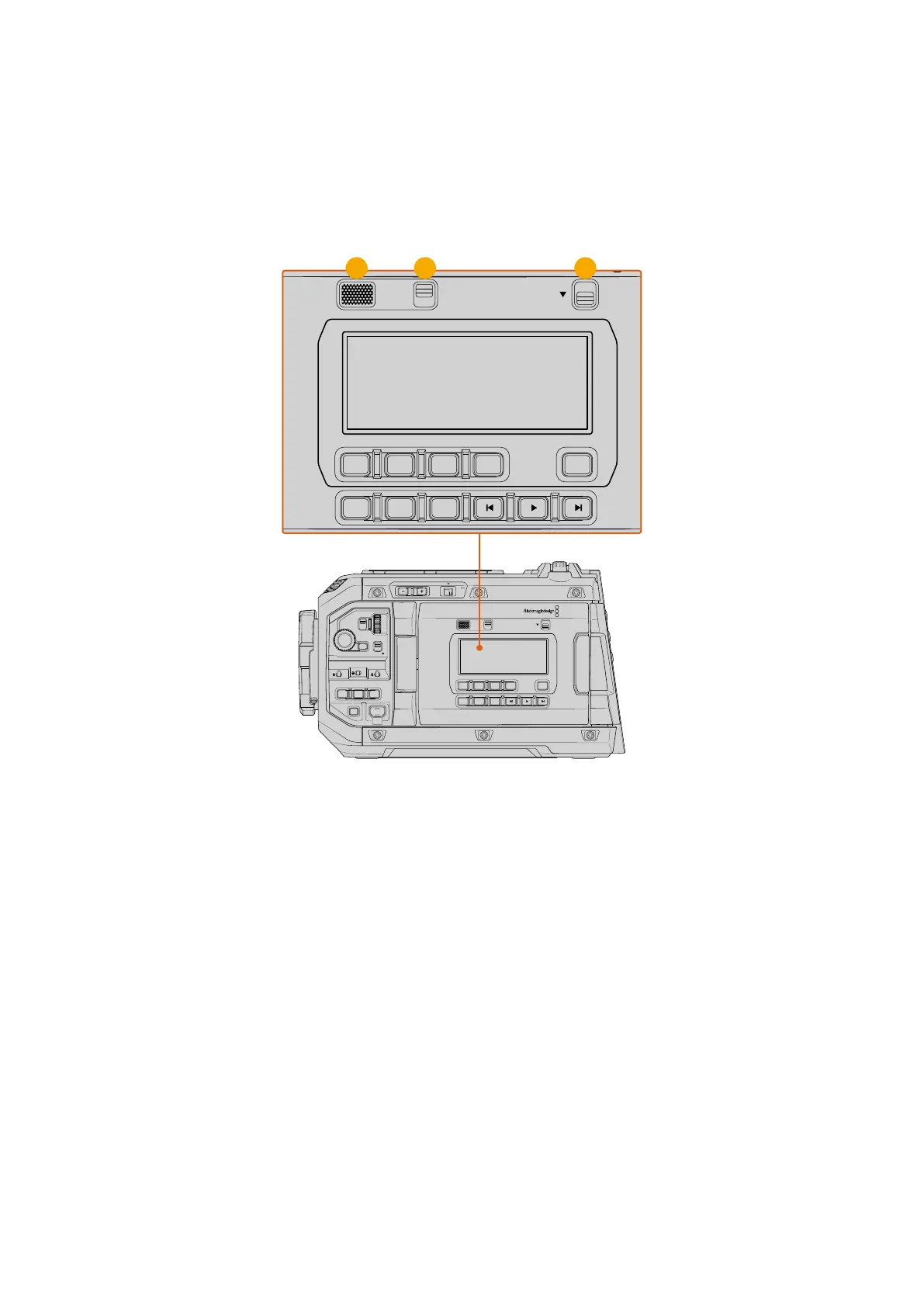
Ergonomic Control Panel
On the outside of your URSA Cine’s touchscreen monitor, you’ll find an LCD status monitor and
a variety of monitoring, playback, assist and setup controls. This panel lets you see all of your
camera’s status information at a glance. Automatic focus can be set using compatible EF lenses
and the transport controls let you playback clips.
LOCKBACKMENU
H PHONE
MONITOR
IRIS
SHUTTERISO / GAIN WHITE BAL
MENU
REC
F1 F2 HFR
OFF ON
LOCK
CH1/2
CH3/4
IRIS FOCUS
PGM
RESET
HOLD TC BRGT
STILL
LOCKBACKMENU
H PHONE
MONITOR
IRIS
SHUTTERISO / GAIN WHITE BAL
MENU
REC
F1 F2 HFR
OFF ON
LOCK
CH1/2
CH3/4
IRIS FOCUS
PGM
RESET
HOLD TC BRGT
STILL
1 2 3
URSA Cine ergonomic control panel
1 Monitor Speaker
The small speaker built into the outside control panel lets you monitor audio when
inplayback. It is located where your ear would normally be when shooting with the camera
on your shoulder.
To adjust the volume of the speaker, simply rotate the settings wheel as described earlier in
the ‘forward control panel’ chapter of this section.
2 Monitor Channel Select
Your URSA Cine supports two channels of audio.
3 Lock
Use this switch to lock all of the settings on your URSA Cine’s ergonomic control panel.
Theonly controls that will remain active while the lock switch is ‘on’ arethe monitor channel
select switches.
68Control Buttons



 To Next Page