Uploading Clips to Blackmagic Cloud
Blackmagic Cloud is a collaboration platform that lets you work together as a team
and share DaVinci Resolve projects worldwide.
When you sign into Blackmagic Cloud on your URSA Cine you can choose to upload
clips directly to a DaVinci Resolve Cloud project or to manually select the clips you want to
upload from your camera’s media pool. Alternatively clips can also be uploaded straight to your
own private Blackmagic Cloud storage directly without syncing to a Resolve Cloud project.
You can choose to upload proxy files or both proxy and original files in your camera’s setup
settings on page 2 of the setup menu. Refer to the ‘setup settings’ section for more information.
Logging into Blackmagic Cloud
Before logging into Blackmagic Cloud on your URSA Cine, you will need to connect your
camera to the Internet.
Plug into a network with Internet access via Ethernet, or connect your smartphone to your
URSACine’s USB-C port. When connecting using your smartphone, enable your phone’s
tethering or hotspot feature. Once connected to the Internet, the Blackmagic Cloud icon at the
top of your camera’s touchscreen will turn blue.
To log into your Blackmagic Cloud account:
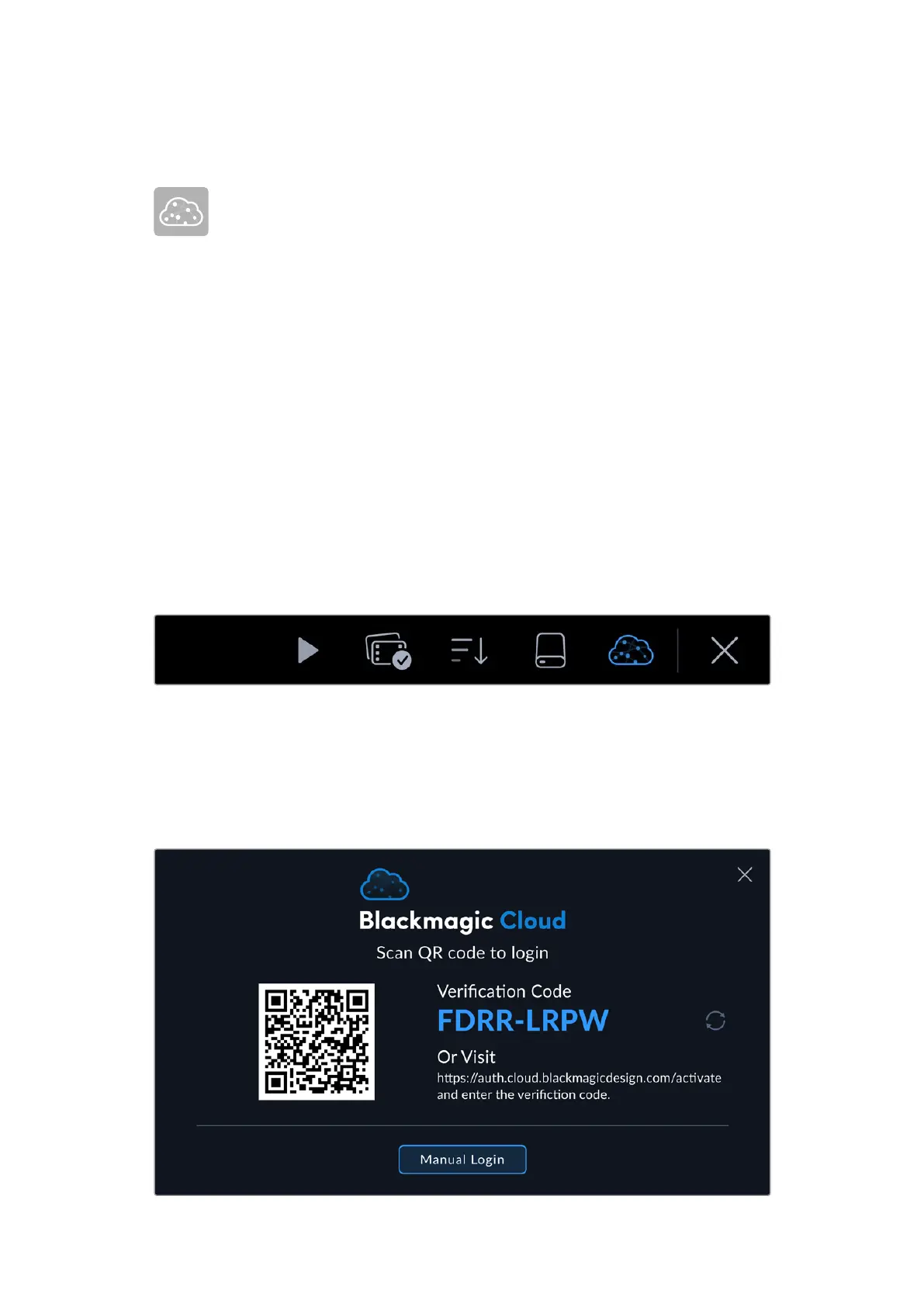
1 Tap the Blackmagic Cloud icon in the controls menu.
2 Use your smartphone’s camera to scan the QR code on your URSA Cine’s touchscreen and
follow the prompts on your phone to sign your camera into your Blackmagic Cloud account.
Alternatively, you can visit the web address displayed on your camera’s touchscreen display
and enter the eight digit code.
To enter your login details manually, tap ‘manual login’ and use the touchscreen keyboard
to enter your email address and password.
32Uploading Clips to Blackmagic Cloud



 To Next Page