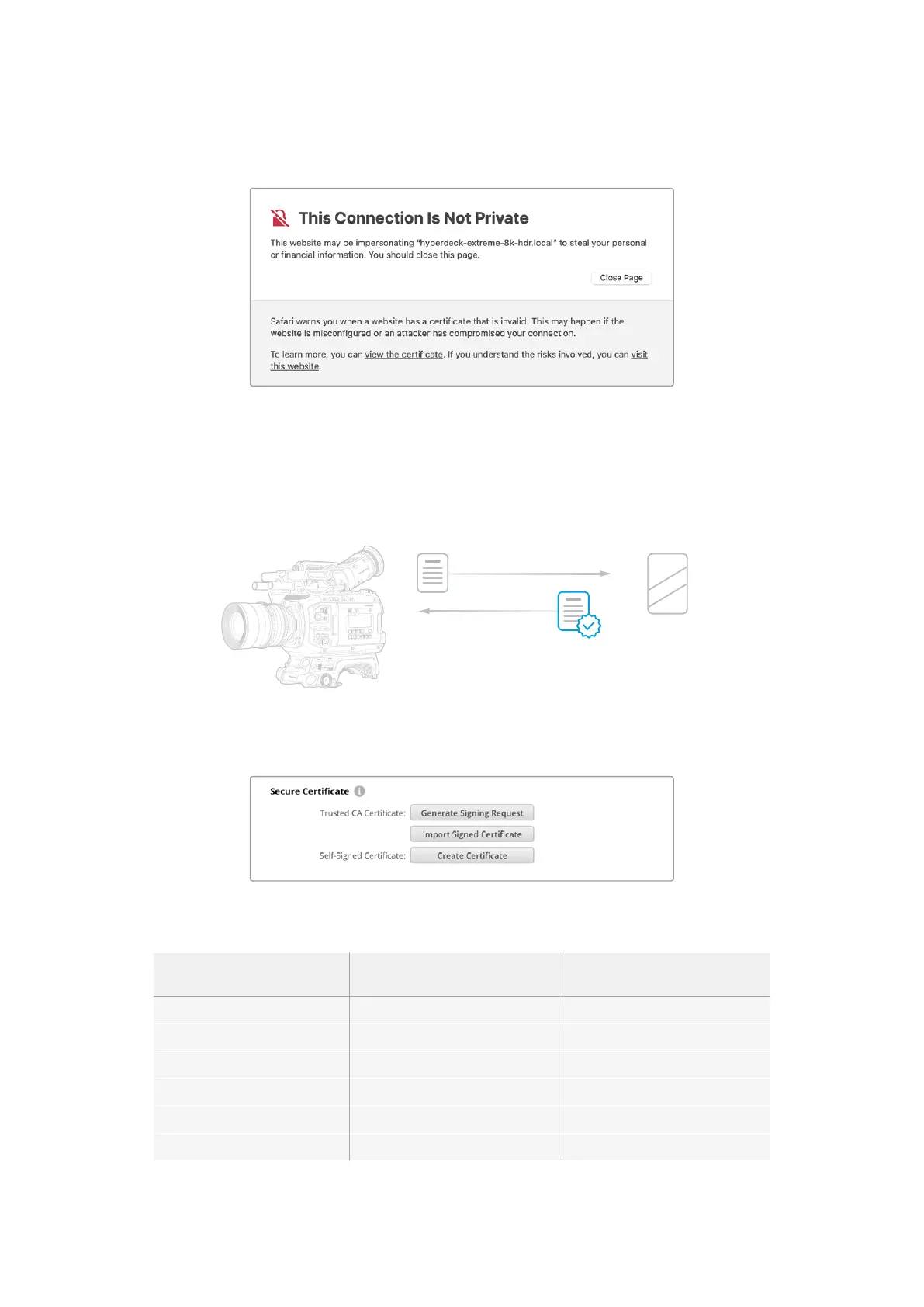
you confirm you understand the risks, however other web browsers may prevent you from
proceeding at all.
To ensure access is granted to any web browser, you will need to use a signed certificate.
Toobtain a signed certificate, you first need to generate a certificate signing request, or CSR,
using Blackmagic Camera Setup. This signing request is then sent to a certificate authority, also
known as a CA, or your IT department to be signed. Once completed, a signed certificate with a
.cert, .crt or .pem file extension will be returned which you can import into your camera.
URSA Cine 12K LF Certif icate Authority
–
+
RESET
ISO / GAIN
MENU
SHUTTER
WHITE BAL
MENU
H PHONE
OFF
ON
MONITOR
IRIS
BACK
LOCK
F2
HFR
IRIS
FOCUS
PGM
HOLD
TC
BRGT
STILL
LOCK
CH1/2
CH3/4
F1
ZOOM
EXP
VF2
VF3
VF1
REC
4
3
2
1
0
5
6
7
8
To generate the certificate signing request CSR:
1 Click on the ‘generate signing request’ button.
2 A window will appear prompting you to enter a common name and subject alternative
namefor your camera. Adjust any other details as required using the table below.
Information Description Example
Common Name The domain name you will use camera.melbourne.com
Subject Alternative Name An alternate domain name camera.melbourne.net
Country Country for your organization AU
State Province, region, county or state Victoria
Location Town, city, village etc. name South Melbourne
Organization Name Name of your organization Blackmagic Design
3 Once you have filled in the certificate details, press ‘generate’.
180Setup Settings



 To Next Page