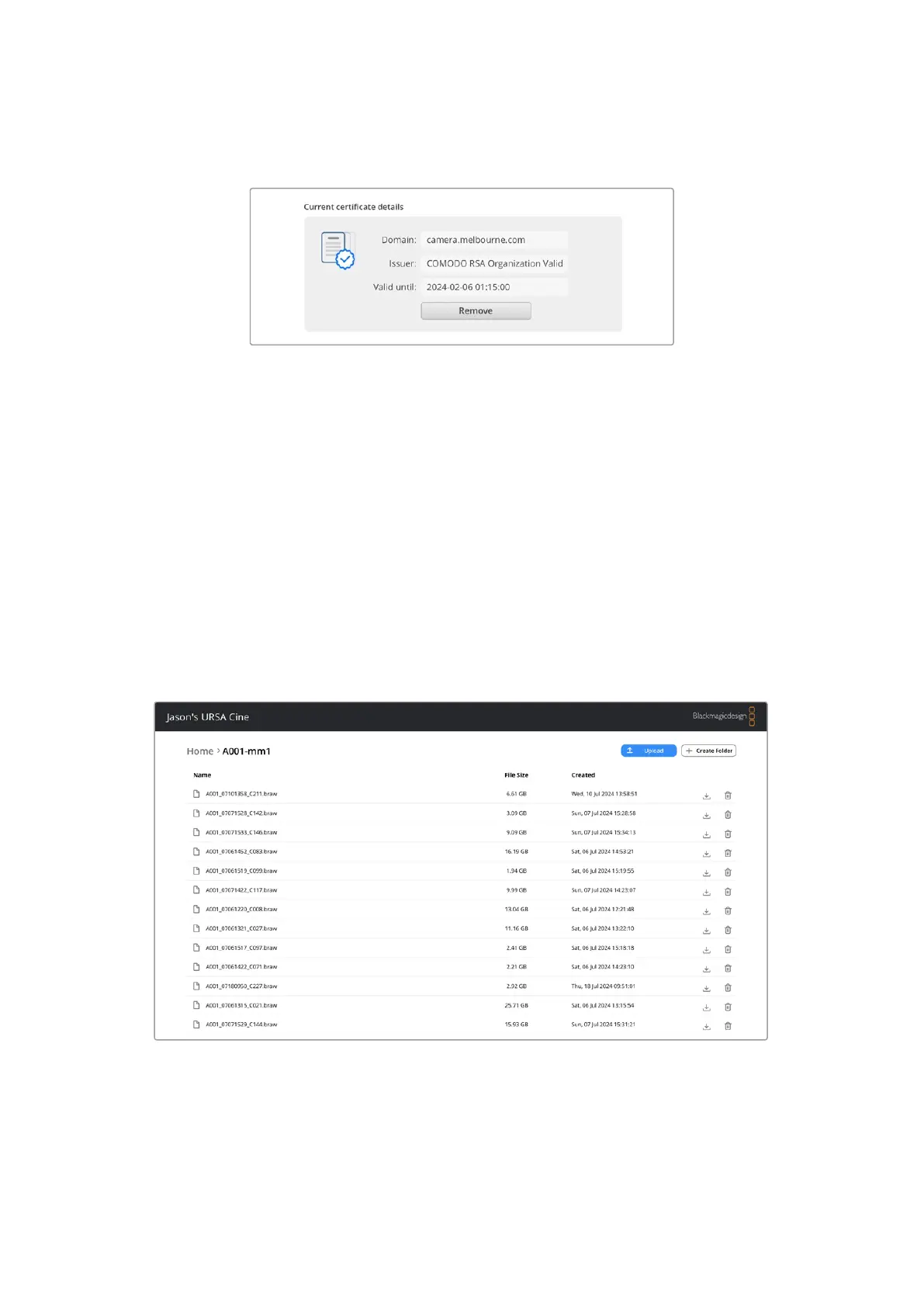
3 If you have imported a certificate signed by a CA or IT department, copy and paste the
address in the domain field for the current certificate.
Copy the domain address and paste into a browser
4 Open your web browser and paste the address into a new window. If you have enabled
access with security only you will be prompted to enter the username and password set in
Camera Setup.
When using a self signed certificate, a browser warning will appear regarding the privacy of
the connection. This means a trusted signed certificate has not been imported via the Camera
Setup utility
To continue without a valid and trusted certificate, follow your browser prompts to acknowledge
the risks and proceed to the website.
Transferring Files Using Web Media Manager
When you first open the web media manager browser view you will see a list of the storage
media connected to your camera.
Double click a media folder to reveal the contents.
Click the download button to download files or the trash icon to delete them
To download files, use the arrow icon on the far right. Your browser may prompt you to allow
downloads from the site. Click on ‘allow’. To delete a file, click the trash can icon and a delete
file window will appear. Click ‘delete’ to proceed.
183Transferring Files over a Network



 To Next Page