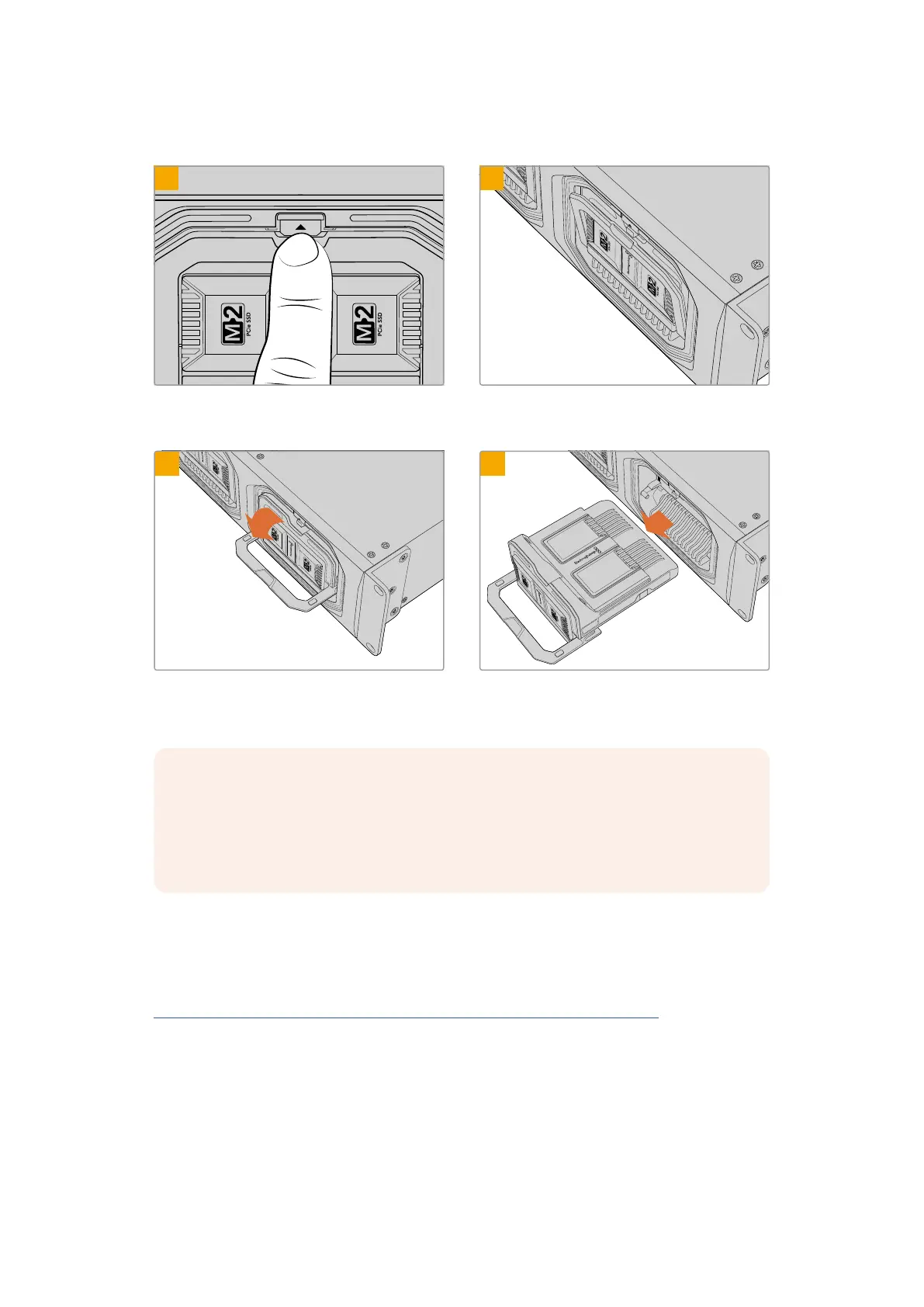
To remove a module:
1
2
Press the module release button above the
module bay.
The module’s handle will open slightly.
3
4
Swing the handle down to eject the module from
theterminal.
With the module released from the terminal, you
can now remove the module from the module bay.
NOTE Before removing a module it is important to make sure the modules are not
writing files. When your media dock is writing files on a module, the status LED
surrounding the module bay will illuminate red. When reading files the LED illuminates
green. Before removing a module, first check the media module status LED is not
illuminated red.
After loading a Blackmagic Media Module, the module will appear in your computer’s
network locations and you can start editing straight away or copy files to other media
locations. If you have already created syncs and back up locations using Blackmagic Cloud
Store Setup, your media dock will automatically upload any new files to them. You can
learn more about creating syncs and back ups in the Blackmagic Cloud Store manual at
https://documents.blackmagicdesign.com/UserManuals/CloudStoreManual.pdf
Accessing Storage
To access Blackmagic Media Modules on a Mac computer:
1 Open Finder and click on ‘network’ in the sidebar menu.
2 Double click on your Blackmagic Media Dock in the list.
3 Now double click on a media module.
47Blackmagic Media Dock



 To Next Page