Fax (D1180/D1170/D1150)
6-13
Sending Fax Documents
Sending Fax Documents
This section describes the settings and procedures for sending fax documents.
Basic Methods for Sending Faxes
This section describes the flow of sending faxes.
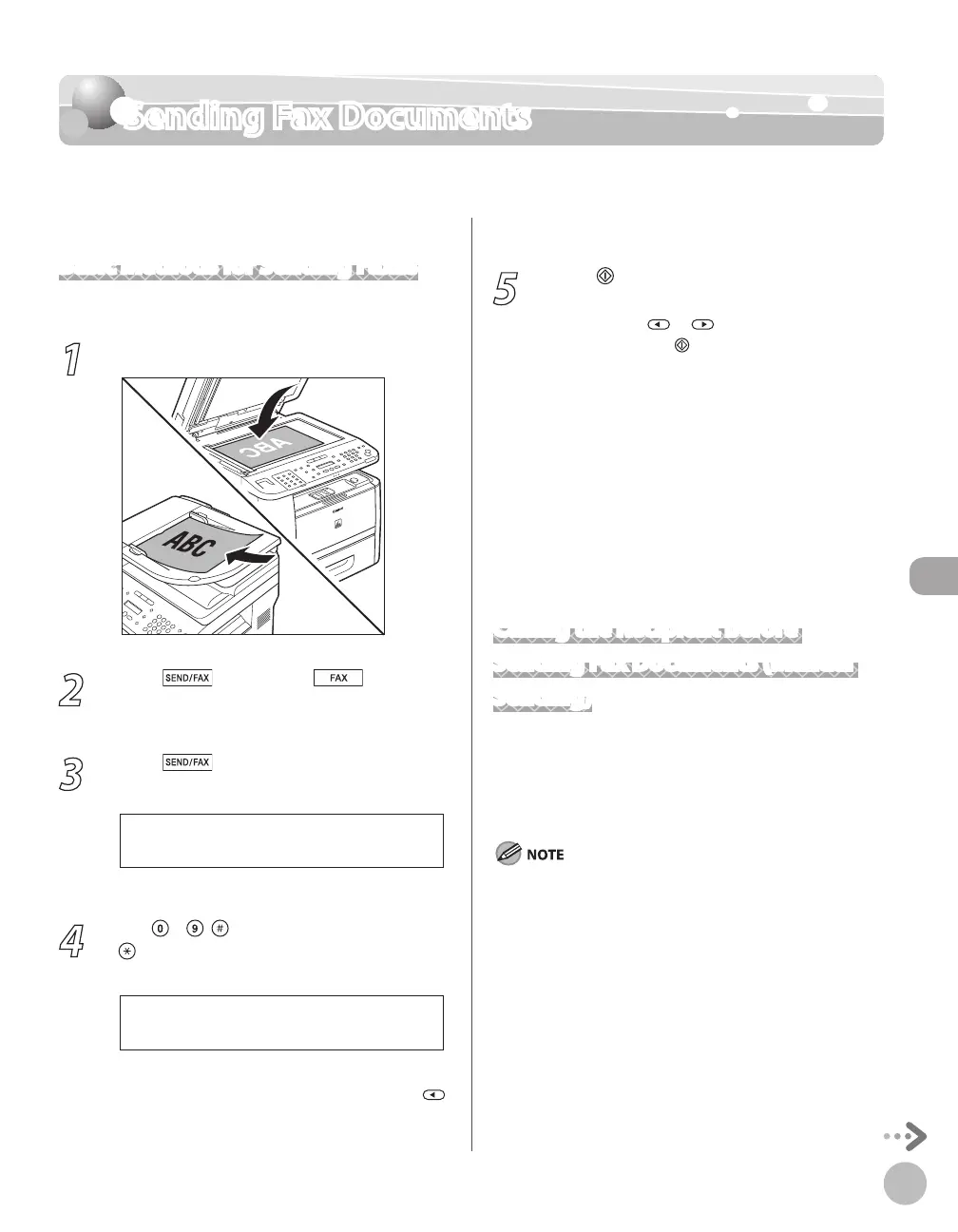
1
Place documents.
2
Press [SEND/FAX]/ [FAX].
The SEND/FAX indicator lights up and the
machine enters the send standby mode.
3
Press [SEND/FAX] repeatedly to
select <FAX>, then press [OK].
For the D1150, skip this step.
4
Use
– , [numeric keys] and
[Tone] to specify the fax number.
T E L = 0 1 2 X X X X X X X
F A X N U M B E R
Ex.
If you enter a wrong number when specifying a
fax number, go back to the wrong digit with
.
5
Press [Start].
When you place the documents on the platen
glass, press
or to select the document
size, then press
[Start] for each document.
When scanning is complete, press [OK] to
start sending.
You can also adjust the following scan
settings as necessary, using the keys on the
operation panel, after specifying the
destination in step 4.
D
ensity: See “Adjusting Density,
” on p. 6-29.
Image Quality: See “Selecting Image Quality,”
on p
. 6-30.
2-Sided: S
ee “2-Sided Documents,
” on p. 6-
31.
Calling the Recipient before
Sending Fax Documents (Manual
Sending)
Use manual sending when you want to talk to the
recipient before sending a document, or if the
recipient does not have a fax machine that can
receive automatically.
You cannot use the platen glass for manual sending.
You cannot use group addresses for manual sending.
You cannot use 2-Sided scanning mode for manual sending.
–
–
•
•
•
–
–
–















 To Next Page