Copying
3-12
Selecting Image Quality
Selecting Image Quality
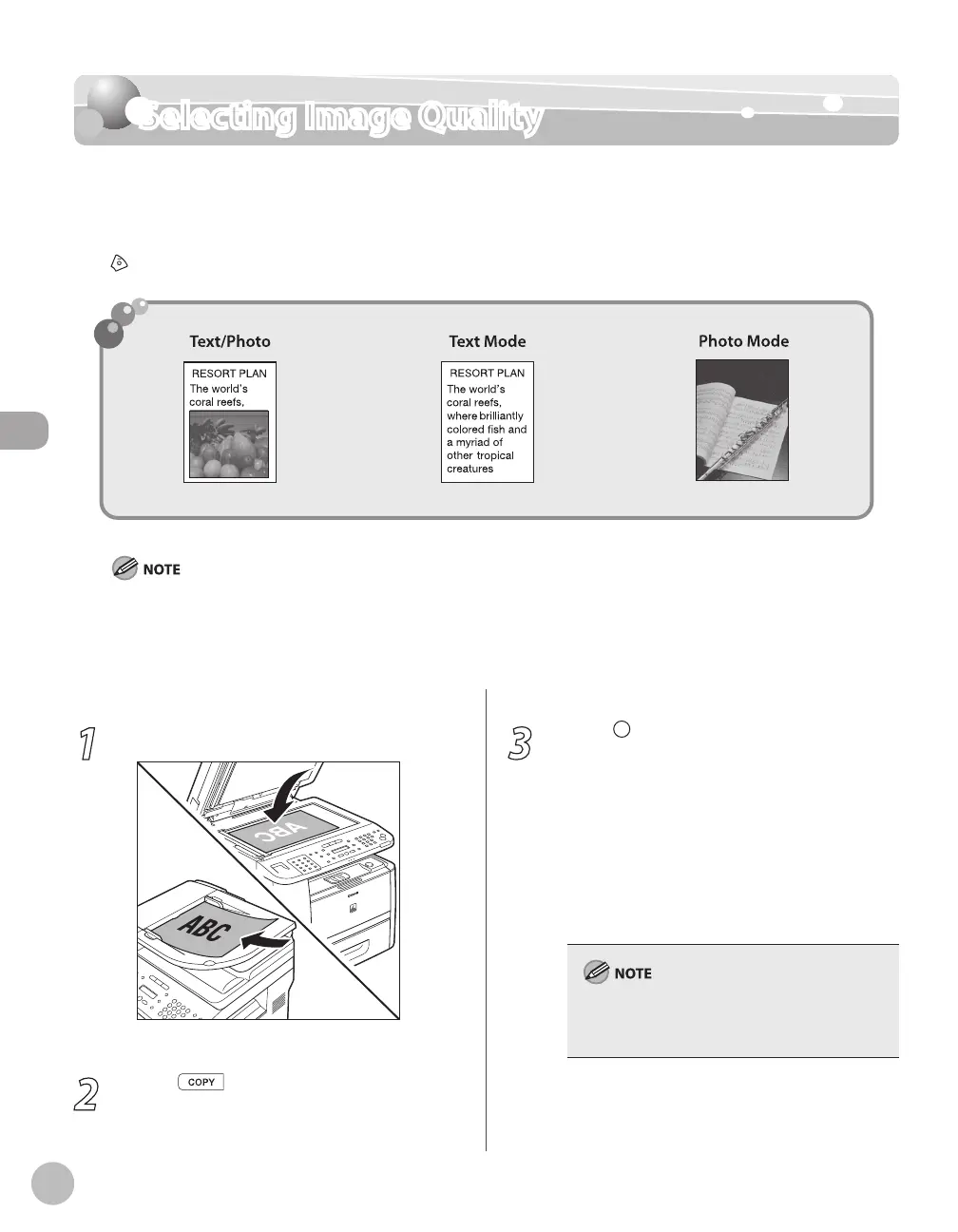
You can adjust the image quality of copies according to the types of documents. A correct
selection is necessary for the optimal reproduction of the colors of the document. These
settings return to the default values if the Auto Clear function is activated or if you press
[Stop/Reset]. The default setting is <TEXT/PHOTO>.
Combinations of these four modes (TEXT/PHOTO, TEXT/PHOTO+, TEXT, and PHOTO) cannot be selected at the same time.
If you select one of these modes, the previously set mode is canceled.
If the document is a transparency, select the document type, then adjust the exposure to the most appropriate level for
the document.
–
–
1
Place documents.
For details, see “Placing Documents,” on p. 2-4.
2
Press [COPY].
3
Press [Image Quality] repeatedly to
select the document type.
<TEXT/PHOTO>: For documents that contain
text and photos.
<TEXT/PHOTO+>: For documents that
contain fine text and photos.
<TEXT>: For text documents.
<PHOTO>: For documents that contain fine
text or photos.
Copy density automatically changes to the
manual mode when <TEXT/PHOTO>, <TEXT/
PHOTO+>, or <PHOTO> is set.
–
–
–
–















 To Next Page