Settings from a PC
10-4
Starting the Remote UI
Starting the Remote UI
To start the Remote UI, follow the procedure described below.
Before you start the Remote UI, perform the followings:
Select <VIEW IP ADDRESS> in <NETWORK SETTINGS> located in <SYSTEM SETTINGS>, and verify the IP address of the
machine. If you do not know the IP address, consult with your network administrator. (See “Confirming IP Address
Settings,” in the e-Manual.)
If the IP address is not displayed, check if the machine is correctly connected to the computer. For details, see “Set Up
Network Connection,” in the e-Manual.
Set <REMOTE UI> to <ON> in <SYSTEM SETTINGS>. (See “Restricting the Remote UI,” in the e-Manual.)
–
–
–
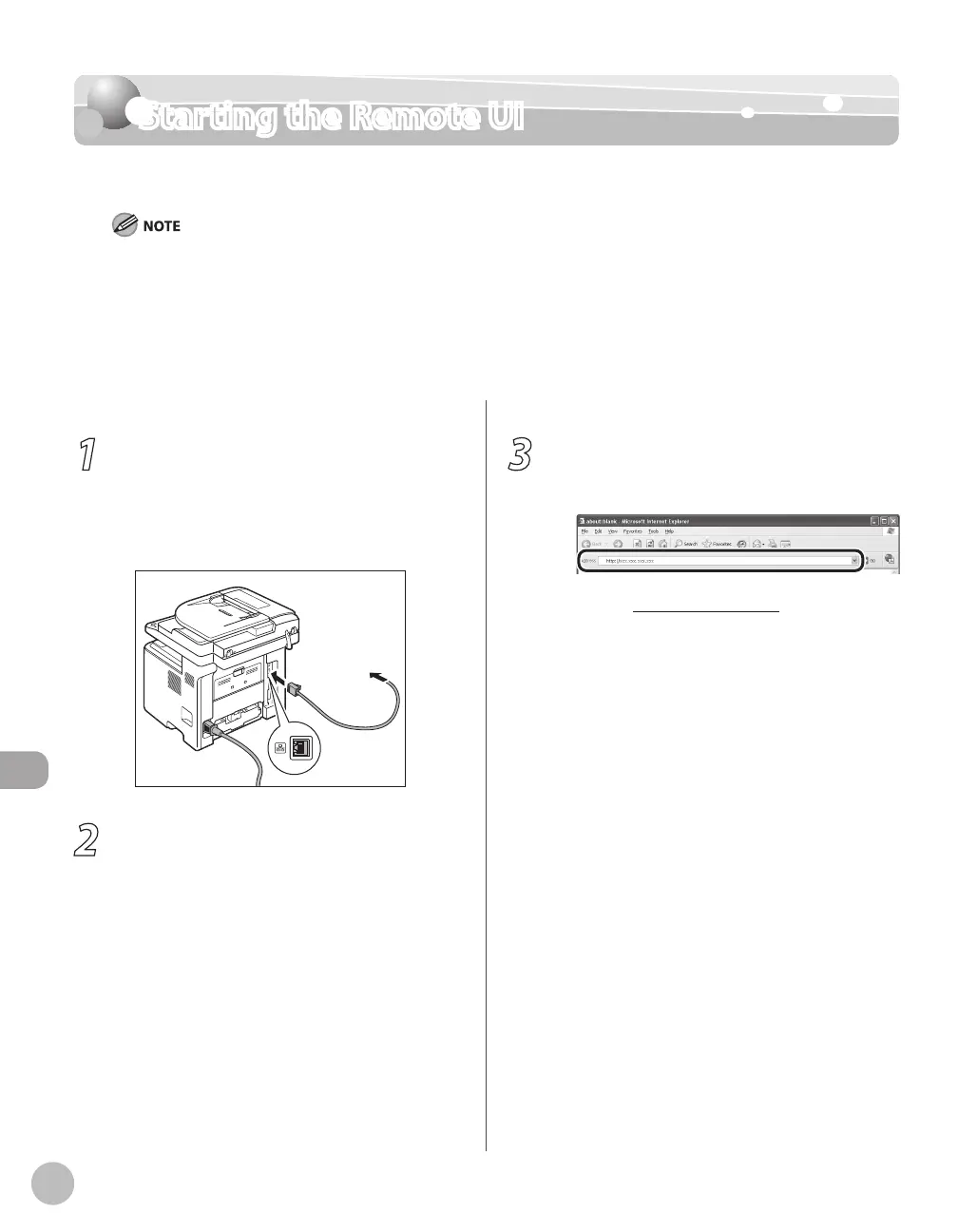
1
Prepare the Network.
Set up the machine for use in a network, then
connect the machine and the computer to your
network router or a hub.
For details, see “Set UP Computers and Software,”
in the Starter Guide.
2
Start the web browser.
3
Enter the IP address of the machine in
[Address] or [Location], then press [Enter]
on the keyboard.
Example: http://xxx.xxx.xxx.xxx/
For details on how to check the IP address, see
“Confirming IP Address Settings,” in the e-
Manual.
The Remote UI screen appears.















 To Next Page