Copying
3-5
Canceling Copy Jobs
Canceling Copy Jobs
This section describes how to cancel copy jobs.
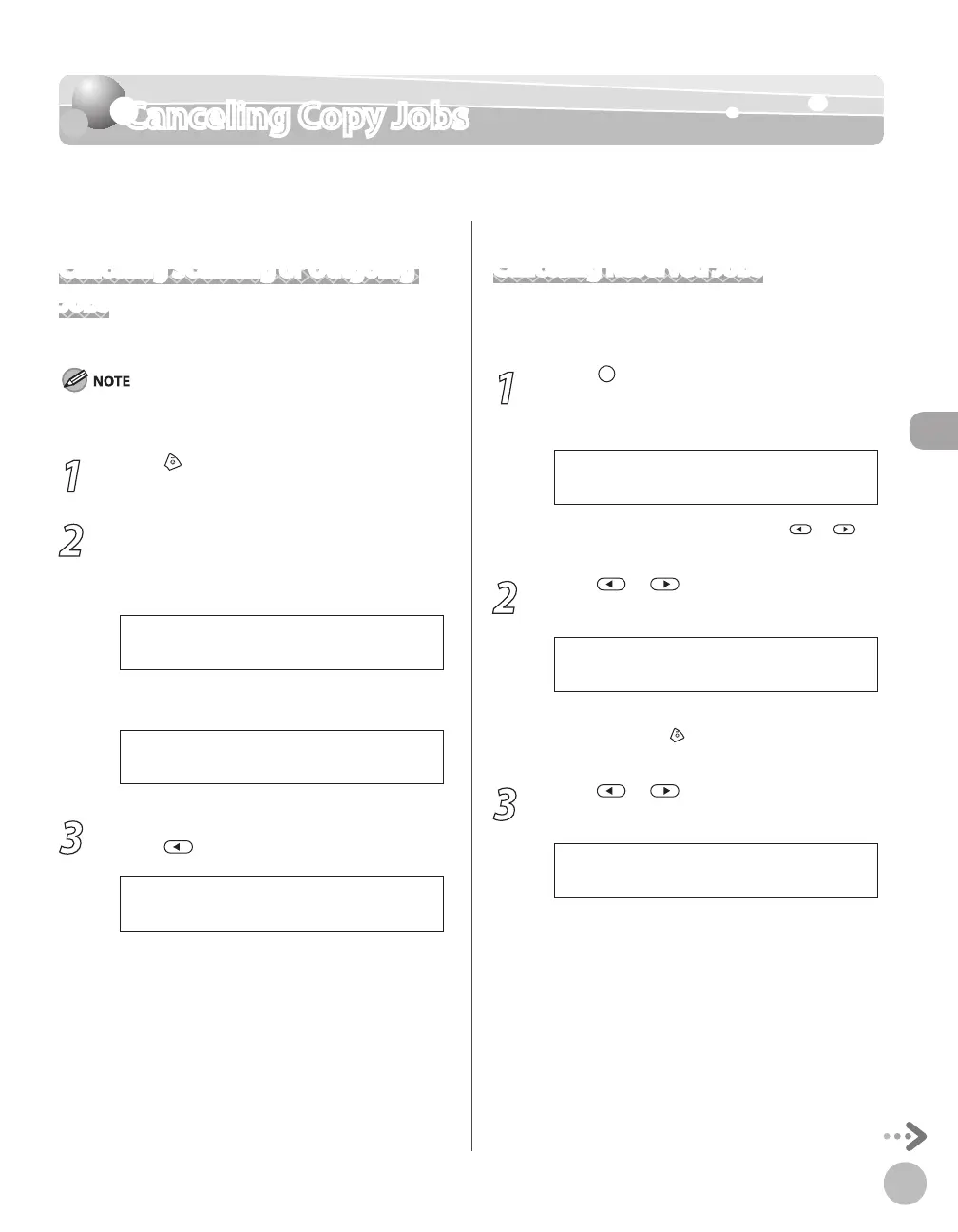
Canceling Scanning or Outgoing
Jobs
You can cancel scanning or outgoing jobs.
If you cancel a copy job during scanning, make sure to remove
the document.
1
Press [Stop/Reset].
2
When the <STOP KEY PRESSED> message
appears, press [OK].
■When scanning using the ADF:
P R E S S O K K E Y
S T O P K E Y P R E S S E D
■When scanning using the platen glass:
S T O P K E Y P R E S S E D
3
When the <CANCEL?> message appears,
press to select <YES>.
< Y E S N O >
C A N C E L ?
The display will return to the standby mode.
Canceling Reserved Jobs
You can cancel a copy job while it is printing or
waiting to be processed.
1
Press [Job Cancel/Status Monitor]
repeatedly to select <COPY STATUS> or
<JOB CANCEL>, then press [OK].
If you select <JOB CANCEL>, press or to
select <COPY>, then press [OK].
2
Press or to scroll through the job
list.
1 X 1 0 / 2 0
0 0 0 1 1 5 : 5 0 P R I N T I N G
If you want to delete a job, go to the next step.
Otherwise, press
[Stop/Reset] to return to the
standby mode.
3
Press or to select the job you
want to delete, then press [OK].
1 X 0 / 5 0
0 0 0 3 1 5 : 5 2
If you select <JOB CANCEL> in step 1, skip to
step 5.















 To Next Page