Fax (D1180/D1170/D1150)
6-45
Printing Received Documents on Both Sides of Paper
Printing Received Documents on Both Sides
of Paper
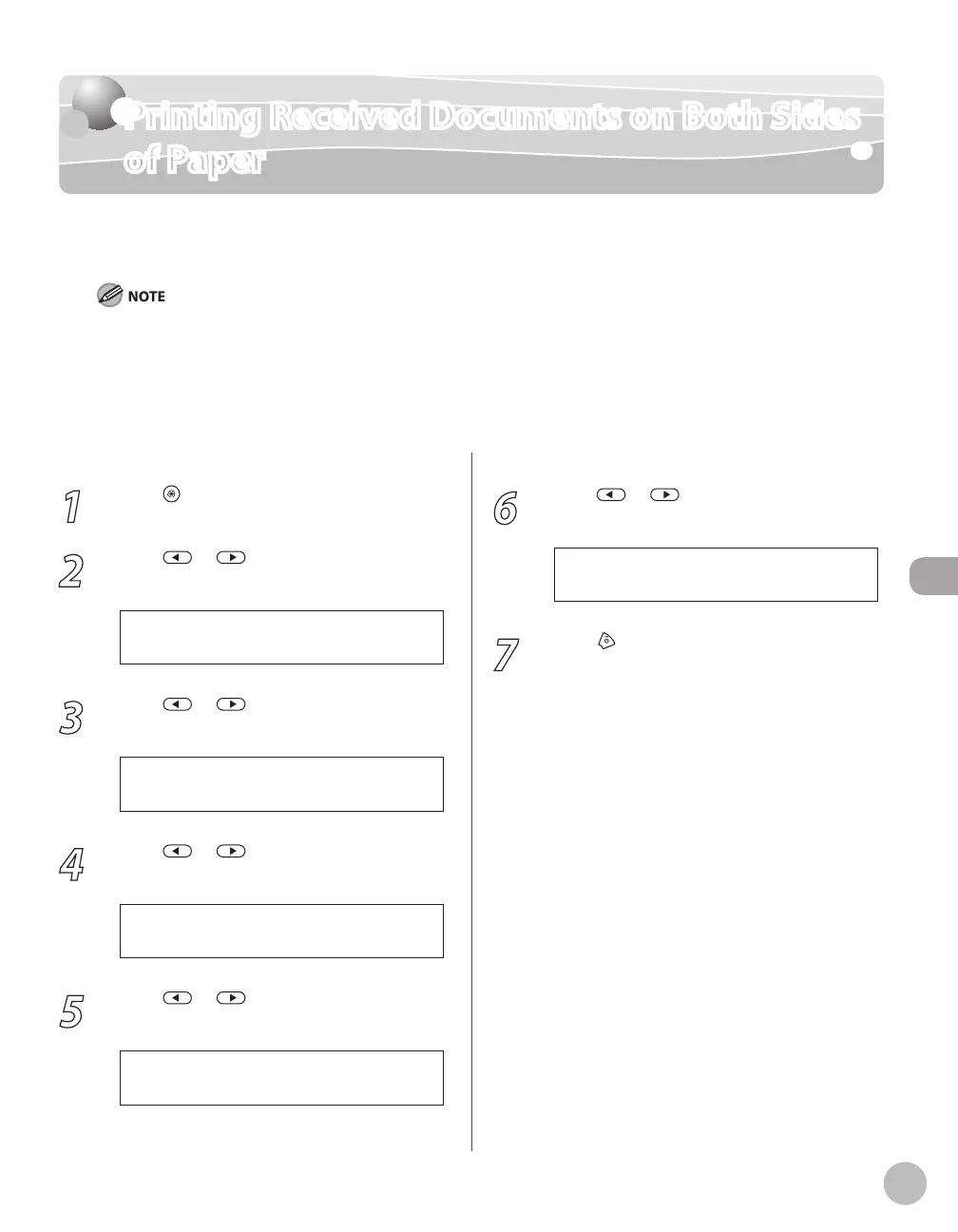
You can print received documents on both sides of the paper you select. This enables you to
save paper. The default setting is <OFF>.
Make sure to close the sub-output tray before performing 2-sided printing.
Do not open the sub-output tray while performing 2-sided printing.
When performing 2-sided printing, make sure to confirm that the paper size switch lever on the rear side of the machine
is set to the appropriate position. Paper jams may occur if the lever is not set appropriately. For details on how to set the
paper size switch lever, see “Setting the Paper Size Switch Lever,” on p. 2-16.
Only LTR, A4, and LGL size paper can be used for 2-sided printing.
–
–
–
–
1
Press [Menu].
2
Press or to select <TX/RX
SETTINGS>, then press [OK].
4 . T X / R X S E T T I N G S
M E N U
3
Press or to select <TX/RX
COMMON SET.>, then press [OK].
2 . T X / R X C O M M O N S E T .
T X / R X S E T T I N G S
4
Press or to select <RX SETTINGS>,
then press [OK].
2 . R X S E T T I N G S
T X / R X C O M M O N S E T .
5
Press or to select <TWO-SIDED
PRINT>, then press [OK].
1 . T W O - S I D E D P R I N T
R X S E T T I N G S
6
Press or to select <ON> or
<OFF>, then press [OK].
O N
T W O - S I D E D P R I N T
7
Press [Stop/Reset] to return to the
standby mode.














 To Next Page