Copying
3-8
Selecting Paper Source
5
Press [Start].
If you want to copy multiple documents using
the platen glass, place a document and press
[Start] once for each page.
You can set the machine to automatically select
the appropriate paper source based on the
document’s size and copy ratio settings (Auto
Paper Selection). You can also set the machine
to automatically select another paper source
with the same paper size if the current paper
source runs out of paper while processing a job
(Auto Cassette Switching). For details, see
“Setting Auto Paper Selection/Auto Cassette
Switching,” in the e-Manual.
You can set the default paper source for
copying (<AUTO>, <CASSETTE 1>, or
<CASSETTE 2> (optional)) in <PAPER SELECT>
in <STANDARD SETTINGS> in <COPY
SETTINGS>.
–
–
Using the Multi-Purpose Tray with
Standard Paper Sizes
This section describes how to copy onto standard
size papers using the multi-purpose tray.
If <MP TRAY STD SET> is set to <OFF>, the display to specify the
paper size and type for the multi-purpose tray appear every
time you load paper on the multi-purpose tray. If <MP TRAY STD
SET> is set to <ON>, copying can be performed only for the
registered paper size and type. (See “Setting Paper Size and Type,”
on p. 2-17.)
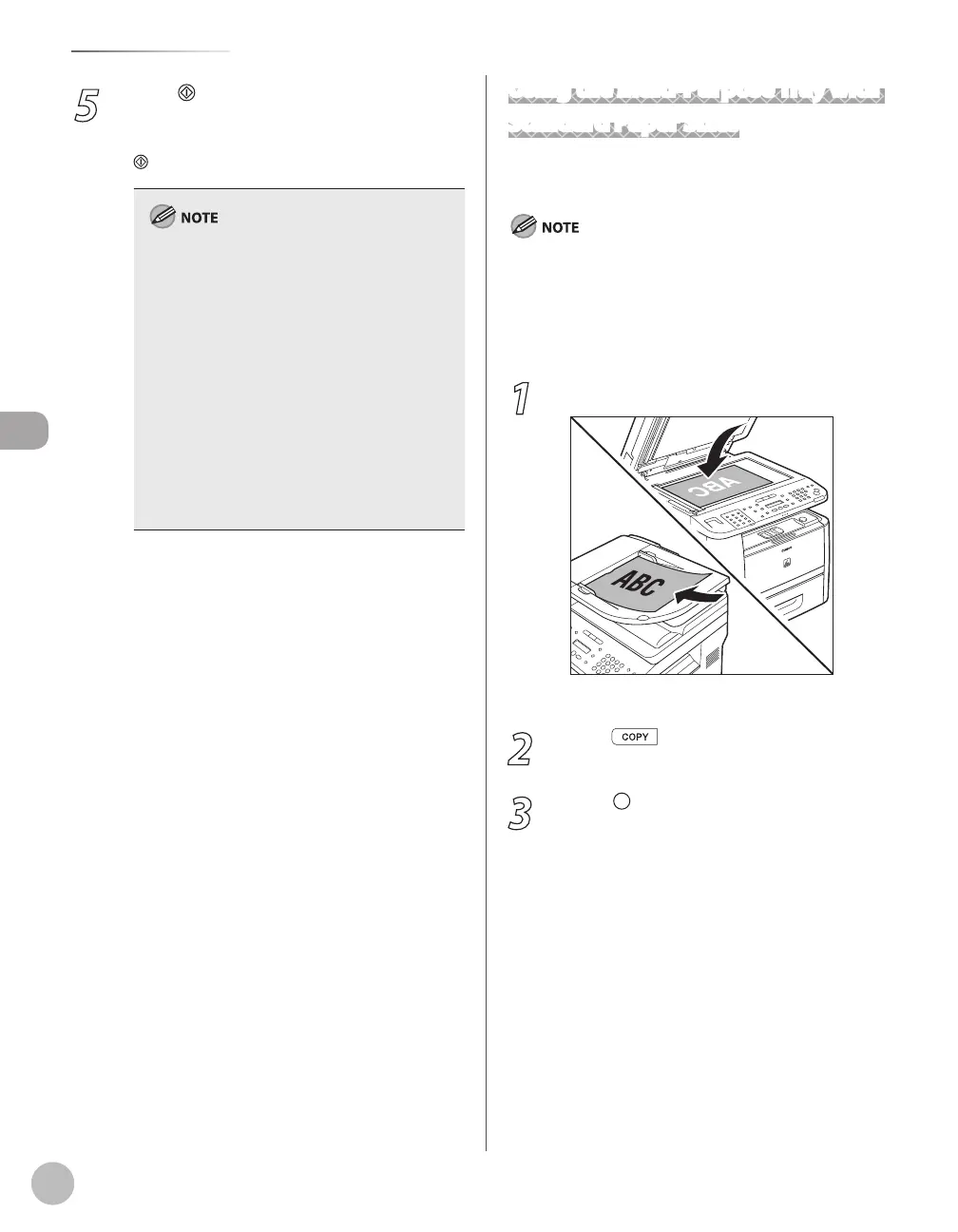
1
Place documents.
For details, see “Placing Documents,” on p. 2-4.
2
Press [COPY].
3
Press [Paper Select] repeatedly to
select the multi-purpose tray.
The paper select indicator of the selected paper
source lights up. (See “Operation Panel,
” on p. 1-
6.)














 To Next Page