Copying
3-11
Selecting Paper Source
10
Press [Start].
If you want to copy multiple documents using
the platen glass, place a document and press
[Start] once for each page.
Using the Multi-Purpose Tray with
Envelopes
This section describes how to copy onto envelopes
using the multi-purpose tray.
If <MP TRAY STD SET> is set to <OFF>, the display to specify the
paper size and type for the multi-purpose tray appear every
time you load paper on the multi-purpose tray. If <MP TRAY STD
SET> is set to <ON>, copying can be performed only for the
registered paper size and type. (See “Setting Paper Size and Type,”
on p. 2-17.)
1
Place documents.
For details, see “Placing Documents,” on p. 2-4.
2
Press [COPY].
3
Press [Paper Select] repeatedly to
select the multi-purpose tray.
The paper select indicator of the selected paper
source lights up. (See “Operation Panel,
” on p. 1-
6.)
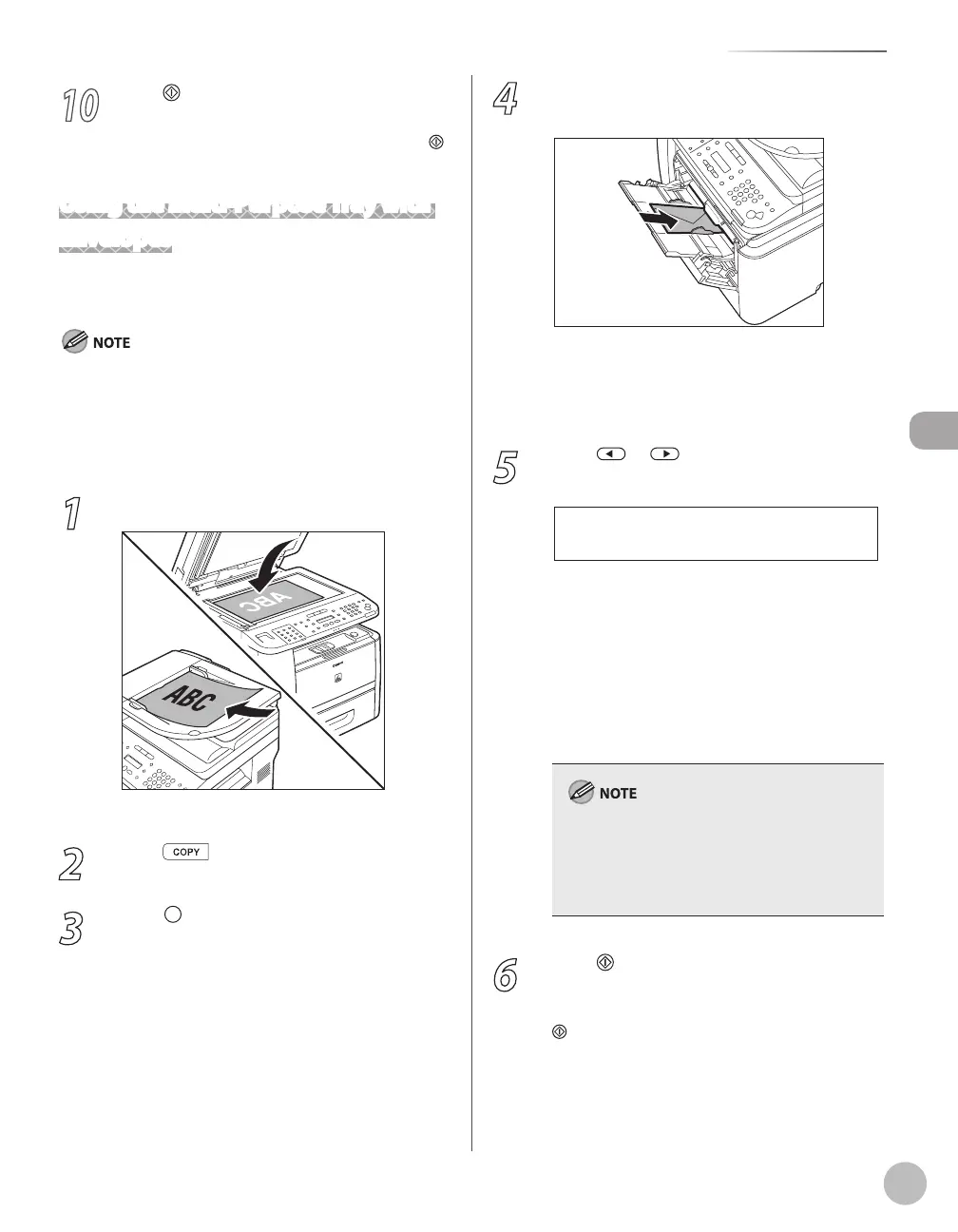
4
Load envelopes into the multi-purpose
tray.
If <MP TRAY STD SET> is set to <OFF>, go to
the next step.
If <MP TRAY STD SET> is set to <ON>, skip to
step 6.
5
Press or to select the paper size,
then press [OK].
N O . 1 0 ( C O M 1 0 )
S E L E C T P A P E R S I Z E
To copy onto envelopes, select the paper size
from the followings:
<NO.10 (COM10)>, <CAT. GLOVE NO.8>,
<DL>, <ISO-C5>, or <ISO-B5>.
If you select one of these size, <ENVELOPE> is
automatically selected for the paper type.
For details, see “Paper Requirements,
” on p. 2-6
and “Printable Area,
” on p. 2-8.
When <NO.10 (COM10)>, <CAT. GLOVE NO.8>,
<DL>, or <ISO-C5> is set, the machine may
perform printing even if a different size paper is
loaded in the multi-purpose tray. Make sure the
correct size paper is loaded before printing.
6
Press [Start].
If you want to copy multiple documents using
the platen glass, place a document and press
[Start] once for each page.
–
–
–
–
–















 To Next Page