Copying
3-15
Adjusting Density
Adjusting Manually
You can adjust the density to the most appropriate
level for the document manually.
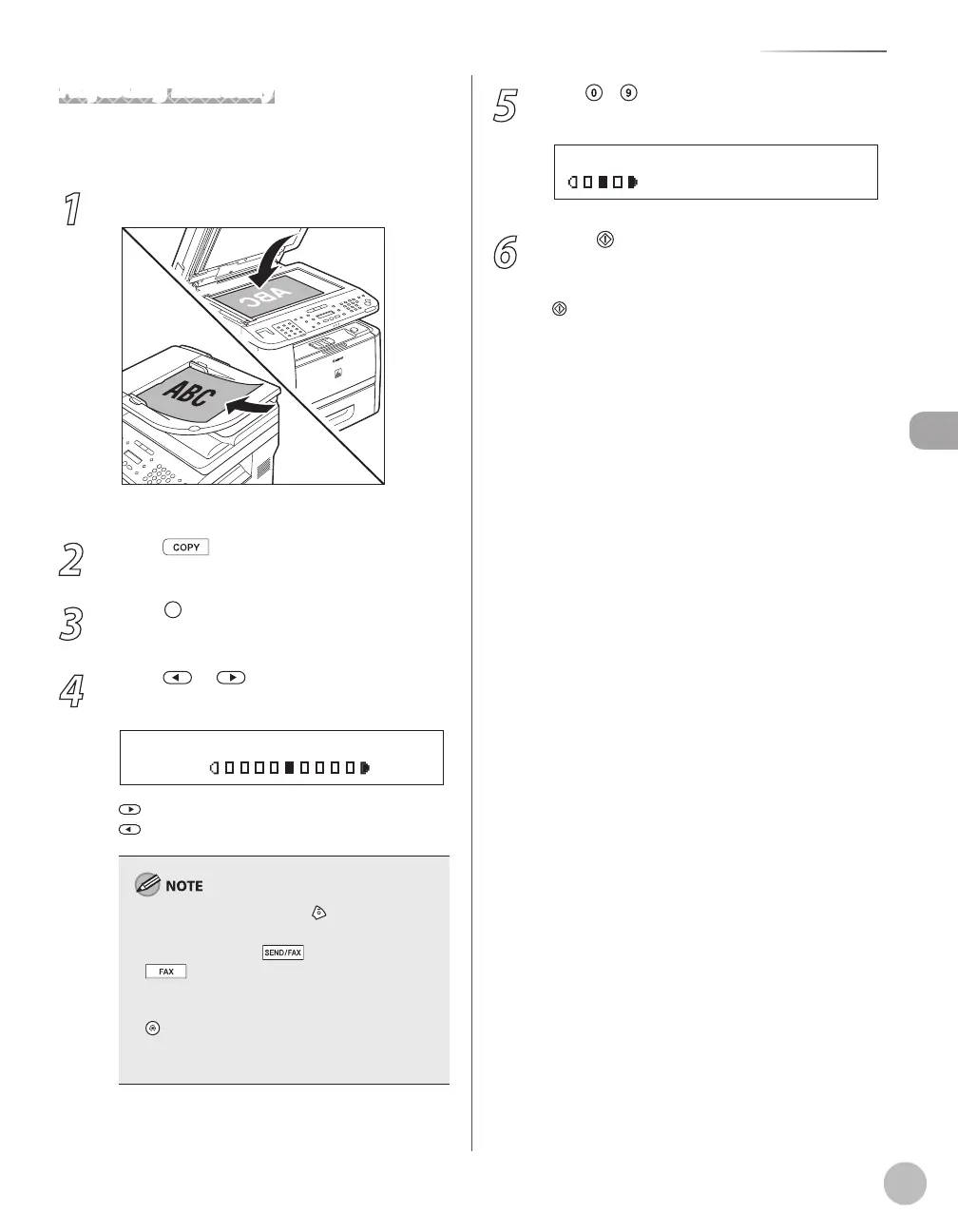
1
Place documents.
For details, see “Placing Documents,” on p. 2-4.
2
Press [COPY].
3
Press [Density] repeatedly to select the
manual mode.
4
Press or to adjust the copy
density, then press [OK].
: to make light documents darker
: to make dark documents lighter
To cancel all settings, press [Stop/Reset].
When you switch the mode by pressing the
mode keys such as [SEND/FAX]/
[FAX], all settings will be also canceled. If
you want to keep the settings, set the density as
follows:
[Menu] → <COPY SETTINGS> → <STANDARD
SETTINGS> → <DENSITY> → <MANUAL> (See
“COPY SETTINGS,” on p. 13-5.)
–
–
5
Use
– [numeric keys] to enter the
desired copy quantity (1 to 99).
T E X T / P H O T O
1 0 0 % L T R
0 1
6
Press
[Start].
If you want to copy multiple documents using
the platen glass, place a document and press
[Start] once for each page.















 To Next Page