Copying
3-4
Basic Copying Method
Basic Copying Method
This section describes the basic procedure for copying.
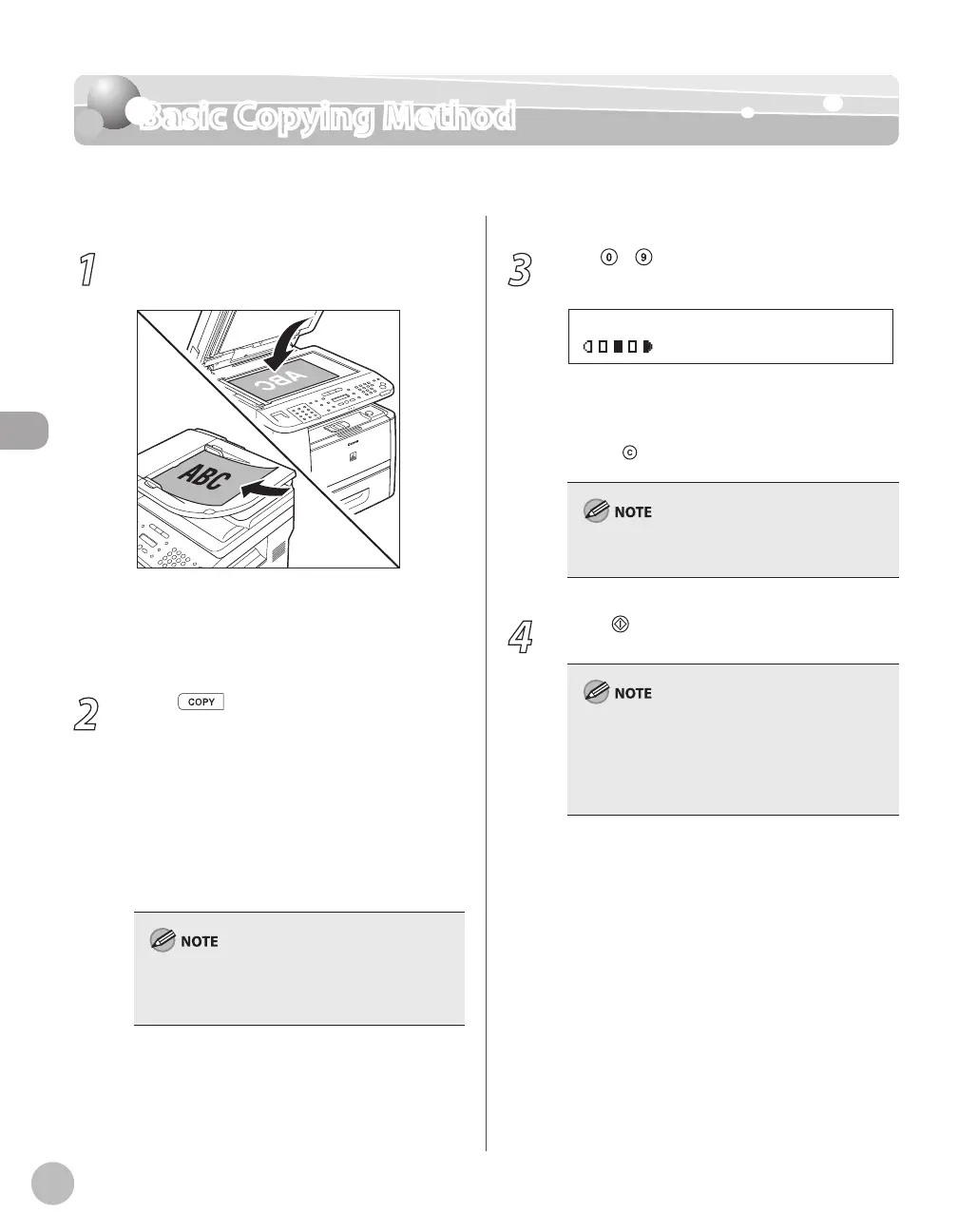
1
Place documents on the platen glass or
load them in the ADF.
For details, see “Placing Documents,” on p. 2-4.
Close the ADF after placing your documents.
For documents you can copy, see “Documents
Requirements,
” on p. 2-2.
2
Press [COPY].
The COPY indicator lights up and the machine
enters the copy standby mode.
If you want to adjust the image quality, see
“Selecting Image Quality,
” on p. 3-12.
If you want to adjust the density, see
“Adjusting Density,
” on p. 3-14.
If you want to adjust the zoom ratio, see
“Enlarge/Reduce Images,
” on p. 3-16.
If you press and hold [OK] in the copy mode, a
sample page will be printed. For details, see
“Printing a Sample Page,” on p. 3-32.
–
–
–
–
–
–
–
3
Use
– [numeric keys] to enter the
desired copy quantity (1 to 99).
T E X T / P H O T O
1 0 0 % L T R
0 1
The copy quantity appears on the right side of
the display.
If you make a mistake when entering values,
press
[Clear] and enter the correct values.
You cannot change the copy quantity while the
machine is copying.
4
Press [Start].
You can make copy settings and scan documents
even if the machine is currently printing. The
scanned documents are processed after the
current job is complete. You can reserve up to 5
copy jobs, with different settings for each job.
–
–















 To Next Page