E-Mail (D1180/D1170)
7-5
Basic E-Mail Operations
Basic E-Mail Operations
This section describes the basic procedures for sending e-mails and canceling a
transmission in progress.
Sending E-Mail Documents
This section describes the flow of sending e-mails.
If <RESTRICT NEW ADD.> is set to <ON>, you cannot specify fax
numbers using - , [numeric keys], and [Tone]. Make
sure that <RESTRICT NEW ADD.> is set to <OFF>. (See
“Restricting the New Address” in the e-Manual.)
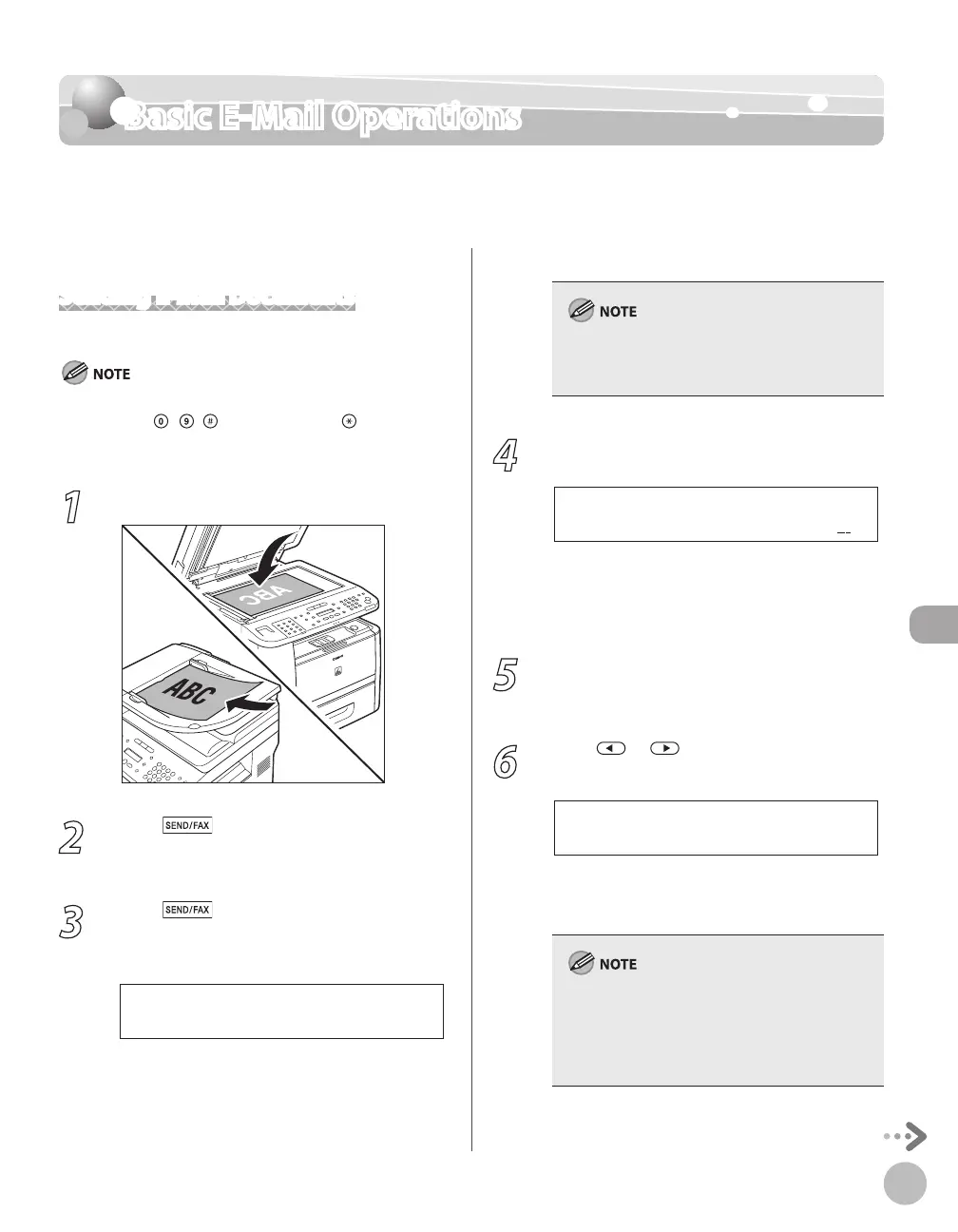
1
Place documents.
2
Press [SEND/FAX].
The SEND/FAX indicator lights up and the
machine enters the send standby mode.
3
Press [SEND/FAX] repeatedly to
select <E-MAIL:B&W> or <E-MAIL:
COLOR>, then press [OK].
S E L E C T : O K
E - M A I L : B & W
If you want to send color images attached to an
e-mail message, select <E-MAIL:COLOR> as the
sending method.
4
Specify the destination.
= j o h n @ e x a m p l e . c o
A D D R E S S : a
Ex.
For details, see “Specifying Destinations (E-Mail),”
in the e-Manual.
If you want to start sending without adjusting
the optional send settings, skip to step 10.
5
Press [OK] repeatedly until <FILE
FORMAT> is displayed.
6
Press or to select the file format,
then press [OK].
E-mail (B&W): <PDF>, <TIFF(B&W)>
E-mail (Color): <PDF(COMPACT)>, <JPEG>
If you specify an e-mail address from Address
Book without selecting the sending method,
settings specified in <STANDARD SETTINGS> in
<TX SETTINGS> in <TX/RX COMMON SET.> in
<TX/RX SETTINGS> are displayed.
–
–















 To Next Page