11-3
Maintenance
Cleaning the Machine
2
Press or to select <ADJUST./
CLEANING>, then press [OK].
8 . A D J U S T . / C L E A N I N G
M E N U
3
Press or to select <FIX.UNIT
CLEANING>, then press [OK].
1 . F I X . U N I T C L E A N I N G
A D J U S T . / C L E A N I N G
4
Press or to select <CLEAN PAPER
PRT>, then press [OK].
1 . C L E A N P A P E R P R T
F I X U N I T C L E A N I N G
Make sure that LTR paper is loaded in a paper
source.
5
Press to select <YES>.
< Y E S N O >
O K T O P R I N T ?
The cleaning page is printed.
6
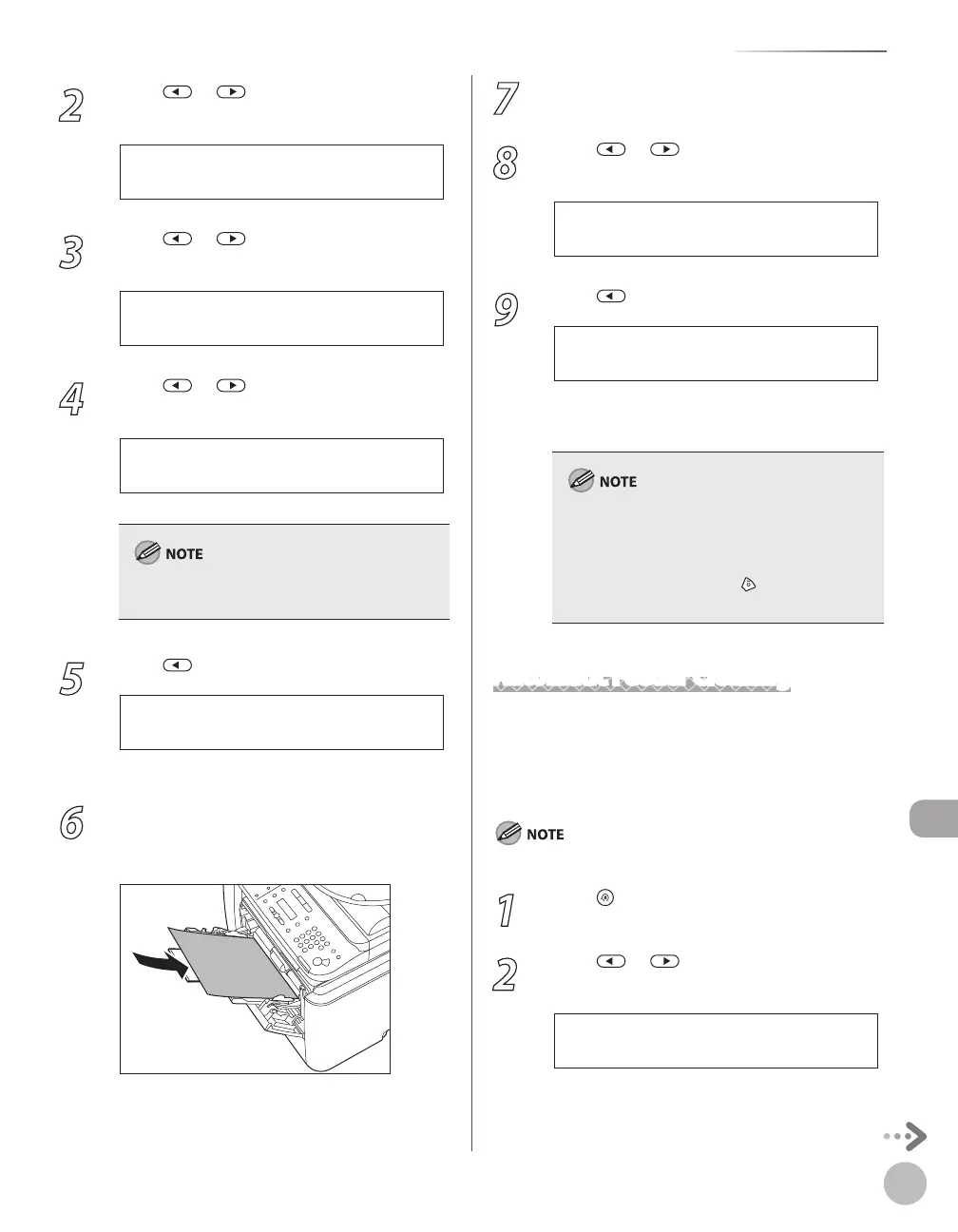
Load the cleaning page in the multi-
purpose tray with the printed side facing
down.
7
Perform from step 1 to step 3 again.
8
Press or to select <START
CLEANING>, then press [OK].
2 . S T A R T C L E A N I N G
F I X . U N I T C L E A N I N G
9
Press to select <YES>.
< Y E S N O >
S T A R T C L E A N I N G ?
Cleaning starts. When finished, the display
returns to the standby mode.
Throw away the cleaning paper after use.
The cleaning process cannot be canceled.
Please wait until it is completed.
If a cleaning paper jam occurs, the error
indicator flashes red. Press [Stop/Reset] and
remove the jammed cleaning paper.
–
–
–
Automatic Feeder Cleaning
If your documents have black streaks or appear
dirty after scanning them through the ADF, clean
the ADF roller by repeatedly feeding blank sheets of
paper through it.
Use standard paper as the cleaning paper.
1
Press [MENU].
2
Press or to select <ADJUST./
CLEANING>, then press [OK].
8 . A D J U S T . / C L E A N I N G
M E N U















 To Next Page