Fax (D1180/D1170/D1150)
6-24
Specifying Destinations
Sending Documents to More Than
One Location (Broadcasting)
Broadcasting enables you to send the same
document to multiple recipients.
A maximum of 201 destinations can be specified at the same
time. (Out of the 200 destinations, a number or address can be
specified with – , [numeric keys] and [Tone].) If you
specify a group, which is made up of several destinations,
each destination in the group is counted as a separate
address.
If you frequently send documents to multiple destinations, it
is recommended that you store those destinations as a group.
If <REST. MULTI DEST> in <ACCESS TO DEST.> in <SYSTEM
SETTINGS> is set to <PROHIBIT>, you cannot send the
documents to multiple recipients. (See “Restricting
Broadcasting,” in the e-Manual.)
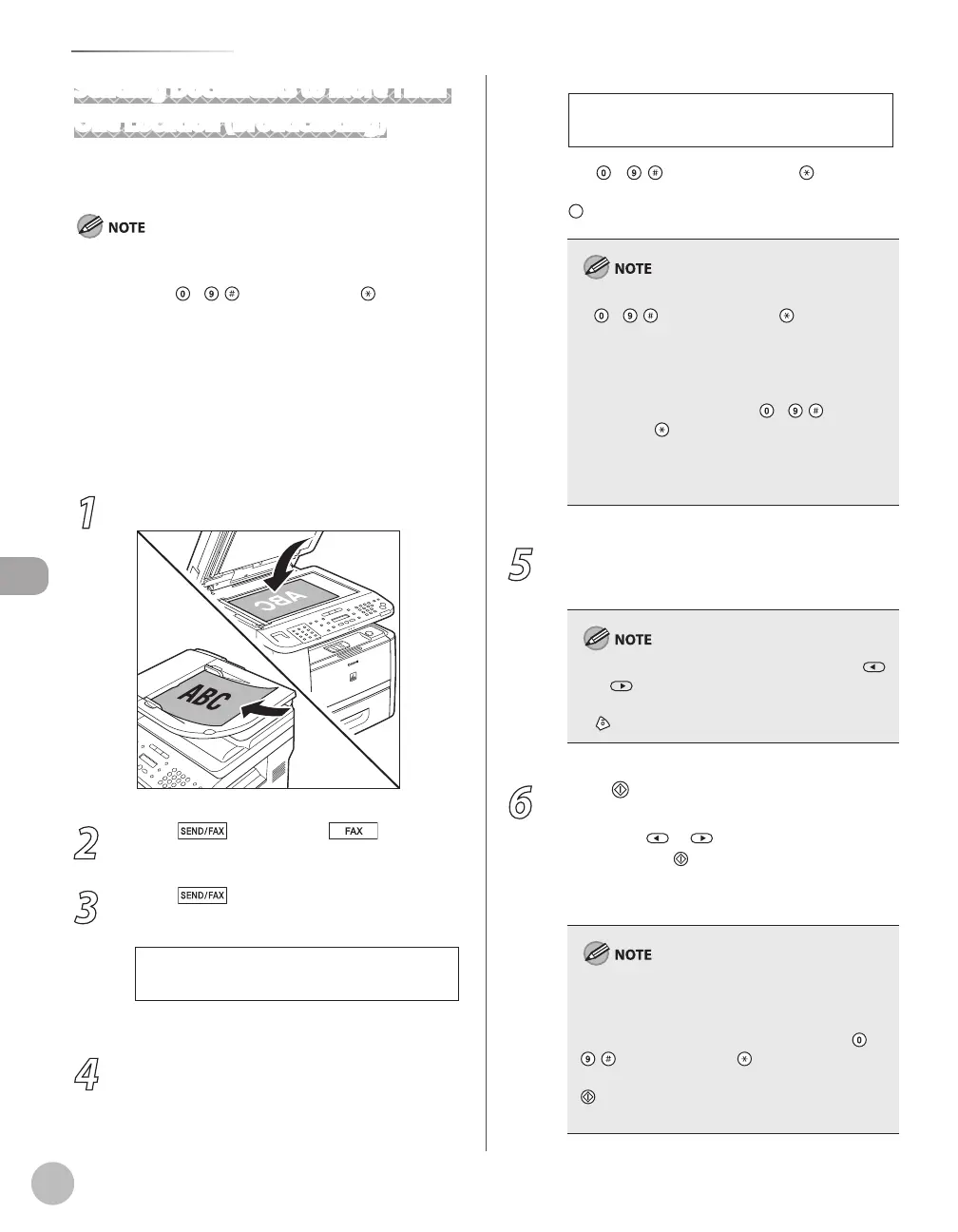
1
Place documents.
2
Press [SEND/FAX]/ [FAX].
3
Press
[SEND/FAX] repeatedly to
select <FAX>, then press [OK].
For the D1150, skip this step.
4
Specify the destination.
–
–
–
T E L = 0 1 2 X X X X X X X
F A X N U M B E R
Ex.
Use – , [numeric keys] and [Tone],
one-touch keys, coded dial codes, or
[Address Book] to specify destinations.
Only one destination can be specified using
–
, [numeric keys] and [Tone]. Make
sure to press [OK] after entering the recipient’s
number.
If <CONFIRM FAX NO.> in <ACCESS TO DEST.>
in <SYSTEM SETTINGS> is set to <ON> and you
specify a fax number using
–
, [numeric
keys] and [Tone], you must enter the fax
number again for confirmation. Enter the same
fax number you entered in step 4, then press
[OK].
–
–
5
Repeat step 4 to enter all required
recipients.
To check all the specified destinations, press
or to scroll the display.
To cancel all the specified destinations, press
[Stop/Reset].
–
–
6
Press [Start].
When you place the documents on the platen
glass, press
or to select the document
size, then press
[Start] for each document.
When scanning is complete, press [OK] to start
sending.
When <TIME OUT> is set to <ON> in <TX
SETTINGS> in <FAX SETTINGS> in <TX/RX
SETTINGS>, and if you have specified the
destination by any other method than using –
, [numeric keys] and [Tone], the machine
starts scanning automatically without pressing
[Start], after the preset time for this setting is
elapsed. (See “Time Out Mode,” on p. 6-41.)














 To Next Page