Fax (D1180/D1170/D1150)
6-31
2-Sided Documents
2-Sided Documents
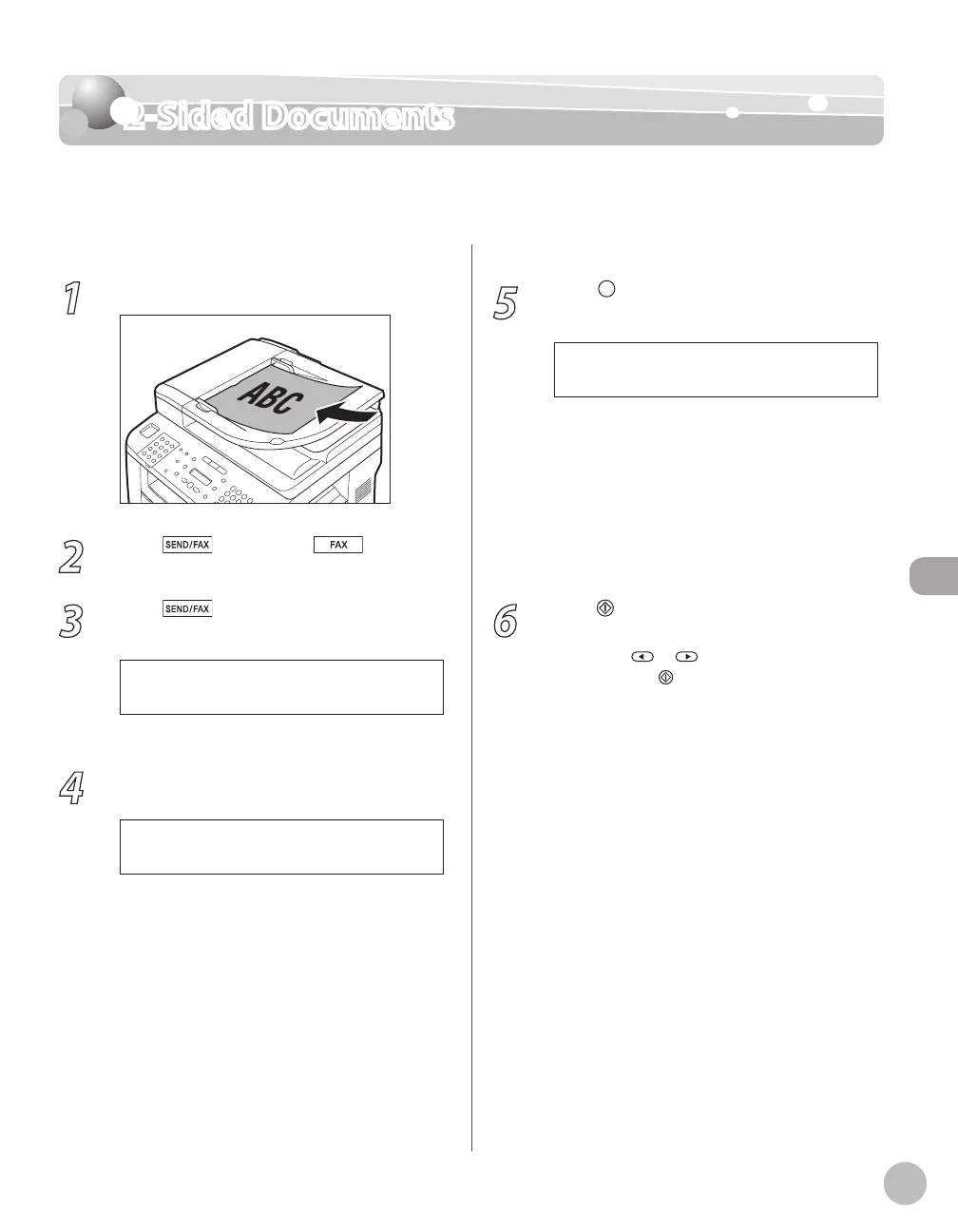
You can set the machine to automatically turn over 2-sided documents that are placed in the
ADF, and scan each side separately.
1
Place documents in the ADF.
2
Press [SEND/FAX]/ [FAX].
3
Press
[SEND/FAX] repeatedly to
select <FAX>, then press [OK].
For the D1150, skip this step.
4
Specify the destination.
T E L = 0 1 2 X X X X X X X
F A X N U M B E R
Ex.
For details, see “Specifying Destinations,” on p. 6-
19.
5
Press [2-Sided] repeatedly to select the
binding type, then press [OK].
B O O K T Y P E
2 - S I D E D
<BOOK TYPE>: The front and back sides of the
document have the same top-bottom
orientation.
<CALENDAR TYPE>: The front and back sides
of the document have opposite top-bottom
orientations.
<OFF>: The machine does not automatically
scan both sides of the document.
6
Press [Start].
When you place the documents on the platen
glass, press
or to select the document
size, then press
[Start] for each document.
When scanning is complete, press [OK] to start
sending.
–
–
–















 To Next Page