Documents and Print Media
2-16
Loading Paper
Setting the Paper Size Switch Lever
When performing 2-sided copying or 2-sided
printing, make sure to confirm that the paper size
switch lever is set to the appropriate position. Paper
jams may occur if the lever is not set appropriately.
Follow the procedure below to set the paper size
switch lever.
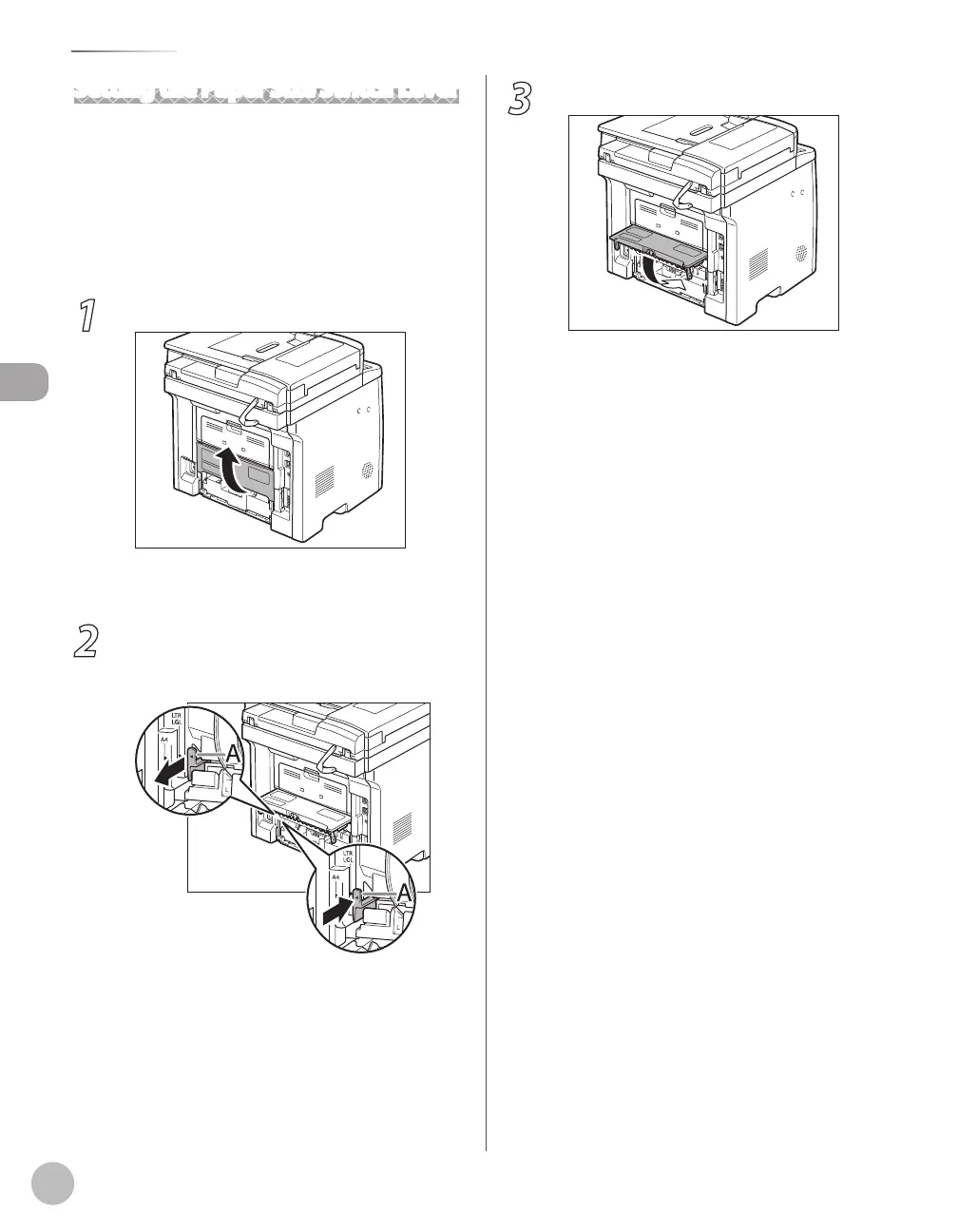
1
Open the duplex unit cover.
Hold the opening at the center of the duplex
unit cover and open it gently.
2
Set the blue paper size switch lever (A) to
the appropriate position according to the
paper size.
For A4 size, draw the paper size switch lever
toward you.
For LTR or LGL size, push the paper size switch
lever toward the machine.
–
–
3
Close the duplex unit cover.
Hold the opening at the center of the duplex
unit cover and close it gently.















 To Next Page