Copying
3-28
Adjusting Sharpness
Adjusting Sharpness
You can set the sharpness of the copied image. The default setting is <5>.
1
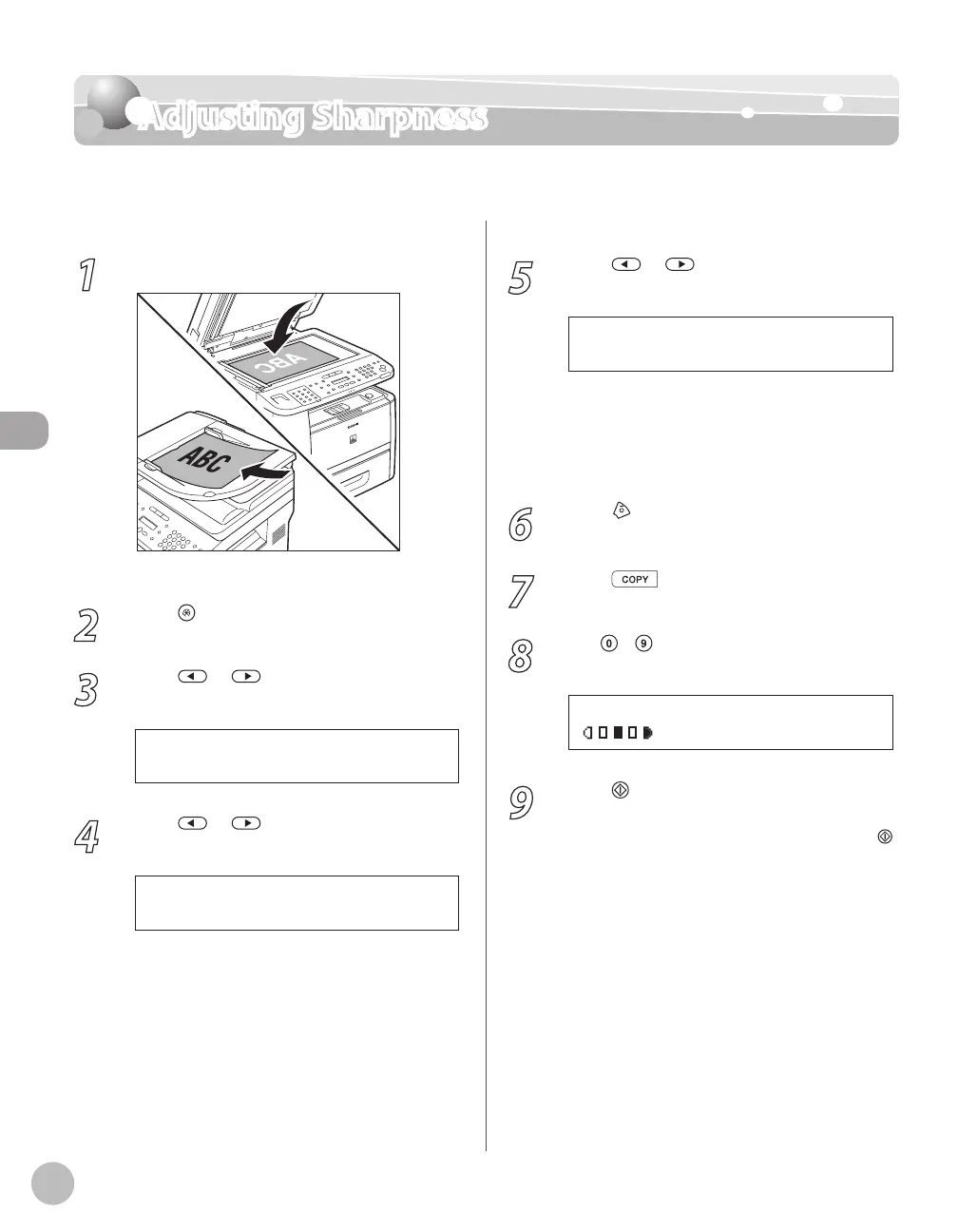
Place documents.
For details, see “Placing Documents,” on p. 2-4.
2
Press [Menu].
3
Press or to select <COPY
SETTINGS>, then press [OK].
3 . C O P Y S E T T I N G S
M E N U
4
Press or to select <SHARPNESS>,
then press [OK].
2 . S H A R P N E S S
C O P Y S E T T I N G S
3
5
Press or to select to adjust the
sharpness (1 to 9), then press [OK].
The highest sharpness level is 9 and the lowest
is 1. To copy text or lines clearly, select a high
sharpness level. To copy documents containing
printed images or other halftones, select a low
sharpness level.
6
Press [Stop/Reset] to return to the
standby mode.
7
Press [COPY].
8
Use
– (numeric keys) to enter the
desired copy quantity (1 to 99).
T E X T / P H O T O
1 0 0 % L T R
0 1
9
Press [Start].
If you want to copy multiple documents using
the platen glass, place a document and press
[Start] once for each page.















 To Next Page