Fax (D1180/D1170/D1150)
6-46
Reducing a Received Document
Reducing a Received Document
You can set the machine to automatically reduce received documents so that the whole
document is printed within the printable area of the paper. The default setting is <ON>
(<AUTO> and <VERTICAL ONLY>).
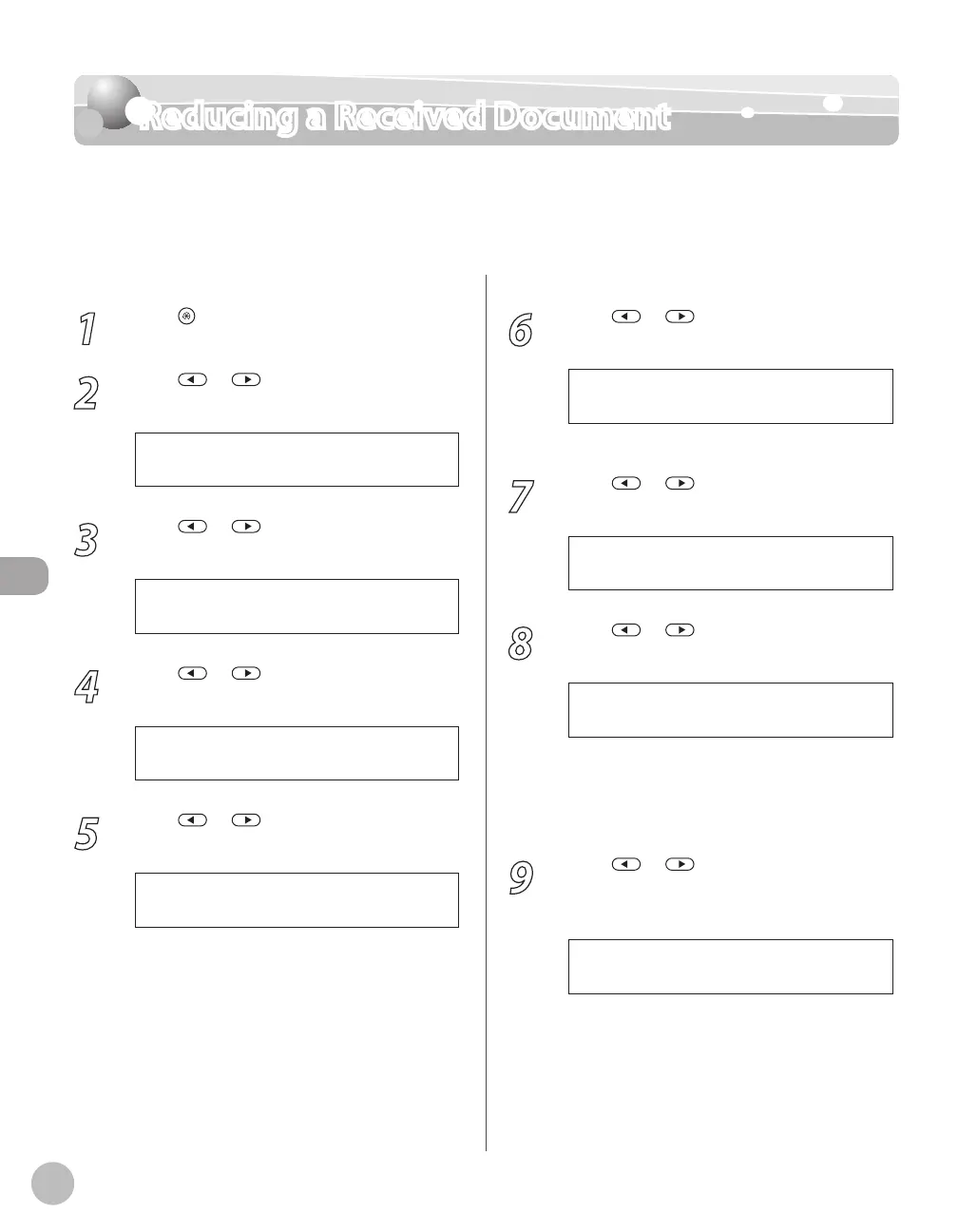
1
Press [Menu].
2
Press or to select <TX/RX
SETTINGS>, then press [OK].
4 . T X / R X S E T T I N G S
M E N U
3
Press or to select <TX/RX
COMMON SET.>, then press [OK].
2 . T X / R X C O M M O N S E T .
T X / R X S E T T I N G S
4
Press or to select <RX SETTINGS>,
then press [OK].
2 . R X S E T T I N G S
T X / R X C O M M O N S E T .
5
Press or to select <RECEIVE
REDUCTION>, then press [OK].
2 . R E C E I V E R E D U C T I O N
R X S E T T I N G S
6
Press or to select <ON>, then
press [OK].
O N
R E C E I V E R E D U C T I O N
If you select <OFF>, skip to step 12.
7
Press or to select <RX
REDUCTION>, then press [OK].
1 . R X R E D U C T I O N
R E C E I V E R E D U C T I O N
8
Press or to select <AUTO> or
<FIXED REDUCTION>, then press [OK].
F I X E D R E D U C T I O N
R X R E D U C T I O N
If you select <AUTO>, the image is reduced
automatically. Skip to step 10.
If you select <FIXED REDUCTION>, go to the
next step.
9
Press or to select a preset
reduction ratio (90%, 95%, 97%, or 75%),
then press [OK].
9 0 %
S E L E C T R E D U C E %
–
–














 To Next Page