12-23
Troubleshooting
If <LOAD CORRECT PAPER> is displayed
If <LOAD CORRECT PAPER> is displayed
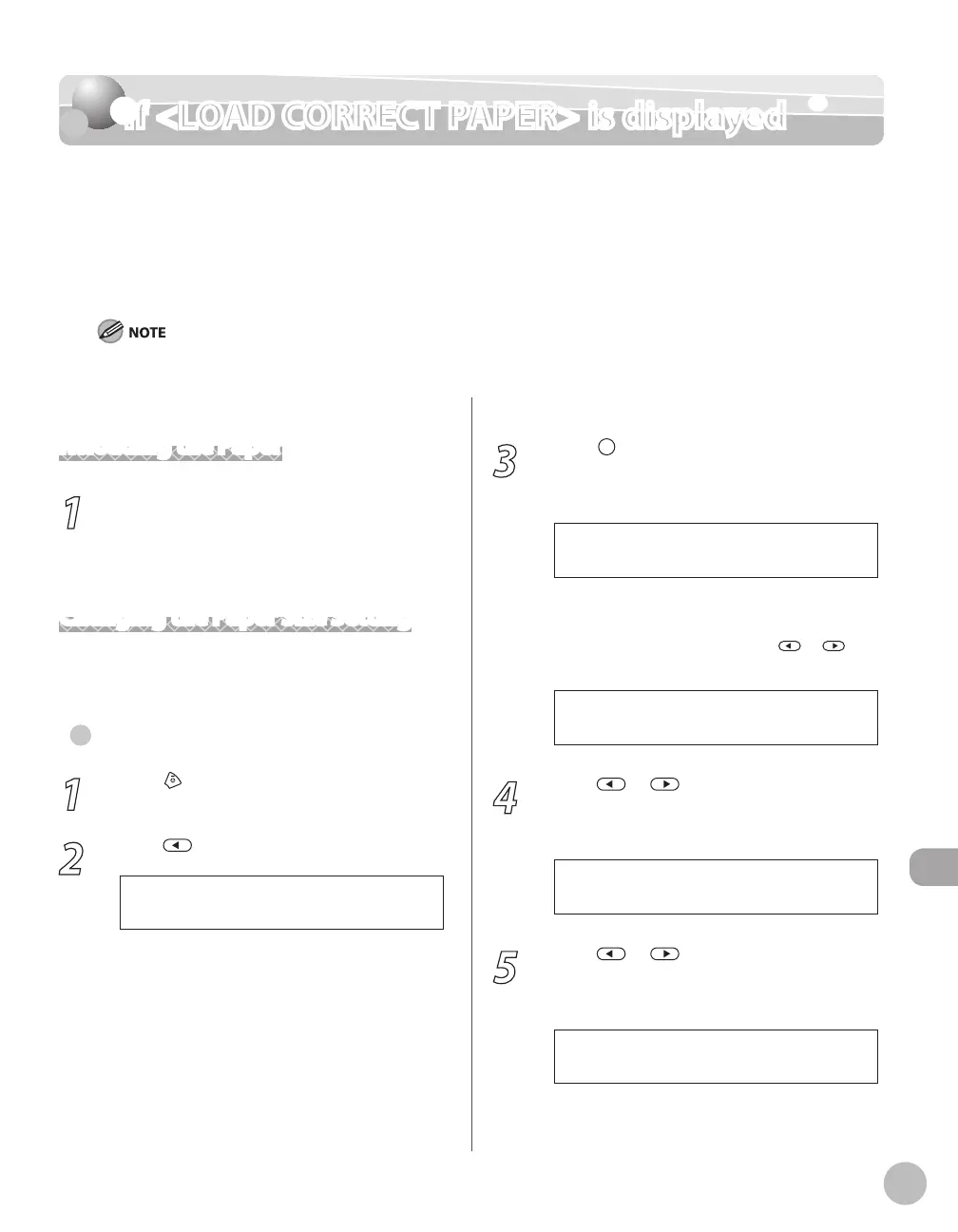
When <LOAD CORRECT PAPER> appears on the display, the size of the paper in the paper
cassette or multi-purpose tray is different from that of the paper specified in <PAPER SIZE>
for <CASSETTE 1>, <CASSETTE 2> (optional) or <MP TRAY>. You need to load the correct size
paper or change the paper size in <PAPER SIZE> for <CASSETTE 1>, <CASSETTE 2>
(optional) or <MP TRAY>.
For print jobs, you need to specify the paper size from your computer.
Reloading the Paper
1
Load the correct size paper as shown on
the display, then press [OK] to resume the
job.
The machine re-starts printing.
Changing the Paper Size Setting
Follow the procedure below to change the paper
size setting.
For Copy Job
1
Press [Stop/Reset].
2
Press to select <YES>.
< Y E S N O >
C A N C E L ?
●
3
Press [Paper Settings] repeatedly to
select <CASSETTE 1>, <CASSETTE 2> or
<MP TRAY>, then press [OK].
<CASSETTE 2> is displayed only if the
optional paper cassette is attached.
If you select <MP TRAY>, press
or to
select <ON>, then press [OK].
O N
M P T R A Y S T D S E T
4
Press or to select the size of the
paper loaded into the machine, then
press [OK].
L T R
P A P E R S I Z E ( C A S S )
5
Press or to select the type of the
paper loaded into the machine, then
press [OK].
P L A I N P A P E R
P A P E R T Y P E ( C A S S )
–
–














 To Next Page