Copying
3-30
Changing Standard Mode
Changing Standard Mode
The Standard mode is the combination of copy modes that the machine automatically
applies when the power is turned ON, or when
[Stop/Reset] is pressed. You can change
the Standard mode to suit your needs. The default settings are as follows:
<IMAGE QUALITY>: <TEXT/PHOTO>
<DENSITY>: <MANUAL> (5)
<ZOOM RATIO>: <PRESET RATIO> (100%)
<COPIES>: <1>
<COLLATE>: <OFF>
<2-SIDED>: <OFF>
<PAPER SELECT>: <AUTO>
–
–
–
–
–
–
–
1
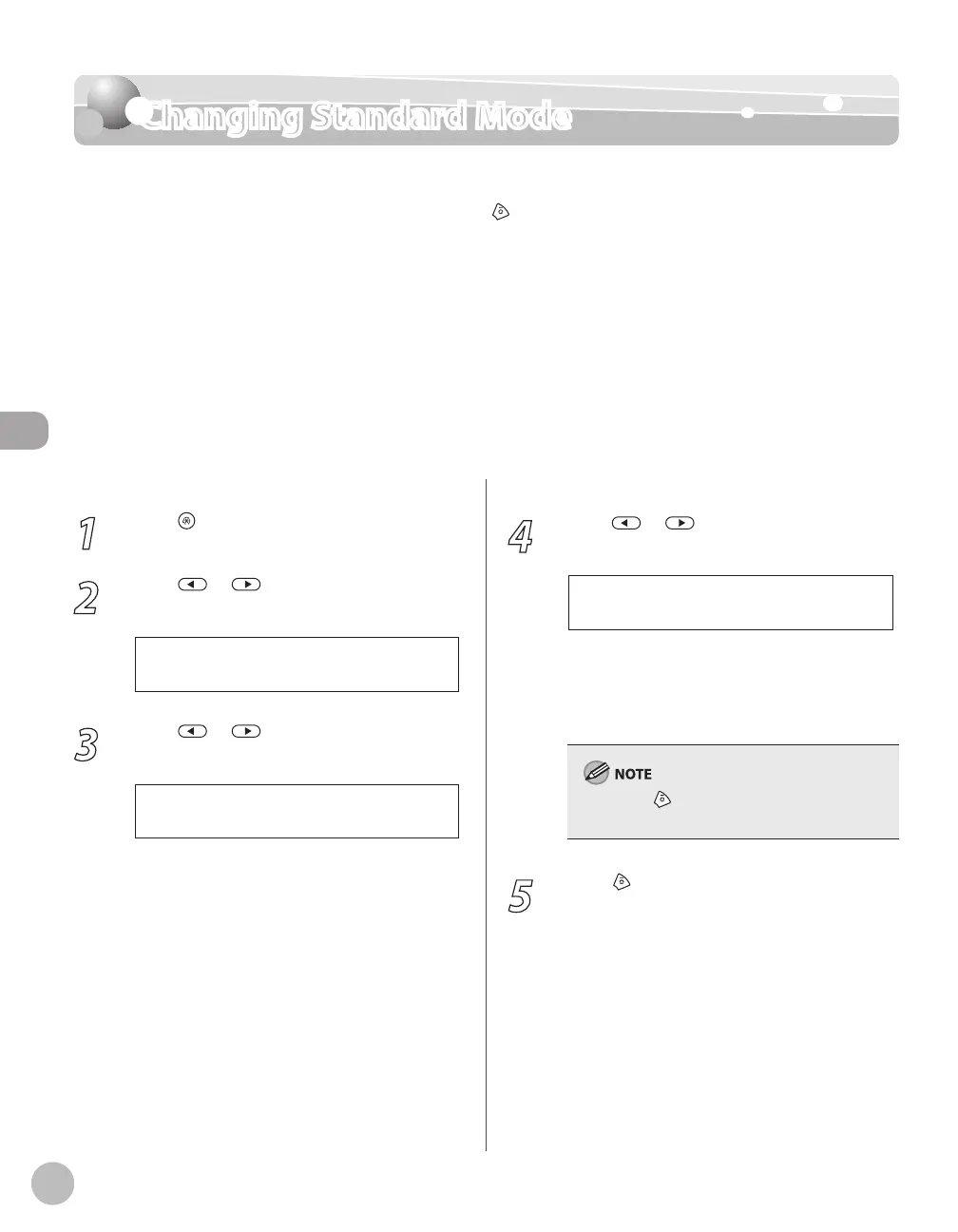
Press [Menu].
2
Press or to select <COPY
SETTINGS>, then press [OK].
3 . C O P Y S E T T I N G S
M E N U
3
Press or to select <STANDARD
SETTINGS>, then press [OK].
1 . S T A N D A R D S E T T I N G S
C O P Y S E T T I N G S
4
Press or to select the desired
setting item, then press [OK].
1 . I M A G E Q U A L I T Y
S T A N D A R D S E T T I N G S
You can specify the following settings:
<IMAGE QUALITY>, <DENSITY>, <ZOOM
RATIO>, <COPIES>, <COLLATE>, <2-SIDED>,
<PAPER SELECT>
If you press [Stop/Reset] before pressing [OK],
the setting will not be registered.
5
Press [Stop/Reset] to return to the
standby mode.















 To Next Page