Copying
3-10
Selecting Paper Source
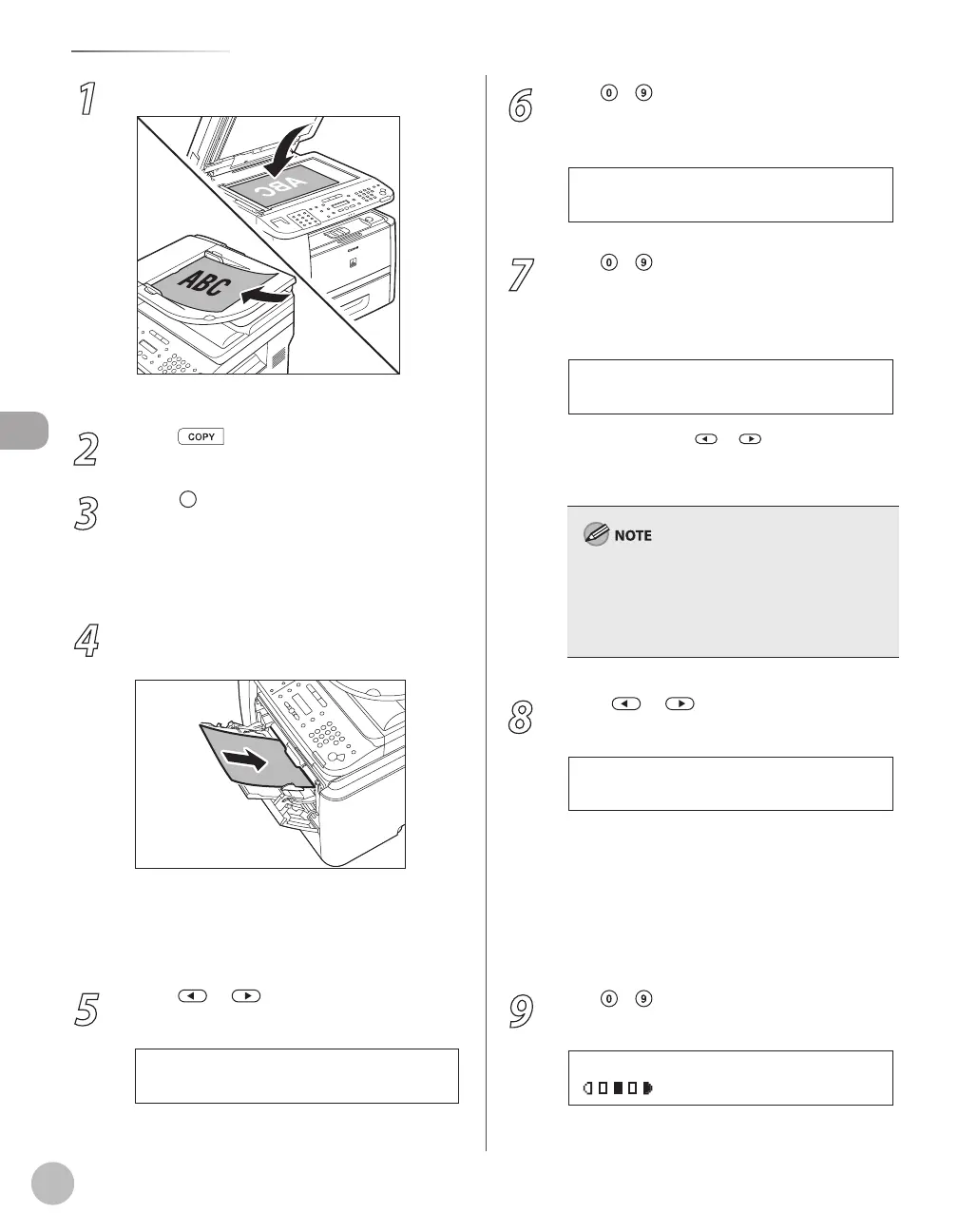
1
Place documents.
For details, see “Placing Documents,” on p. 2-4.
2
Press [COPY].
3
Press
[Paper Select] repeatedly to
select the multi-purpose tray.
The paper select indicator of the selected paper
source lights up. (See “Operation Panel,
” on p. 1-
6.)
4
Load the paper into the multi-purpose
tray.
If <MP TRAY STD SET> is set to <OFF>, go to
the next step.
If <MP TRAY STD SET> is set to <ON>, skip to
step 7.
5
Press or to select <CUSTOM
SIZE>, then press [OK].
C U S T O M S I Z E
S E L E C T P A P E R S I Z E
–
–
6
Use – [numeric keys] to enter the
horizontal size in <X DIMENSION> (76 to
216 mm (3 to 8 1/2 inch)), then press [OK].
7 6 m m
X D I M E N S I O N
7
Use – [numeric keys] to enter the
vertical size in <Y DIMENSION> (127 to
356 mm (5 to 14 1/8 inch)), then press
[OK].
1 2 7 m m
Y D I M E N S I O N
You can also press or to specify the size.
(<Y DIMENSION> represents the length of the
paper that feeds into the machine.)
When a non-standard paper size is set, the
machine may perform printing even if a different
size paper is loaded in the multi-purpose tray.
Make sure the correct size paper is loaded before
printing.
8
Press or to select the paper type,
then press [OK].
P L A I N P A P E R
S E L E C T P A P E R T Y P E
To copy onto non-standard size paper, select
the paper type from the followings:
<PLAIN PAPER>, <PLAIN PAPER L>, <COLOR>,
<RECYCLED>, <HEAVY PAPER 1>, <HEAVY
PAPER 2>, <LABELS>, or <ENVELOPE>.
For details, see “Paper Requirements,
” on p. 2-6
and “Printable Area,
” on p. 2-8.
9
Use – [numeric keys] to enter the
desired copy quantity (1 to 99).
T E X T / P H O T O
1 0 0 % C U S T M
0 1
–
–















 To Next Page