Scanning
8-8
Basic Scanning Operations
9
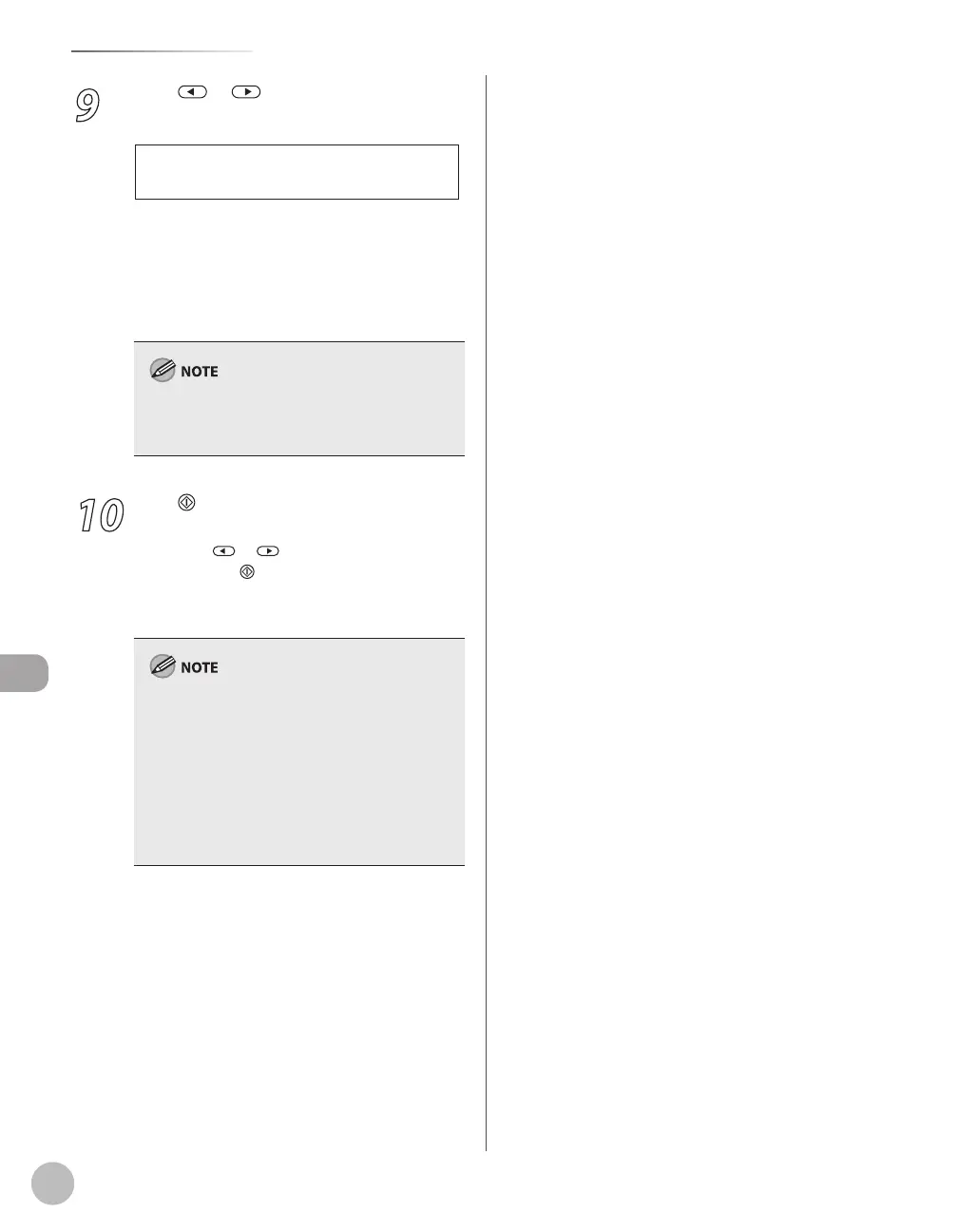
Press or to select the original
type, then press [OK].
T E X T / P H O T O
O R I G I N A L T Y P E
<TEXT/PHOTO>: For documents that contain
text and photos.
<TEXT>: For text documents.
<PHOTO>: For documents that contain fine
text or photos.
If you have selected <PDF(COMPACT)> as the file
format in step 6, the original type is automatically
set to <TEXT/PHOTO>.
10
Press [Start].
When you place the documents on the platen
glass, press
or to select the document
size, then press
[Start] for each document.
When scanning is complete, press [OK] to start
sending.
You can also adjust the following scan settings
as necessary.
Density: “Adjusting Density (Scan to File
Server),” in the e-Manual.
2-sided: “2-Sided Documents (Scan to File
Server),” in the e-Manual.
You can set the document’s name (see “Naming
a Sent Document Using a File Server,” in the e-
Manual).
–
•
•
–
–
–
–















 To Next Page