12-9
Troubleshooting
Clearing Jams
Do not force a jammed paper out of the
machine.
The surroundings of the output tray are hot
during printing or immediately after printing.
When taking out of the paper or removing
jammed paper, do not touch the surroundings
of the output tray.
–
–
If unfixed toner is on the removed paper, it may
adhere to the paper to be printed next.
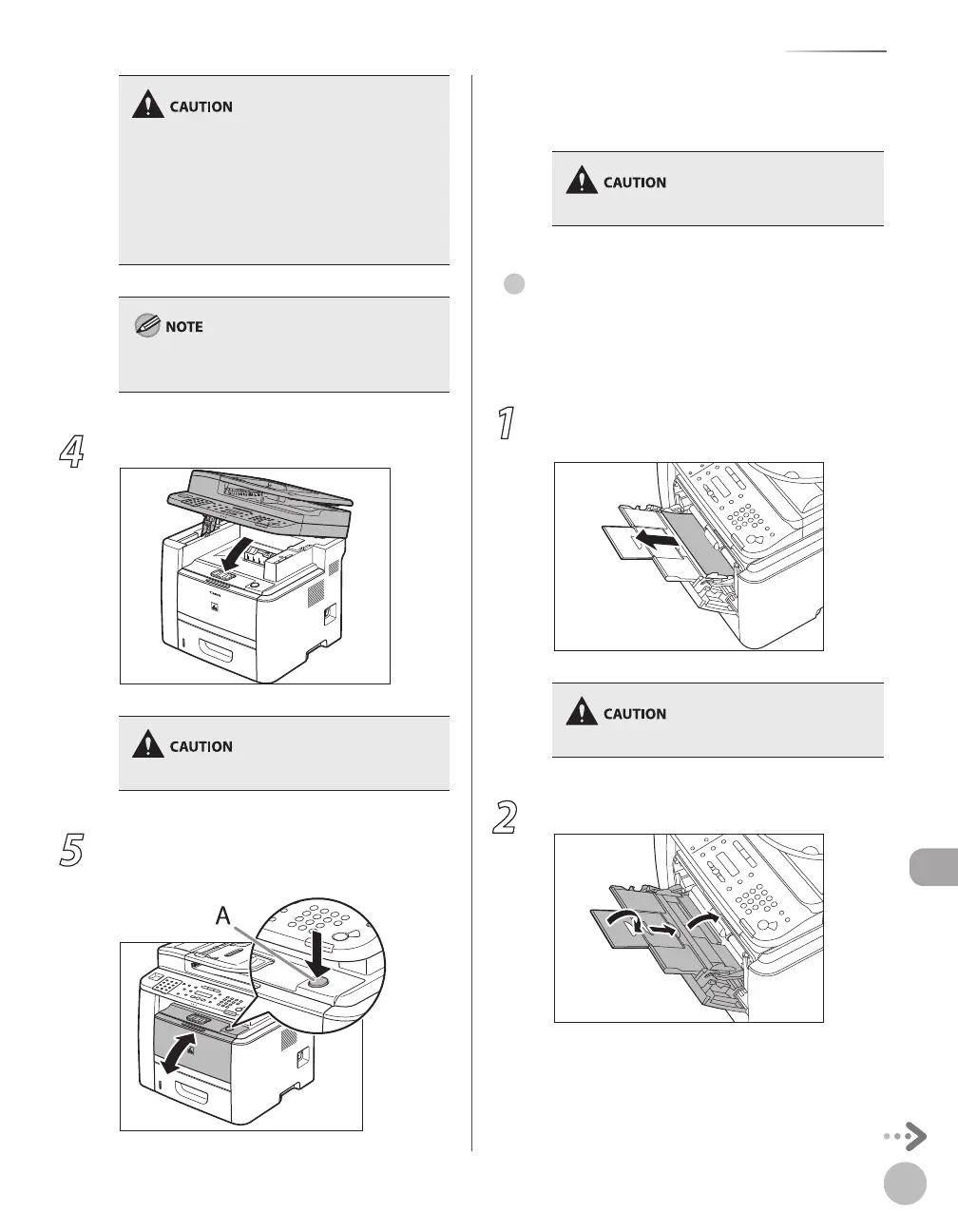
4
Lower the scanning platform.
Be careful not to get your fingers caught.
5
Open and close the front cover to reset
the machine.
If you are using the multi-purpose tray, close it
before opening the front cover. To open the
front cover, push the open button (A).
Be careful not to get your fingers caught.
Multi-Purpose Tray
When <OPEN PRINTER COVER> or <PAPER JAM/LIFT
PANEL TO OPEN> appears on the display, remove
jammed paper from the multi-purpose tray.
1
Hold both sides of any jammed paper and
gently pull it out.
Do not force a jammed paper out of the machine.
2
Close the multi-purpose tray.
●















 To Next Page