Copying
3-20
Collating Copies
3
Press [Collate/2 on 1] repeatedly to
select <COLLATE>, then press [OK].
If you want to use <COLLATE> and “2 on 1
Combination”
(see p. 3-21) at the same time,
select <COLLATE+2 ON 1>, then press [OK].
If you want to use <COLLATE> and the 2-
sided copying at the same time, go to step 3
of “1 to 2-Sided Copying”
(see p. 3-25), “2 to 2-
Sided Copying”
(see p. 3-26), or “2 to 1-Sided
Copying”
(see p. 3-27).
4
Use
– [numeric keys] to enter the
desired copy quantity (1 to 99).
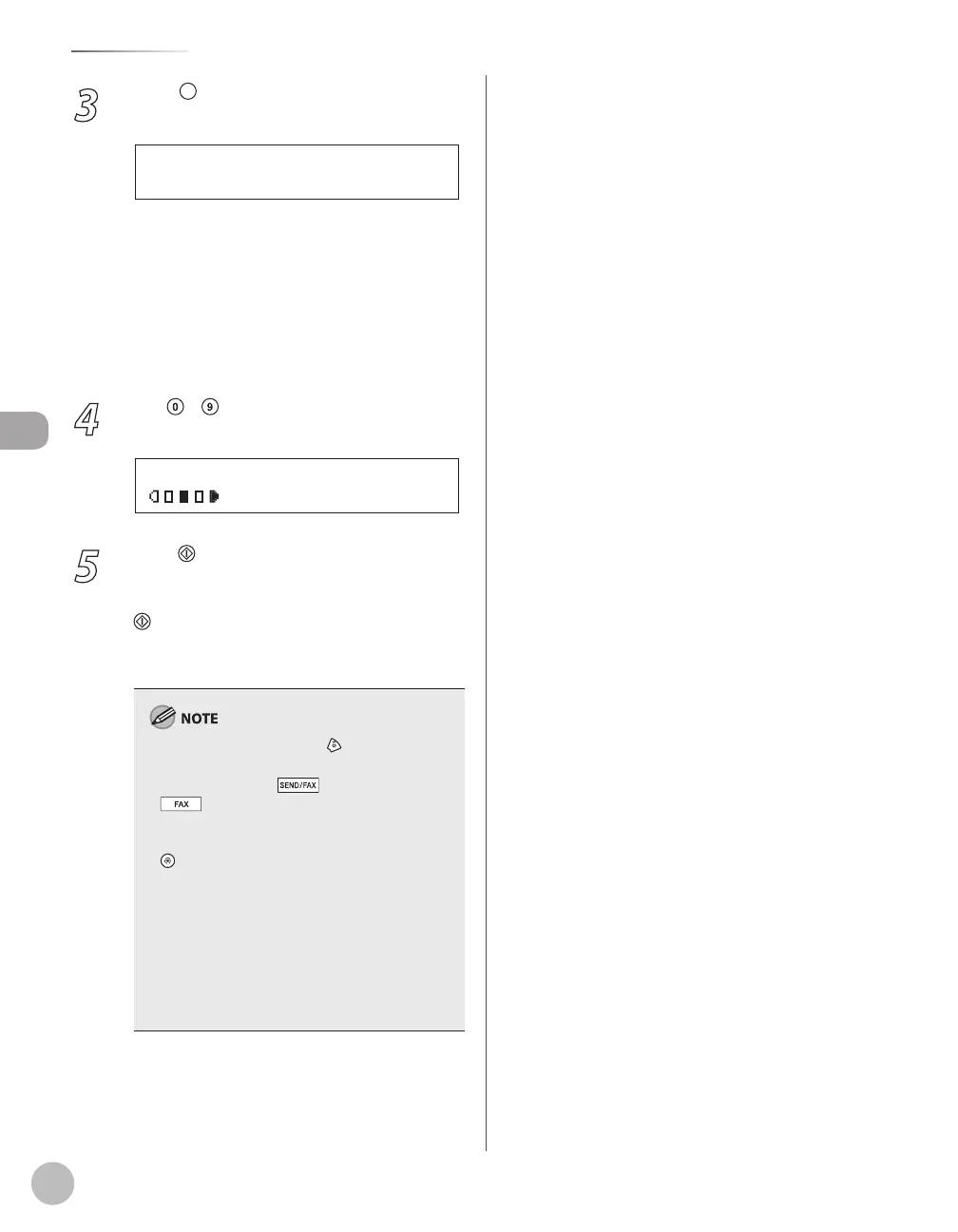
T E X T / P H O T O
1 0 0 % * L T R
0 1
5
Press [Start].
If you want to copy multiple documents using
the platen glass, place a document and press
[Start] once for each page. When scanning is
complete, press [OK]. The machine prints the
remaining sets of copies.
To cancel all settings, press [Stop/Reset].
When you switch the mode by pressing the
mode keys such as [SEND/FAX]/
[FAX], all settings will be also canceled. If
you want to keep the settings, set the collate
mode as follows:
[Menu] → <COPY SETTINGS> → <STANDARD
SETTINGS> → <COLLATE> → <ON> (See “COPY
SETTINGS,” on p. 13-5.)”
When scanning multiple page documents,
<MEMORY FULL> may appear in the display
and scanning may be canceled. If this happens,
press [OK] to return to the standby mode, and
print, send, or delete any documents stored in
memory.
–
–
–
–
–















 To Next Page