56
9600 Mobile Computer
Reference Manual
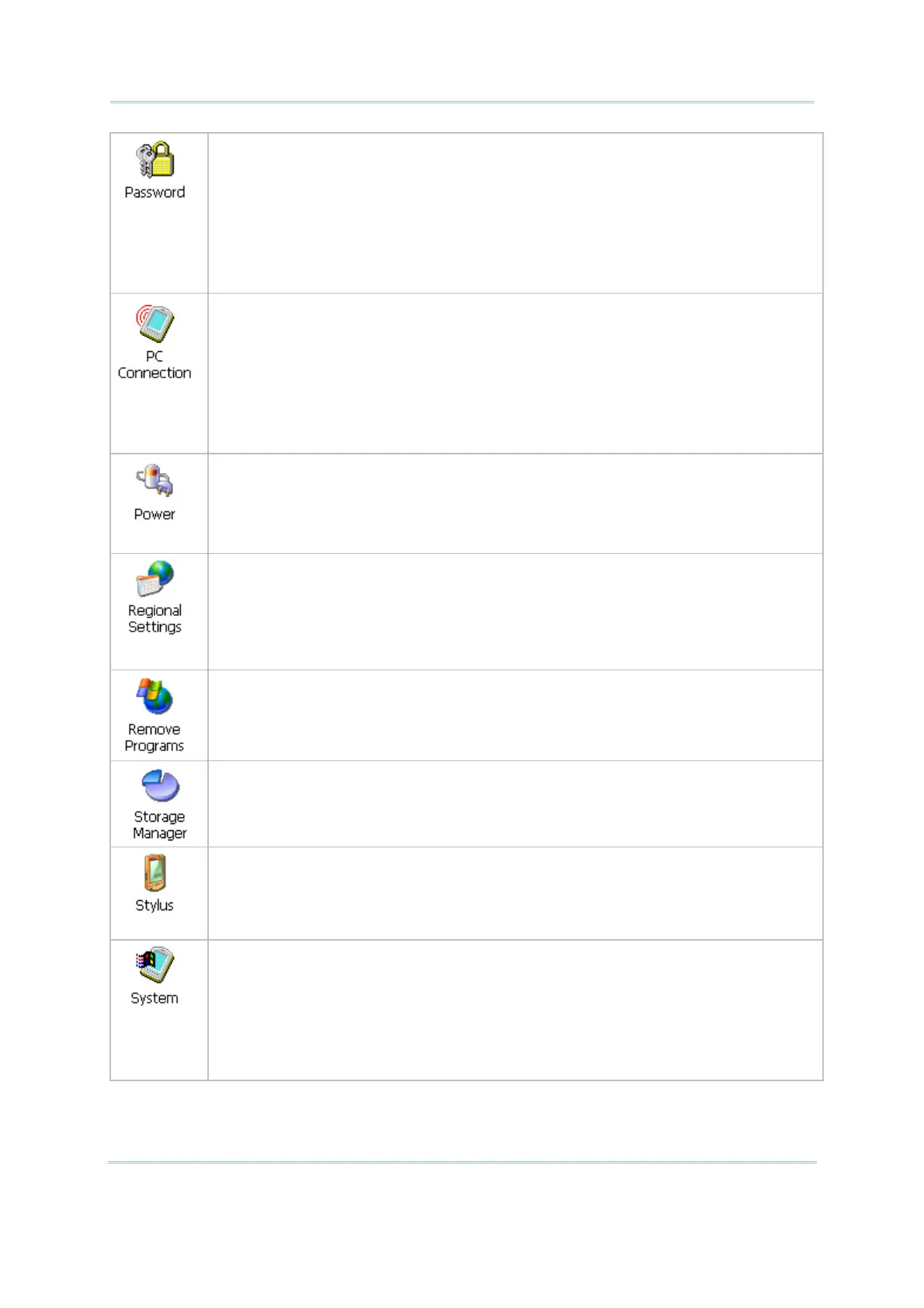
In the [Password Properties] dialog box,
Password Settings tab: You may apply password protection to the following
situations: (1) to limit access to the mobile computer at power-on, or (2) to limit
access to the DiskOnChip folder. When password protection is enabled, the
access to Control Panel and Password settings is also protected.
Date/Time Setting tab: By default, you are allowed to make changes
to the
Data/Time settings. To prevent unauthorized users
from accidentally changing
the settings, cancel the check box after applying password protection.
In the [PC Connection Properties] dialog box, you may disable the direct connection
between the mobile computer and a desktop computer.
By default, the mobile computer is allowed
to directly connect to a desktop
computer via the USB charging & communication cable. Alternatively, you may
tap Start | Settings | Network and Dial-up Connections and select
USB
Connection.
You may change to use Bluetooth if ActiveSync via Bluetooth has been enabled in
BT-Connect.
In the [Power Properties] dialog box,
Battery tab: You may view the current status of main and backup batteries.
Schemes tab: You may configure the power scheme and switching.
Device Status tab: You may view the devices that are consuming power.
In the [Regional and Language Settings] dialog box,
Region tab: You may customize the appearance and formatting to your
geographic region.
Language tab: By default, it is set to English (United States).
Input tab: By default, it is set to English (United States)-US.
In the [Remove Programs] dialog box, you may remove any program that is installed
earlier.
In the [Storage Properties] dialog box,
Storage Manager tab: Here provides information on the DiskOnChip folder or
storage card.
In the [Stylus Properties] dialog box,
Double-Tap tab: You may configure and test your double-tap settings.
Calibration tab: You may need to re-calibrate the touch screen if it is not
responding properly to your taps.
In the [System Properties] dialog box,
General tab: You may view the system information.
Memory tab: You may move the slider and adjust the SDRAM allocation.
Device Name tab: You may type a name and description for identifying the
mobile computer.
Copyrights tab: You may view the important statements on copyrights.



 To Next Page