User's Manual
144
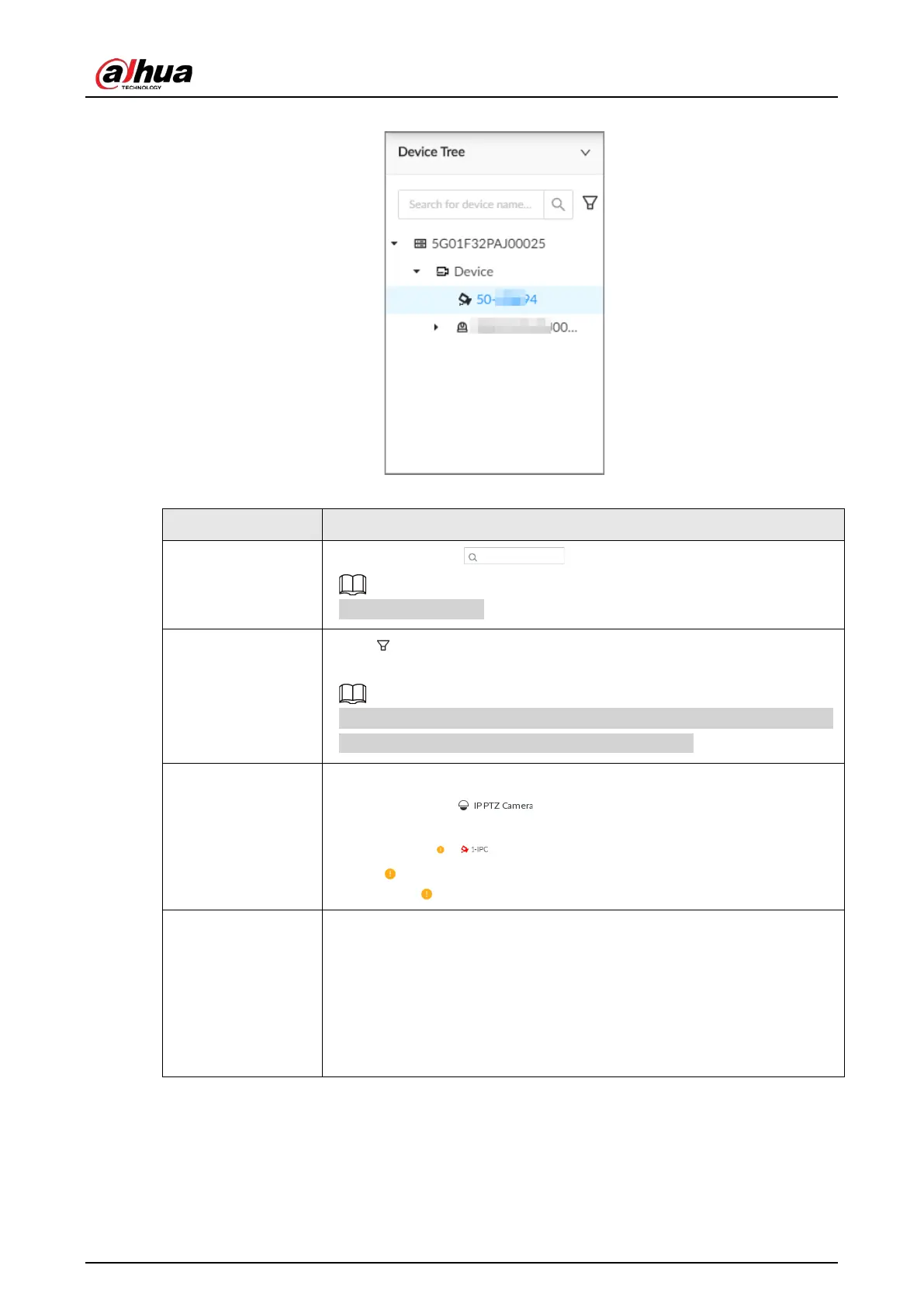
Figure 7-9 Device tree
Table 7-8 Device tree description
Operation Description
Search for devices
Enter keywords in .
Support fuzzy search.
Filter devices
Click and then select
All
,
Online
,
Offline
,
Device mismatch
and
Incorrect Username or Password
to filter the remote devices.
Device mismatch
refers to the situation where the remote device is not
compatible with IVSS due to inconsistent languages.
View device status
●
If the icon of the remote device is black, the remote device is online.
For example, .
●
If the icon of the remote device is red, the remote device is offline. For
example, .
●
If appears, the remote device is abnormal, alarming, and more.
Point to to view the detailed information.
Mouse operations
●
Point to the name of a remote device and then you can view its IP
address and port number.
●
Right-click a remote device to connect, disconnect, and open the
webpage of the remote device.
●
Double-click a remote device or drag the remote device to a video
window, and then you can enter edit the view. See "7.1.1.2.2 Editing a
View" for detailed information.
7.1.3 PTZ
Log in to the PC client. Use the PTZ panel at the lower-left corner of the
Live
tab to perform PTZ
control so that the PTZ camera can rotate accordingly to monitor all directions.


 To Next Page
 Loading...