3
Print Operations
3-22 ineo+ 650/550/451
3.6 Specifying the stamp/composition tab settings (PCL driver for
Windows)
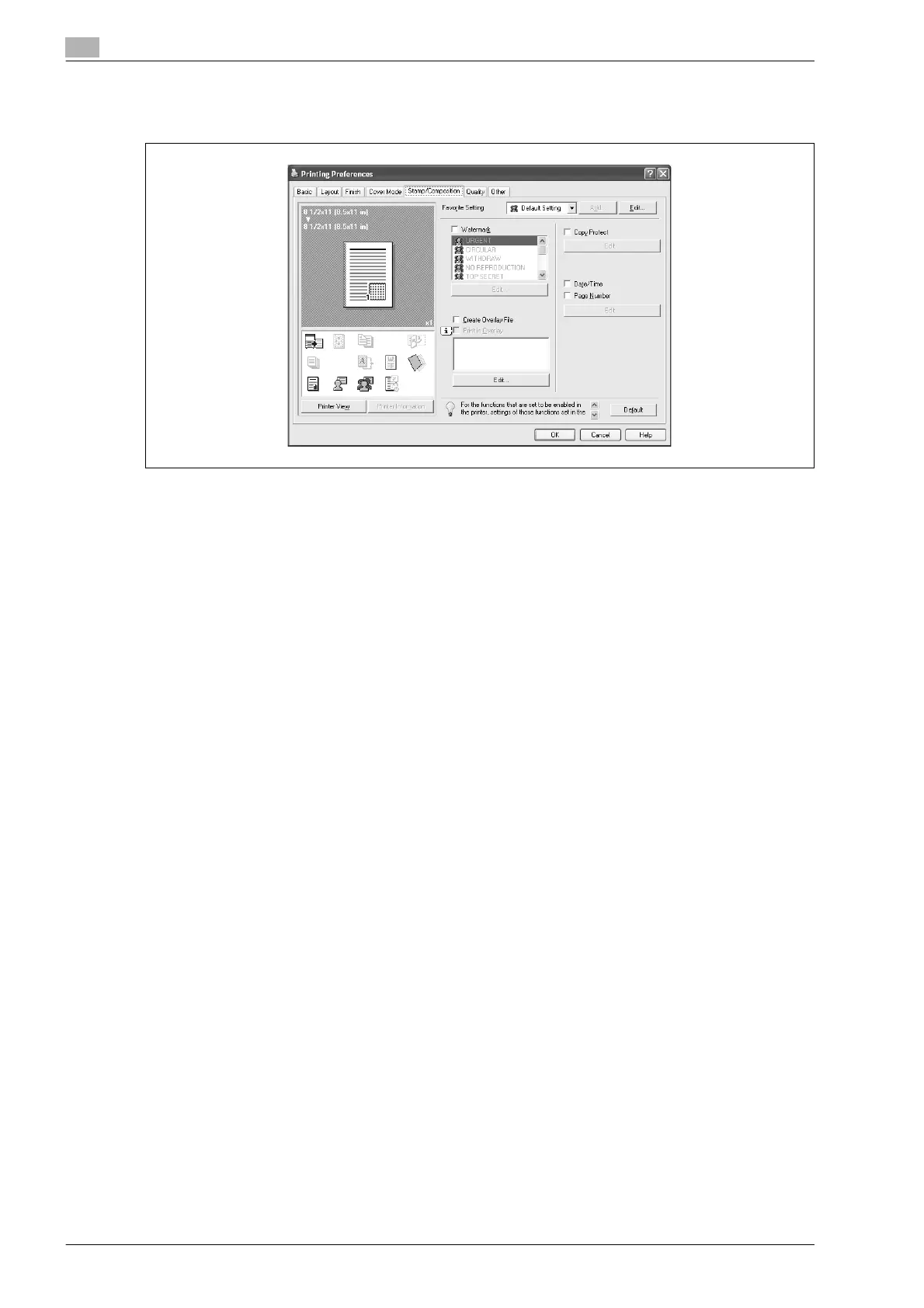
Printing a watermark
You can print specific text in the background as a watermark.
1 Click the Stamp/Composition tab.
2 Select the "Watermark" check box.
3 From the list, select the watermark that you want to print.
Editing a watermark
You can change the fonts and position of the watermark and you can register a new one.
1 Click the Stamp/Composition tab.
2 Select the "Watermark" check box.
3 Click the [Edit] button under "Watermark".
The Edit Watermark dialog box appears.
4 To create a watermark, click the [Add] button.
To change a watermark, select the watermark from the "Current Watermark" list.










 To Next Page