ineo+ 650/550/451 2-93
Copy Operations
2
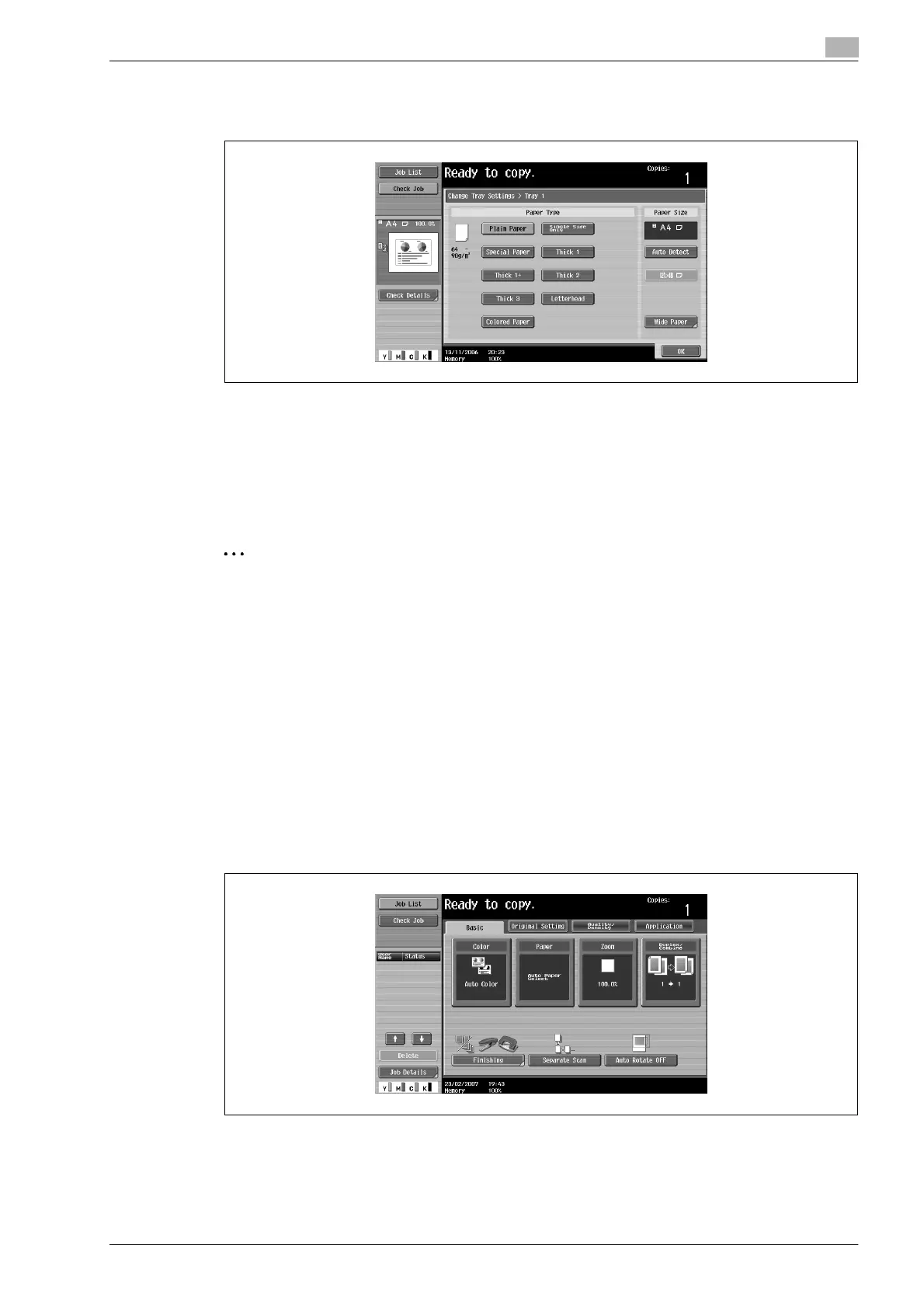
4 Select the appropriate setting for the type of special paper that is loaded.
– Touch the button for the desired paper type.
?
What types of paper can be loaded in the paper tray?
% There are limits on the types of paper that can be loaded in a paper tray.
% If postcards were loaded, select "Thick 3".
5 Touch [OK], and then touch [OK] in the next screen that appears.
The Basic screen appears again.
2
Reminder
If special paper is loaded into the paper tray, be sure to select the corresponding paper type, otherwise
a paper misfeed may occur.
!
Detail
For details on loading the paper into tray 3, refer to "Loading paper into tray 3" on page 2-19.
For details on loading the paper into tray 4, refer to "Loading paper into tray 4" on page 2-20.
Printing double-sided copies manually
The "2nd Side" setting is used to print double-sided copies on paper that cannot be fed through the
automatic duplex unit.
The paper to be used for printing the second side can be loaded into the bypass tray.
1 In the Basic screen, touch [Paper].
The Paper screen appears.










 To Next Page