ineo+ 650/550/451 3-29
Print Operations
3
Printing the date and page numbers
You can print the date and page numbers on a document.
1 Click the Stamp/Composition tab.
2 Select the "Date/Time" or the "Page Number" check box.
The "Date/Time" and "Page Number" check boxes can be selected at the same time.
3 Click the [Edit] button under "Page Number".
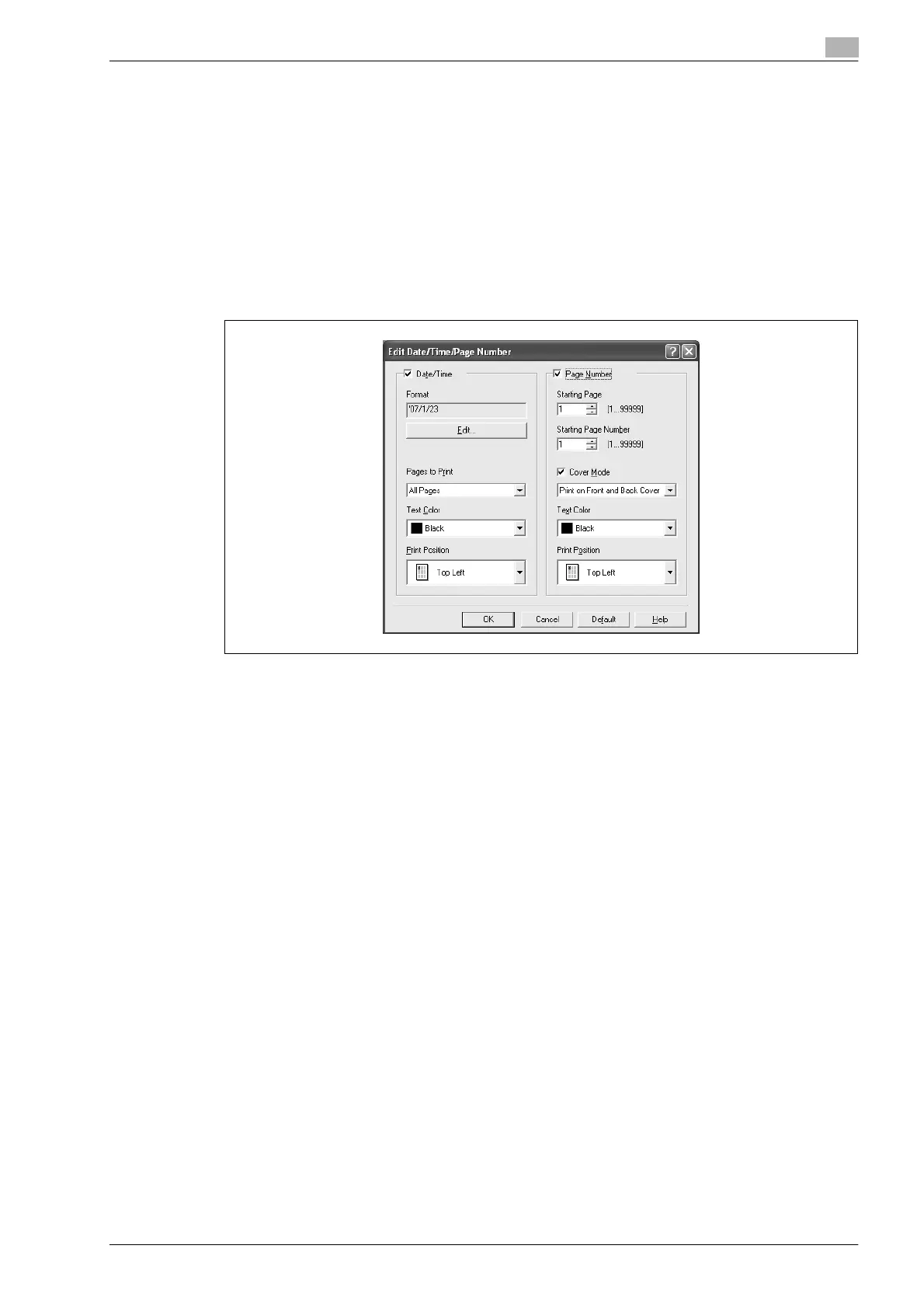
The Edit Date/Time/Page Number dialog box appears.
4 Specify the format and print position for the date, time, and page number.
– Format: Displays the format for the date and time to be printed. By clicking the [Edit] button, you
can specify the display type or the time format.
– Pages to Print: Specifies the pages to print the date and time.
– Text Color: Specifies the text color to print.
– Print Position: Specifies the print position.
– Starting Page: Specifies the page to start printing the page number.
– Starting Page Number: Specifies the start number for printing the page number.
– Cover Mode: If cover pages are attached, specifies whether to print the page number on the front
cover page or the back cover page.
5 Click the [OK] button.
Printing a header and a footer
1 Click the Stamp/Composition tab.
2 Select the "Header/Footer" check box.
3 From the drop-down list, select the Header/Footer setting.
– To specify the header and the footer details, continue with step 4.
4 Click the [Edit] button under "Header/Footer".
The Edit Header/Footer dialog box appears.
5 Specify the print settings and pages for the header and the footer.
– The number of digits for the distribution control number can be specified by clicking the [Edit]
button.
6 Click the [OK] button.










 To Next Page