ineo+ 650/550/451 5-73
Network Scanner Operations
5
13 Touch or .
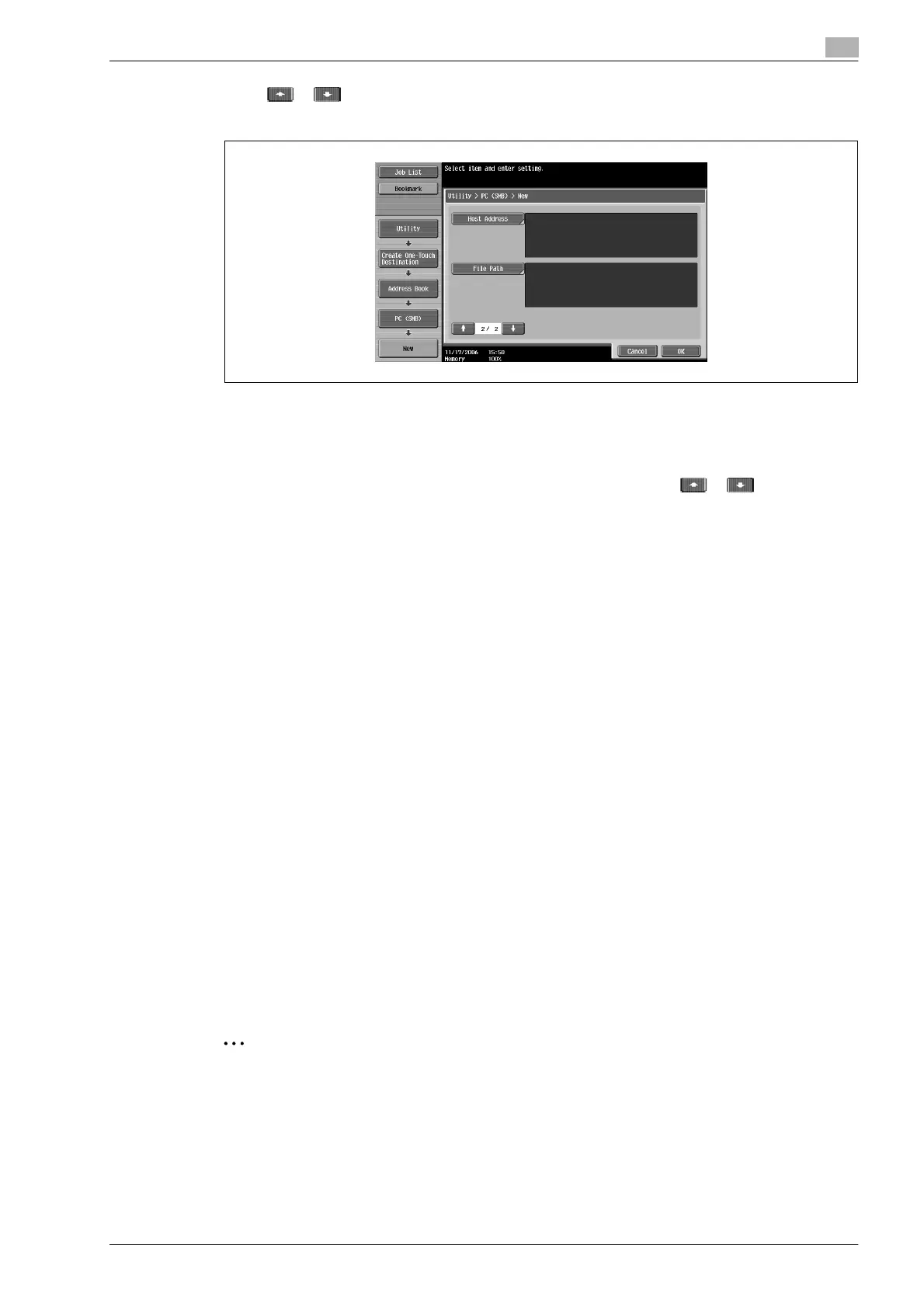
New screen 2/2 appears.
14 Touch [Host Address], and then type in the IP address or host name.
– To enter a host name, touch [Host Name Input], and then type in the host name, using the keyboard
that appears.
– To enter an IP address, touch [IPv4 Address Input] or [IPv6 Address Input], and then type in the
address, using the keypad or the number buttons that appear. Touch or to move the
cursor to the desired position, and then type in the numbers.
– When the input format is switched to entering an IP address after the host name was entered, the
host name is cleared.
– If [Host Name Input] is touched after the IP address was entered, the entered IP address is saved
and the input screen appears.
– Type the host name and file path in uppercase letters.
15 Touch [OK].
16 Touch [File Path], and then type in the file path, using the keyboard that appears.
– To check the contents of the shared folders, touch [Reference].
17 Touch [OK], and then touch [OK] in the next screen that appears.
The SMB destination is registered.
!
Detail
To check a registered destination, select it, and then touch [Check Job Set.].
To change the settings for a registered destination, select it, and then touch [Edit]. The registration
number cannot be changed in the Edit screen.
To delete a registered destination, select it, and then touch [Delete].
If the computers or workgroups on the network (subnet) that this machine belongs to is more than the
numbers listed below, browsing over the network may not be performed correctly.
Workgroups: 128
Computers: 128
2
Note
The registration cannot be completed if no settings are specified for "Name", "Host Address" and "File
Path".
To cancel the registration, touch [Cancel].
To finish specifying settings in the Utility mode, press the [Utility/Counter] key. Otherwise, exit the Utility
mode by touching [Close] in each screen until the screen for the Copy, Fax/Scan or Box mode appears.










 To Next Page