2
Copy Operations
2-4 ineo+ 650/550/451
2
Reminder
Do not apply extreme pressure to the touch panel, otherwise it may be scratched or damaged.
Never push down on the touch panel with force, and never use a hard or pointed object to make a
selection in the touch panel.
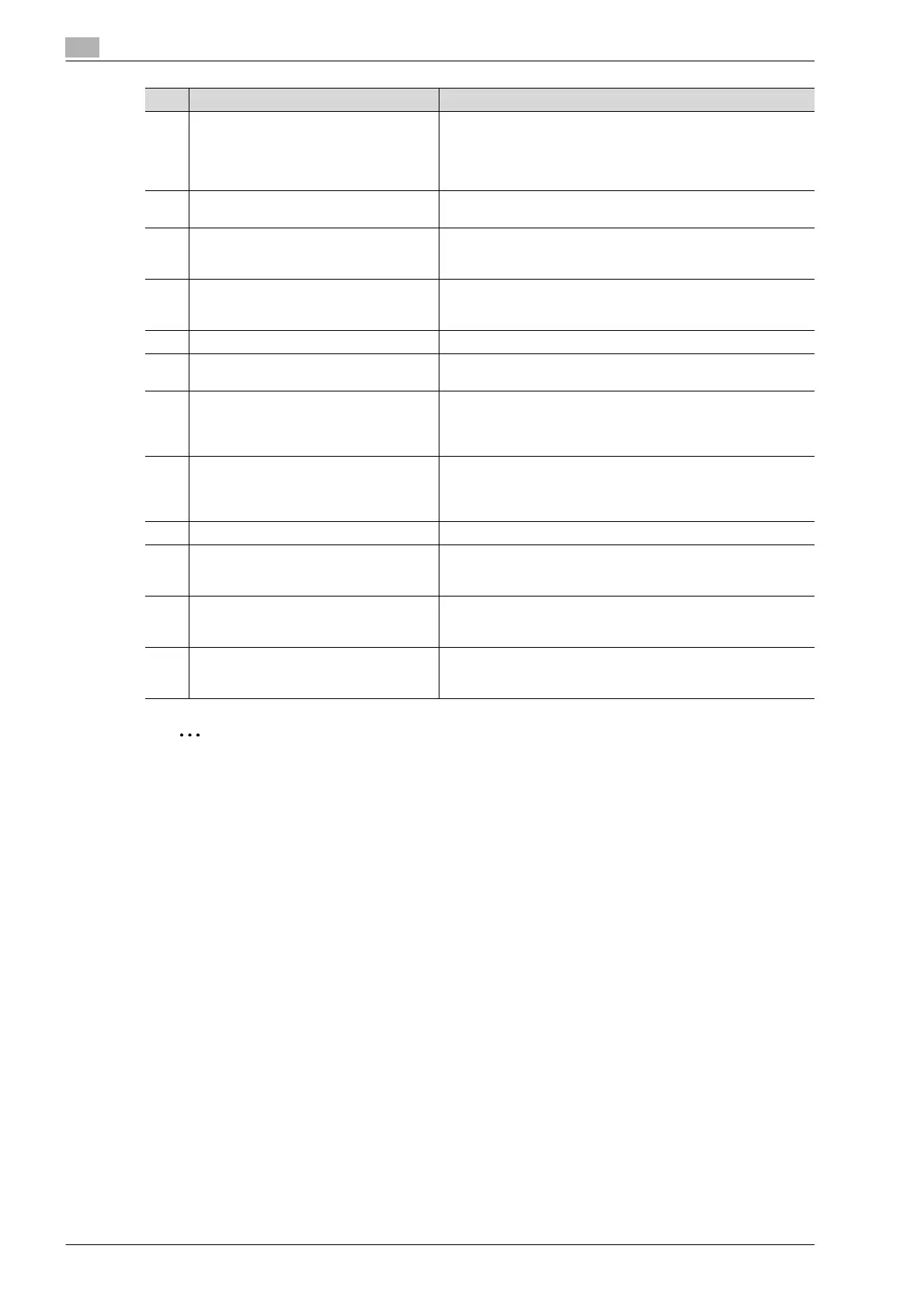
11 Data indicator Flashes in blue while a print job is being received.
Lights up in blue when a print job is queued to be printed or while
it is being printed.
The indicator lights up in blue when there is saved fax data or un-
printed fax data.
12 [C] (clear) key Press to clear a value (such as the number of copies, a zoom ra-
tio, or a size) entered using the keypad.
13 Keypad Use to type in the number of copies to be produced.
Use to type in the zoom ratio.
Use to type in the various settings.
14 [Help] key Press to display the Help Menu screen.
From this screen, descriptions of the various functions and de-
tails of operations can be displayed. (See p. 2-75)
15 [Enlarge Display] key Press to enter Enlarge Display mode.
16 [Accessibility] key Press to display the screen for specifying settings for user acces-
sibility functions.
17 [Power Save] key Press to enter Power Save mode. While the machine is in Power
Save mode, the indicator on the [Power Save] key lights up in
green and the touch panel goes off. To cancel Power Save mode,
press the [Power Save] key again.
18 [Access] key If user authentication or account track settings have been ap-
plied, press this key after entering the user name and password
(for user authentication) or the account name and password (for
account track) in order to use this machine.
19 [Brightness] dial Use to adjust the Brighthess of the touch panel.
20 [User Box] key Press to enter User Box mode.
While the machine is in User Box mode, the indicator on the [Us-
er Box] key lights up in green.
21 [Fax/Scan] key Press to enter Fax/Scan mode.
While the machine is in Fax/Scan mode, the indicator on the
[Fax/Scan] key lights up in green.
22 [Copy] key Press to enter Copy mode. (As a default, the machine is in Copy
mode.) While the machine is in Copy mode, the indicator on the
[Copy] key lights up in green.
No. Part name Description










 To Next Page