MightyMo/MiniMo User’s Guide 6-13
Part # 400030-C
Modifying Buttons Chapter 6: Working with Buttons
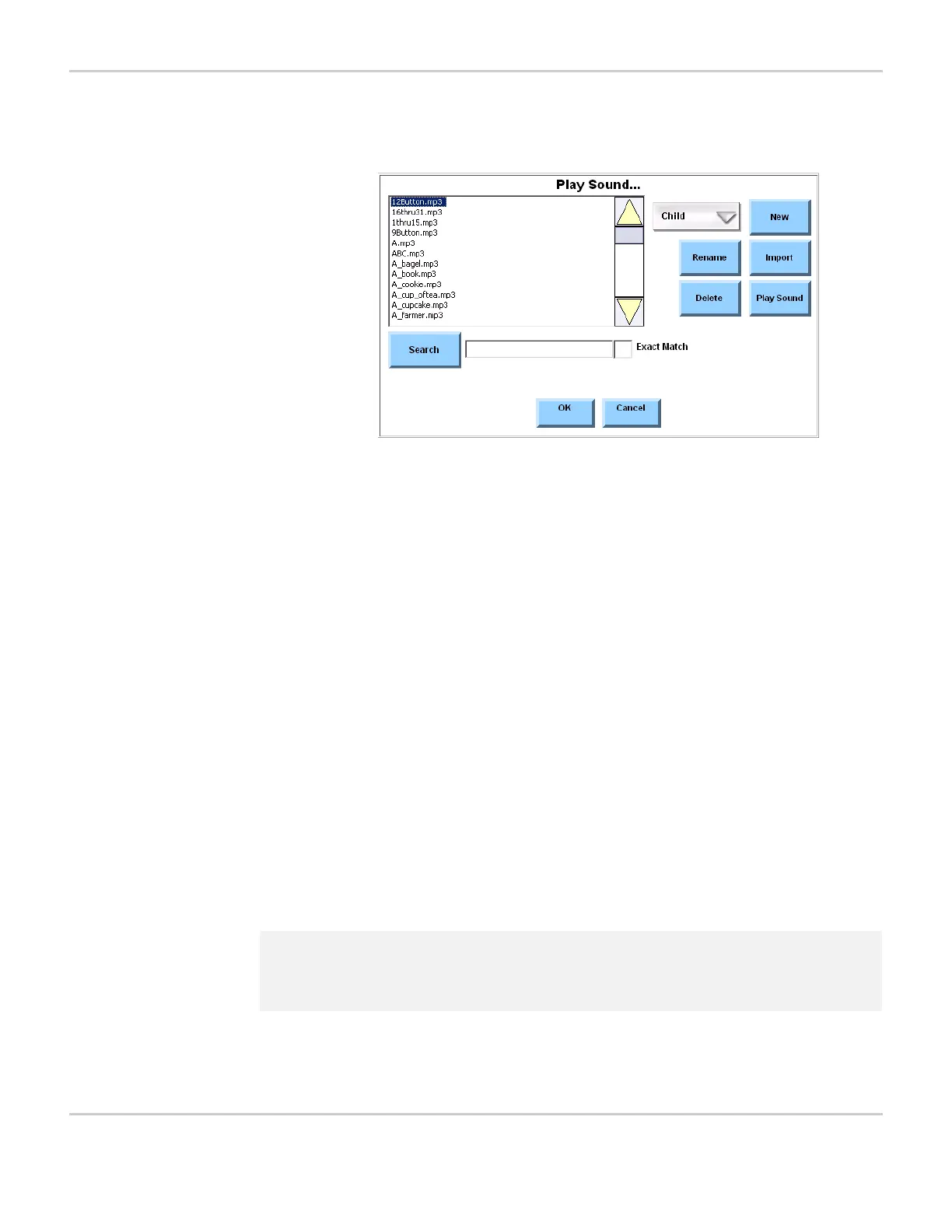
6. Select the Add button. The Play Sound... menu will open.
PLAY SOUND... MENU
The Play Sound... menu contains a viewport that displays all
sound files currently in the MightyMo/MiniMo and a Search text
box.
7. Use the pull-down menu to select the set of recordings you want to
display in the viewport. The options are: Mine and the set that you
initially ordered for your MightyMo/MiniMo (Male, Female or Child).
8. Locate the recording to be played by browsing or by searching.
See Browsing on page 4-35 for more information, or continue with
this step to search for a sound by name.
a. Select the Search text box. The system keyboard will open.
b. Enter the name of the sound.
c. Select the OK button to close the system keyboard.
d. If you want to search for an exact match (including capitalization
and file extension), select the Exact Match check box.
e. Select the Search button. Any sound that matches your search
criteria will be highlighted in the viewport.
f. Select the sound in the viewport.
2 Note: If you want to import a custom sound from a secondary storage
card or USB storage device, refer to Import a Recording on
page 8-20 for step-by-step instructions.



 To Next Page