6-14 DynaVox Technologies
Chapter 6: Working with Buttons Modifying Buttons
The recording, when selected, will be highlighted in the Play
Sound... menu.
9. Select the OK button to close the Play Sound... menu. The Steps
list in the Behavior Editor menu will now contain the Play a
Recording behavior with the name of the selected sound file in
parenthesis.
10. Select the OK button to close the Behavior Editor menu.
11. Select the OK button to close the Modify Button menu.
Set Up the Go to Page
Behavior
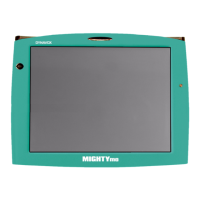
When a button containing the Go to Page behavior is selected, the
MightyMo/MiniMo will open the page that was specified when the
behavior was set up. Use buttons with this behavior to navigate
between pages.
To add the Go to Page behavior to a button, follow these steps:
1. Open the page with the button that will contain the Go to Page
behavior.
2. Select the green Modify button in the title bar. The button will turn
red when it is selected.
3. Select the button that will contain the behavior. The Modify Button
menu will open.
4. Select the Behaviors button. The Behavior Editor menu will open.
5. Select the Go To Page behavior in the Behaviors list.
2 Note: To hear the sound in a recording before choosing it for the button,
select the sound in the list, and then select the Play Sound button.


 To Next Page