MightyMo/MiniMo User’s Guide 4-11
Part # 400030-C
About Pages Chapter 4: Working with Pages
14. Select the OK button to close the Make a New Page With: menu.
The system keyboard will open.
15. Use the system keyboard to enter the page name.
16. Select the OK button to close the system keyboard.
• If you did not select the Add Tab Control? check box, the newly
created page will open and you have completed this procedure.
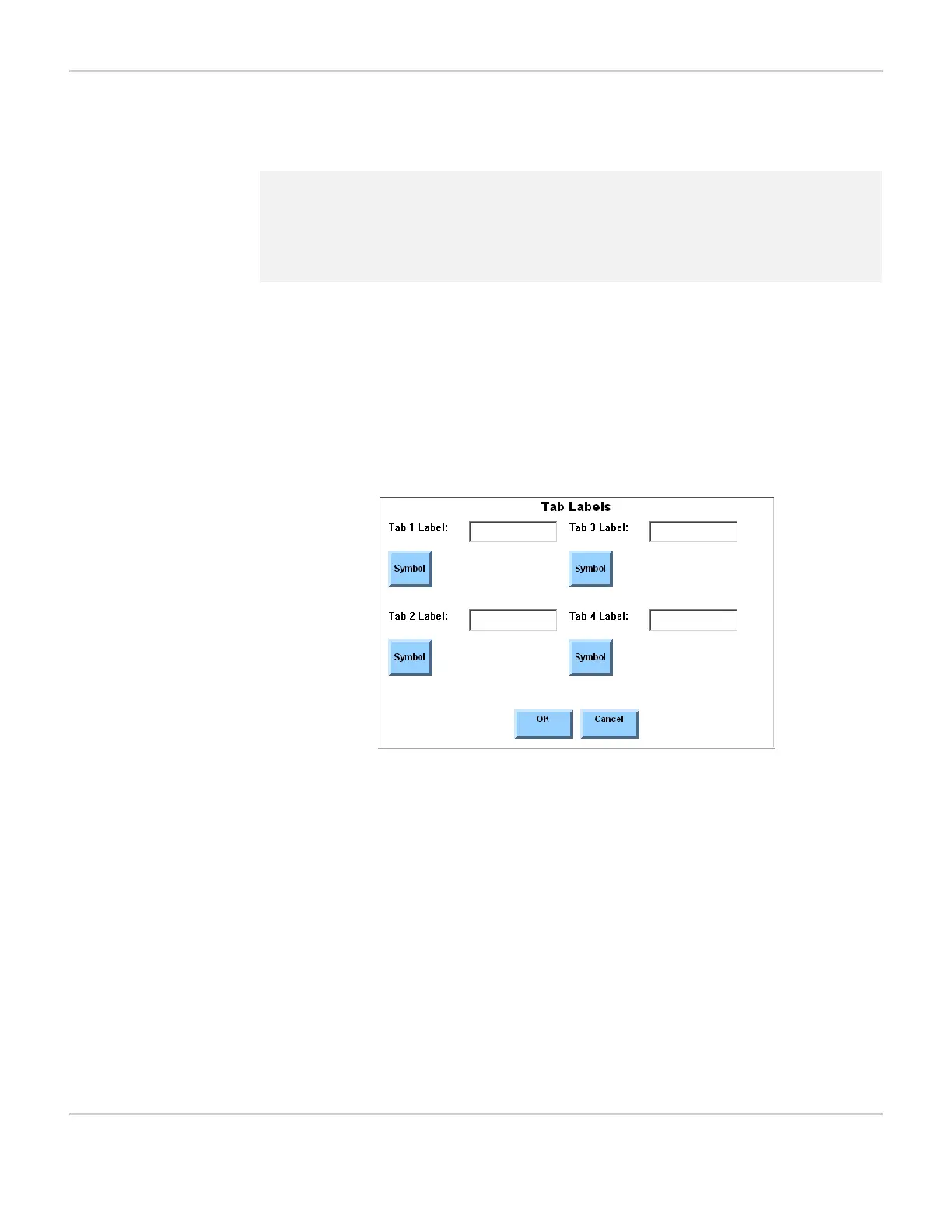
• If you selected the Add Tab Control? check box, the Tab Labels
menu will open. Continue with the remaining steps.
TAB LABELS MENU
The Tab Labels menu contains these items for adding labels or
symbols to the tabs on a tab control:
2 Note: If you are using an image that is stored on a USB storage device or
secondary storage card as the page background, the software will
ask if you want to save the background image onto your primary
data storage card. It is recommended that you select Yes to
continue.
Tab 1 Label Allows you to create a label for Tab 1.
Tab 1 Symbol Allows you to select a symbol for Tab 1.
Tab 2 Label Allows you to create a label for Tab 2.
Tab 2 Symbol Allows you to select a symbol for Tab 2.
Tab 3 Label Allows you to create a label for Tab 3.
Tab 3 Symbol Allows you to select a symbol for Tab 3.
Tab 4 Label Allows you to create a label for Tab 4.
Tab 4 Symbol Allows you to select a symbol for Tab 4.



 To Next Page