31.6 Ending an OMNI Smart Programmer Remote Session
An OMNI Smart Programmer remote session can be terminated from either the Clinical
or Remote Programmer.
In order to terminate an OMNI Smart Programmer remote session:
• Select the Connect button on the Tool Bar again after a session has been
initiated.
31.7 Sending a Chat Message Using the OMNI Smart Programmer
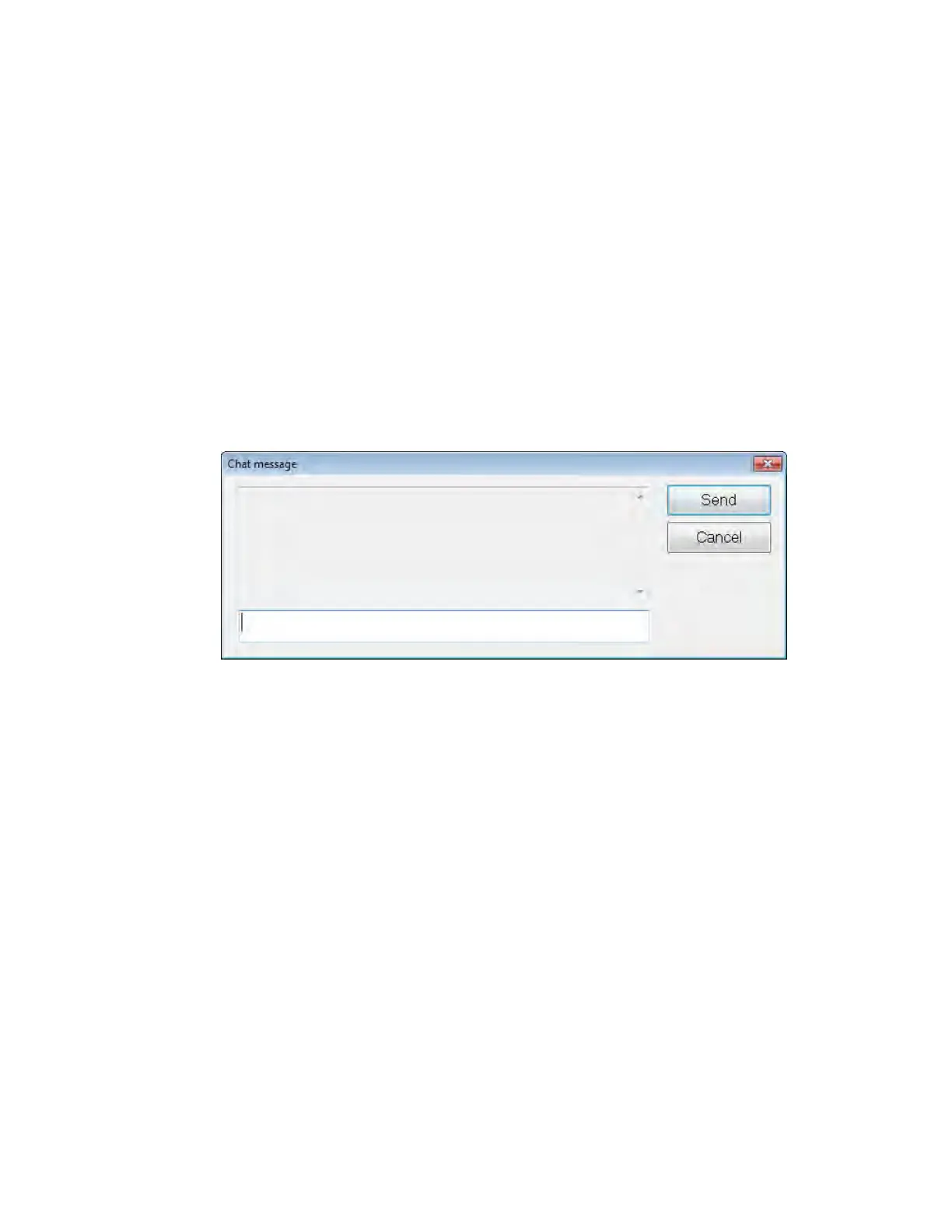
In order to send a chat message, open the Chat message window by selecting the Send
Msg button on the Tool Bar. When the Chat message window appears, write the message
in the white space and press Enter or click the Send button. Any previously sent and
received messages will appear in the Chat message window above the white space where
the message is entered.
If you receive a chat message while the Chat message window is closed, the window will
pop up automatically.
Figure 56: Chat message Window
31.8 OMNI II Log Upload/Download
The OMNI Smart Programmer allows uploading and downloading of log files to and
from the OMNI Remote Server.
31.8.1 OMNI II Upload/Download Log Window
The Upload/Download Log window allows you to send log files to the server,
receive log files from the server, refresh the server log files, and change network
settings. To open the Omni II Programmer Upload/Download Log window:
• select the Log Files button on the Task Bar
• select the Up/Down button on the Tool Bar.


 To Next Page