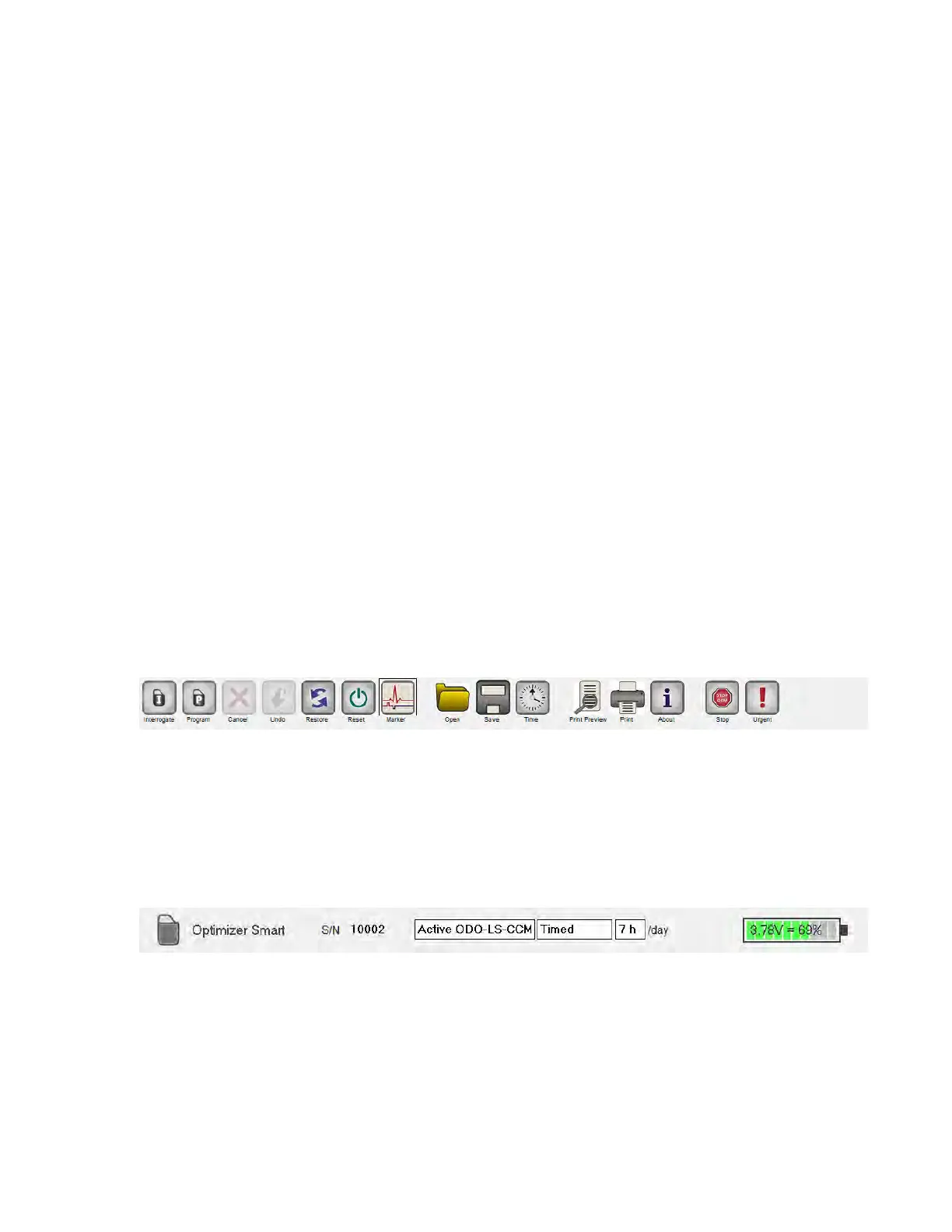
• Print Preview: Opens up the Print Preview window containing following
buttons that can be selected for previewing their associated print functions:
o Print Parameters: The list of the current OMNI Smart Programmer values to
be printed is previewed.
o Print Statistics: The list of the current statistics to be printed is previewed.
o Print Follow Up: The list of the current Follow Up measurements to be
printed is previewed.
o Print Screen: A snapshot of the current screen is created as a bmp file.
• Print: Opens up the Print window containing following buttons that can be
selected for printing:
o Print Parameters: The list of the current OMNI Smart Programmer values is
sent to the default printer.
o Print Statistics: The list of the current statistics is sent to the default printer.
o Print Follow Up: The list of the current Follow Up measurements is sent to
the default printer.
o Print Screen: A snapshot of the current screen is created as a bmp file.
• About: Displays information about the OMNI Smart Programmer software
version.
• Start/Stop: Activates CCM signal delivery (if CCM is OFF) or deactivates CCM
signal delivery (if CCM is ON).
• Urgent (F4): Programs the OPTIMIZER Smart IPG with safe standard values in
case of emergency [Standby (OOO) mode, CCM OFF].
Figure 15: Tool Bar
Note: When a command button appears grayed out on a Tool Bar, this indicates that the
command is not currently available.
12.6 Device Bar
The Device Bar displays the device model, serial number, current CCM therapy status,
and current battery level of the interrogated device.
Figure 16: Device Bar


 To Next Page