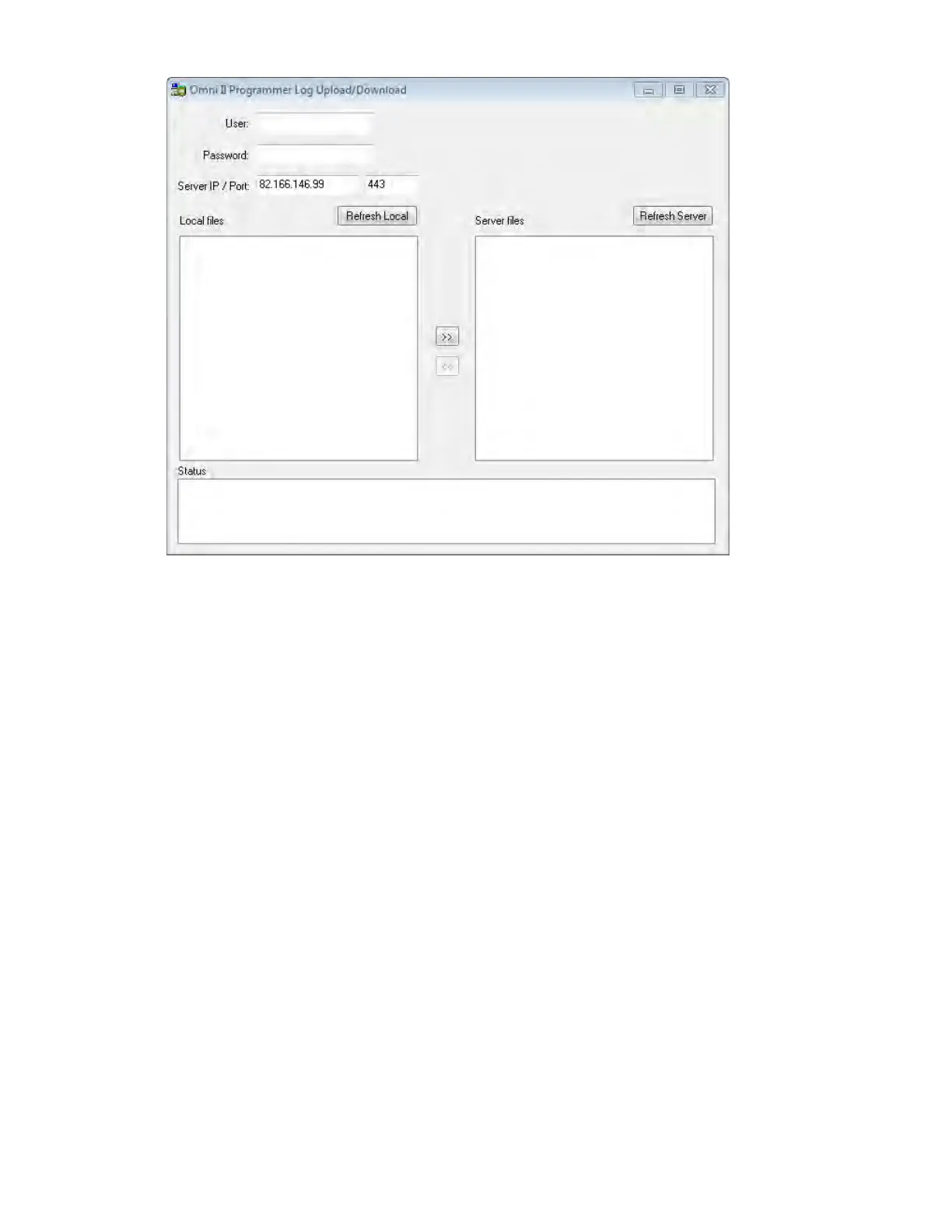
Figure 57: Omni II Programmer Log Upload/Download Window
31.8.2 OMNI II Refresh Local
In order to display the local log files stored on the OMNI Smart Programmer,
click the Refresh Local button.
31.8.3 OMNI II Refresh Server
In order to display the log files stored on the server, the OMNI Smart Programmer
must first be connected to Internet. See Sections 30.1 and 30.2 on ways to connect
the OMNI Smart Programmer to the Internet. The user must enter the following
information:
• User: a user name compatible with the current Programmer’s startup
mode. If the user name is not registered with the server, the connection
will be rejected.
• Password: a password corresponding to the user name that is stored in the
server.
• Server IP / Port: IP address of the server. (This is set by Impulse
Dynamics before the OMNI Smart Programmer is shipped and does not
need to be changed.)
Once all the information above has been entered, the user must press <Enter> or
click the Refresh Server button. If the connection is successful, the Server files
list will be updated. If an error occurs the error message will appear in the Status
space, requiring the user to retry the connection.



 To Next Page