10.8 Using the OMNI II Programmer Tablet PC Touch Screen
The OMNI II Programmer Tablet PC is equipped with a touch screen. Selections on the
screen may be made by touching the screen with one’s finger or the attached stylus.
Caution: Using sharp items or regular writing equipment (pen, pencil) may damage the
touch screen.
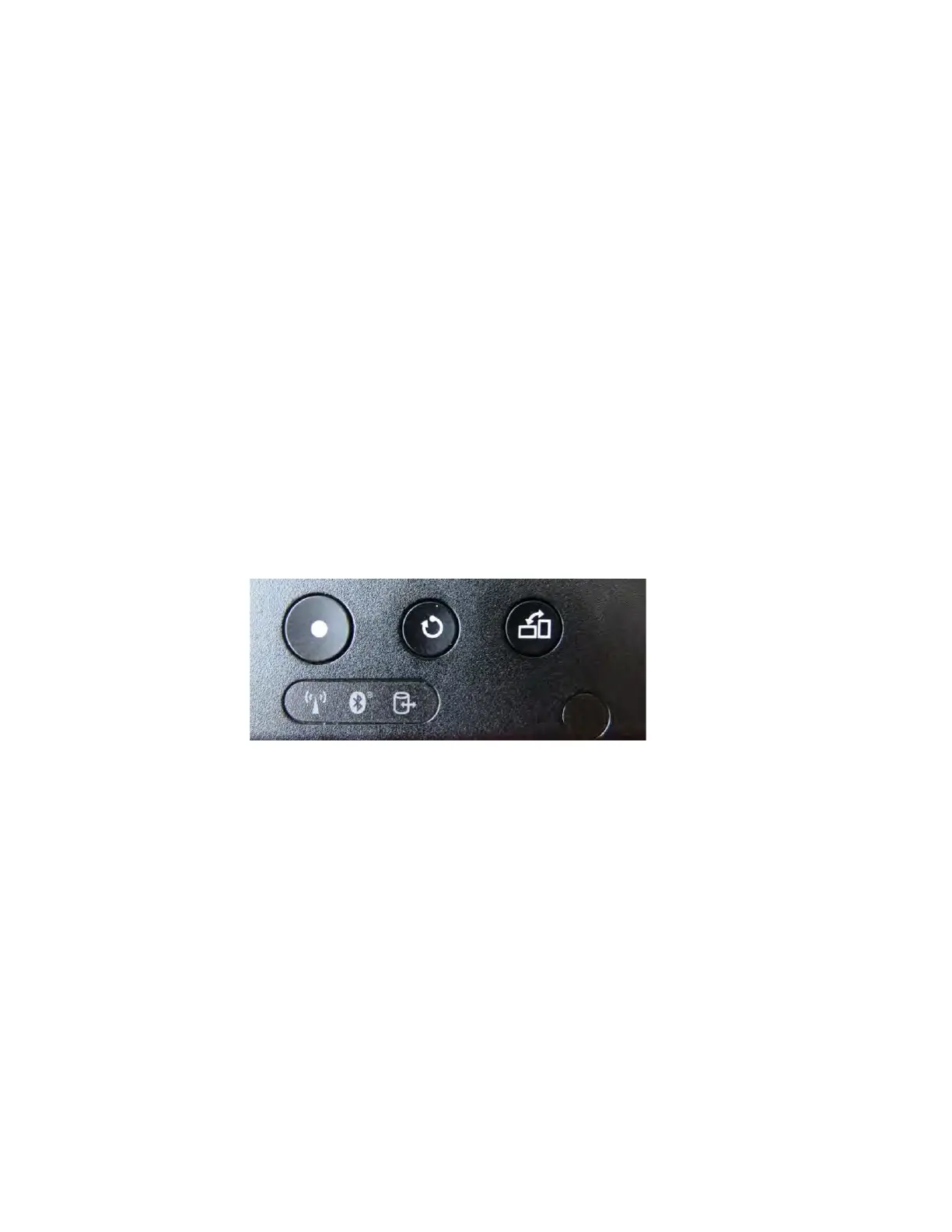
10.9 Buttons and Symbols on the OMNI II Programmer Tablet PC
The OMNI II Programmer Tablet PC has 3 buttons and 3 illuminated indicator symbols
located on the left side below the touchpad. Those have the following functions (from left
to right)
Buttons (top row from left to right):
• Main switch
• Change user (disabled)
• Screen rotating function (disabled)
Illuminated Indicator Symbols (bottom row from left to right):
• Indicates WLAN / WIFI is active
• Indicates Bluetooth is active (not shown on all Tablet PC models)
• Indicates hard drive operation
Figure 6: Example of Buttons and Illuminated Symbols on OMNI II Programmer Tablet
PC
10.10 OMNI II Programmer Tablet PC Battery Replacement
The OMNI II Programmer Tablet PC is powered by a battery that may need to be
replaced if it fails to properly recharge. Contact your local Impulse Dynamics
representative if a replacement battery is needed.
Warning: Proper disposal of the used battery is essential. Dispose of the used battery in
accord with local environmental requirements.
Warning: Never puncture or incinerate a used battery.



 To Next Page