12.9 Parameter Conflict Bar
In the bar under the Programming Bar, parameter conflict messages are displayed. These
messages indicate which parameter values are in conflict, why the parameters are in
conflict and the name of the parameter tab in which the conflicting parameters appear. By
clicking on an error message, a list of the parameters that are in conflict appears. By
selecting a parameter in this list, a window with all its possible values pops up, allowing
the value of the conflicting parameter to be directly modified. See Section 14.2 for ways
in which to resolve parameter conflicts.
Figure 19: Example of Parameter Conflict Message in Parameter Conflict Bar
12.10 Task Bar
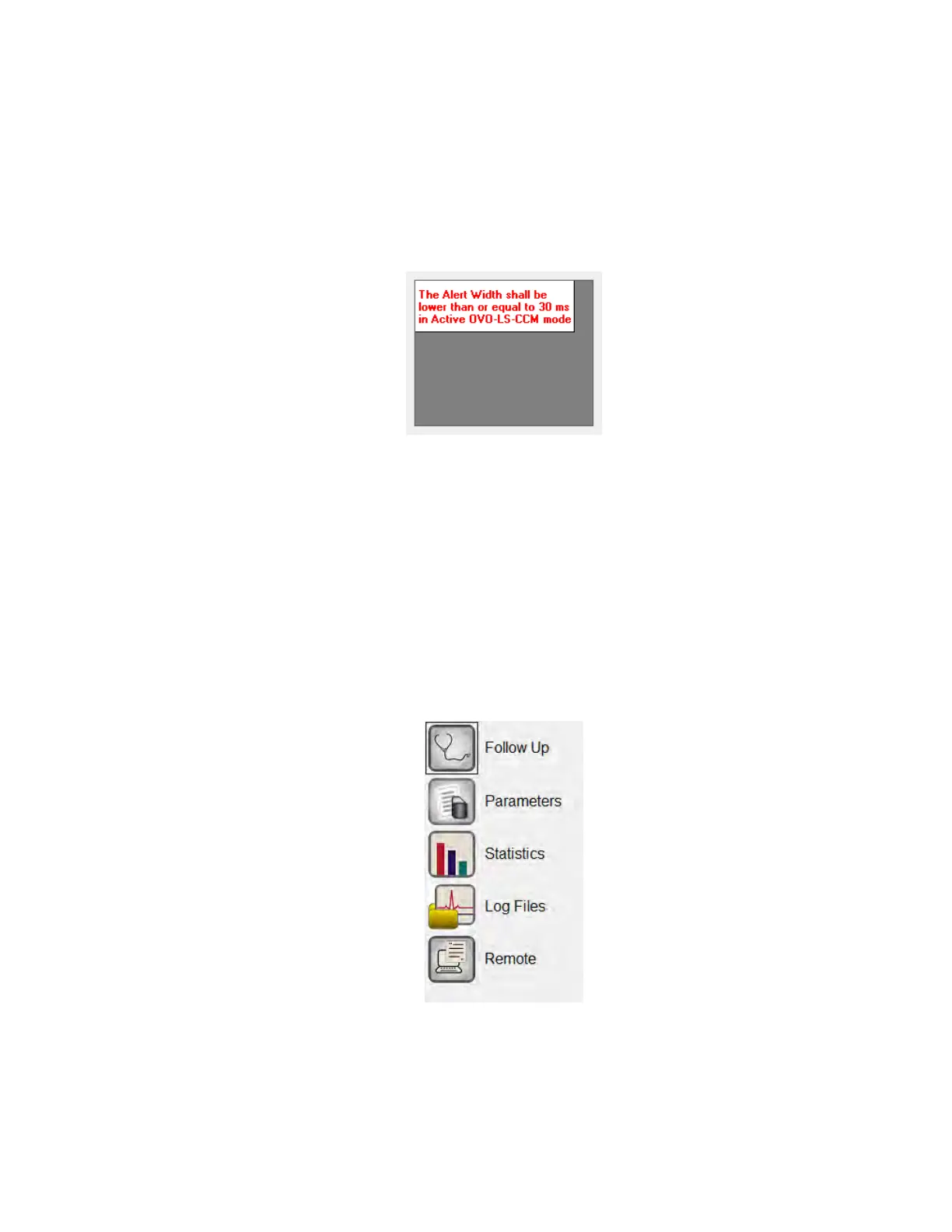
The Task Bar is displayed next to the Programming Bar. The various commands of the
OMNI Smart Programmer software are grouped under the following buttons:
• Follow Up
• Parameters
• Statistics
• Log Files
• Remote
Figure 20: Task Bar



 To Next Page