31.1 Connecting the OMNI Smart Programmer to a Wired Ethernet
Network
Note: The connection of the OMNI II Programmer Tablet PC to a wired internet network
must only be done through the medical-grade Ethernet isolator.
If use of the Remote Operation Mode is desired, and connection to the Internet is via
wired network, the OMNI Smart Programmer must be connected to a standard 10/100
Ethernet network via the unused RJ-45 Ethernet port on the medical-grade Ethernet
isolator attached to the bottom of the OMNI II Programmer Tablet PC.
31.2 Connecting the OMNI Smart Programmer to a Wireless Network
If use of the Remote Operation Mode is desired and connection to the Internet is via
wireless network, the OMNI Smart Programmer must first be configured to connect to a
wireless network.
31.2.1 OMNI Smart Wireless Network Configuration
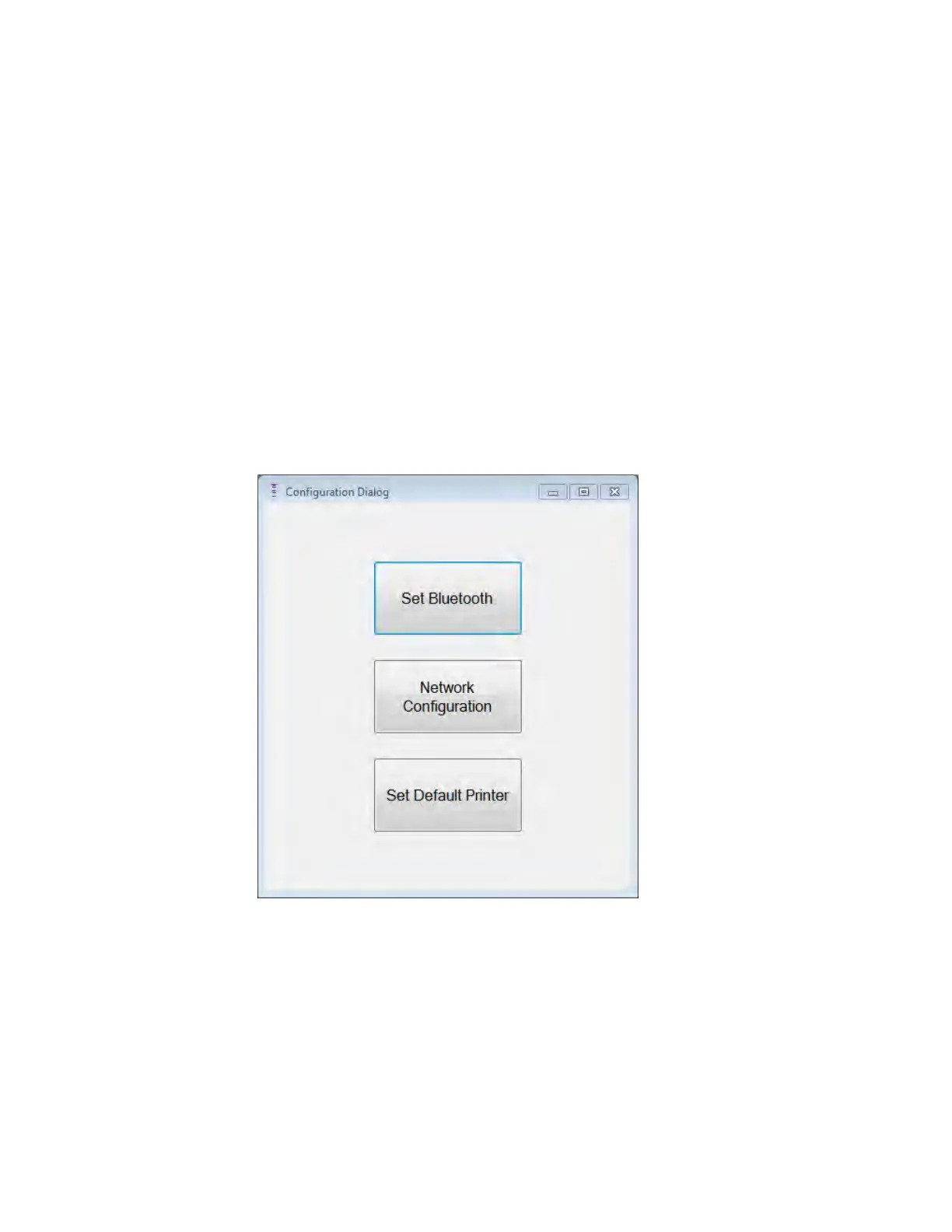
At the Selector screen, click the “Configuration” button. The Configuration
Dialog window will appear.
Figure 52: Configuration Dialog Window
Click the “Network Configuration” button to setup the connection with the server
or change network settings. The Network configuration window will appear.
Note: If no wireless networks appear, click on the “Refresh” button to view the
available wireless networks within range of the OMNI Smart Programmer.



 To Next Page