32.3 Set Bluetooth
The pairing of the Zebra Bluetooth printer provided with the OMNI Smart Programmer
has already been done prior to shipment. However if a replacement Zebra Bluetooth
printer must be paired with the OMNI Smart Programmer, perform the following steps:
• Press the Power button on top of the Zebra printer to power up the printer.
• On the Selector screen, click the Configuration button. The Configuration Dialog
window will appear.
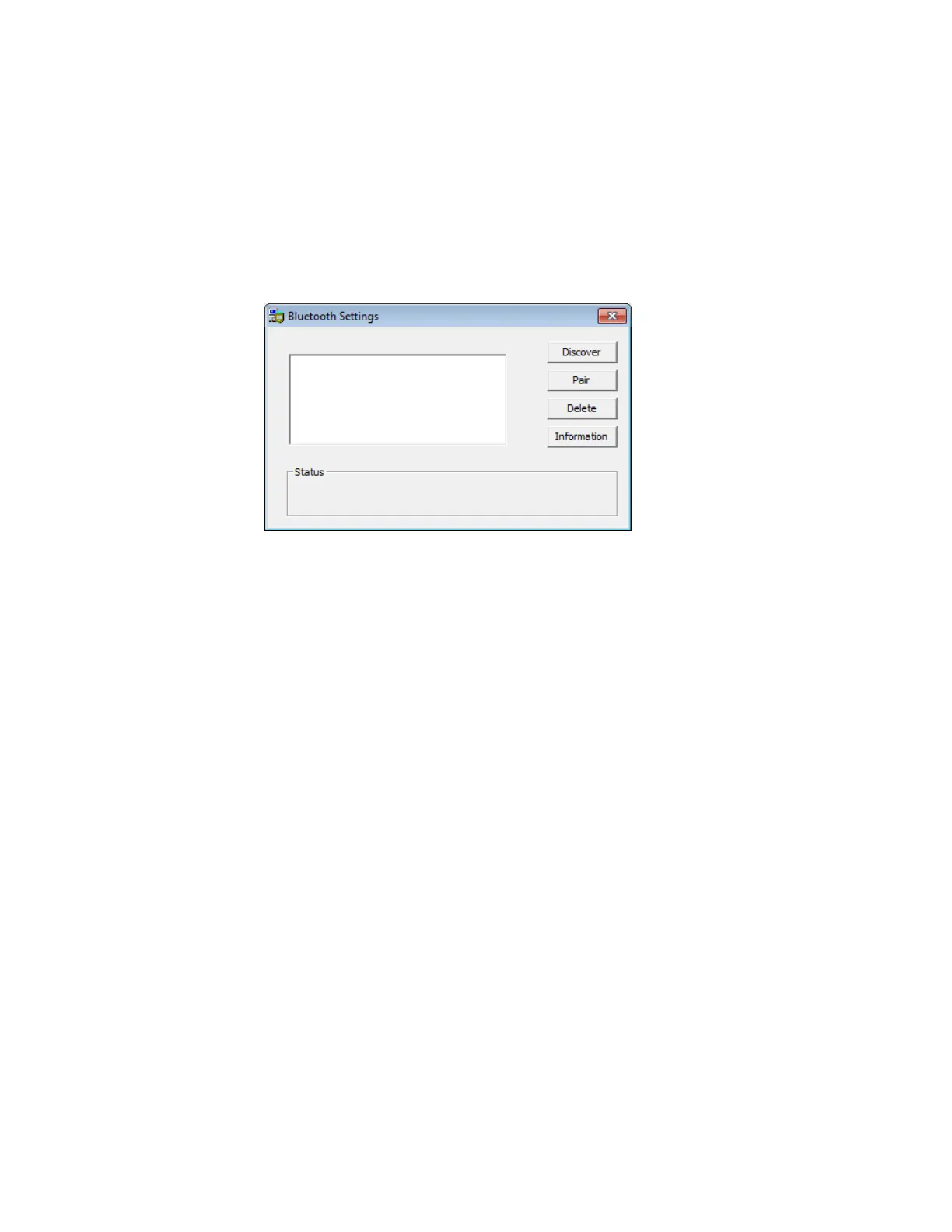
• Then click the Set Bluetooth button. The Bluetooth Settings window will appear.
Figure 58: Bluetooth Settings Window
• Click on the Discover button to search for Bluetooth devices.
• If “Zebra Printer (Authenticated) appears, select it and then click the Delete
button.
• Click on the Discover button again to search for Bluetooth devices.
• Select “Zebra Printer” from the list of Bluetooth devices discovered and then click
the Pair button.
• When the Bluetooth Authentication Code window pops up, enter the pair code
“0000”, and then click OK.
• When the Set Bluetooth pop-up window appears stating that “The pairing
operation was done correctly”, click OK.
• Click on the X to close the Bluetooth Settings window.



 To Next Page